The Writing Process Summary is usually the first section you see in a writing process report. It puts the key numbers in one place: how long the writer was actively writing, how many words the final text has, and when the document was last worked on.
Most numbers are a preview. The grey line under a number points to the section of the report with the details. That line appears only when the section is included in the report.
A. What most people see
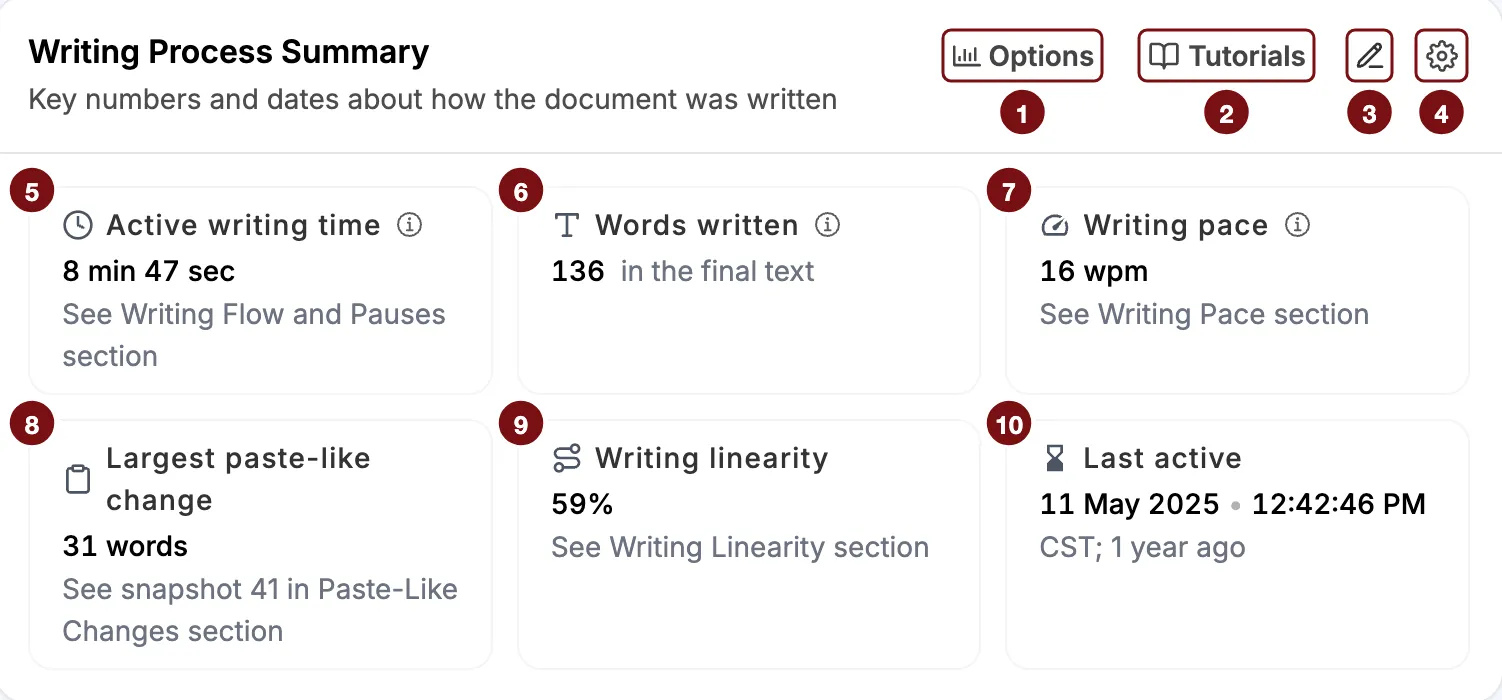
The four buttons at the top work the same way as in other sections:
- Options lets you show more numbers. See B. Show more details.
- Tutorials opens tutorials and help for the report.
- Add note lets you write a comment on this section that travels with the report.
- Layout options let you collapse the section or move it up or down in the report.
The six numbers, using the document in the figure as an example:
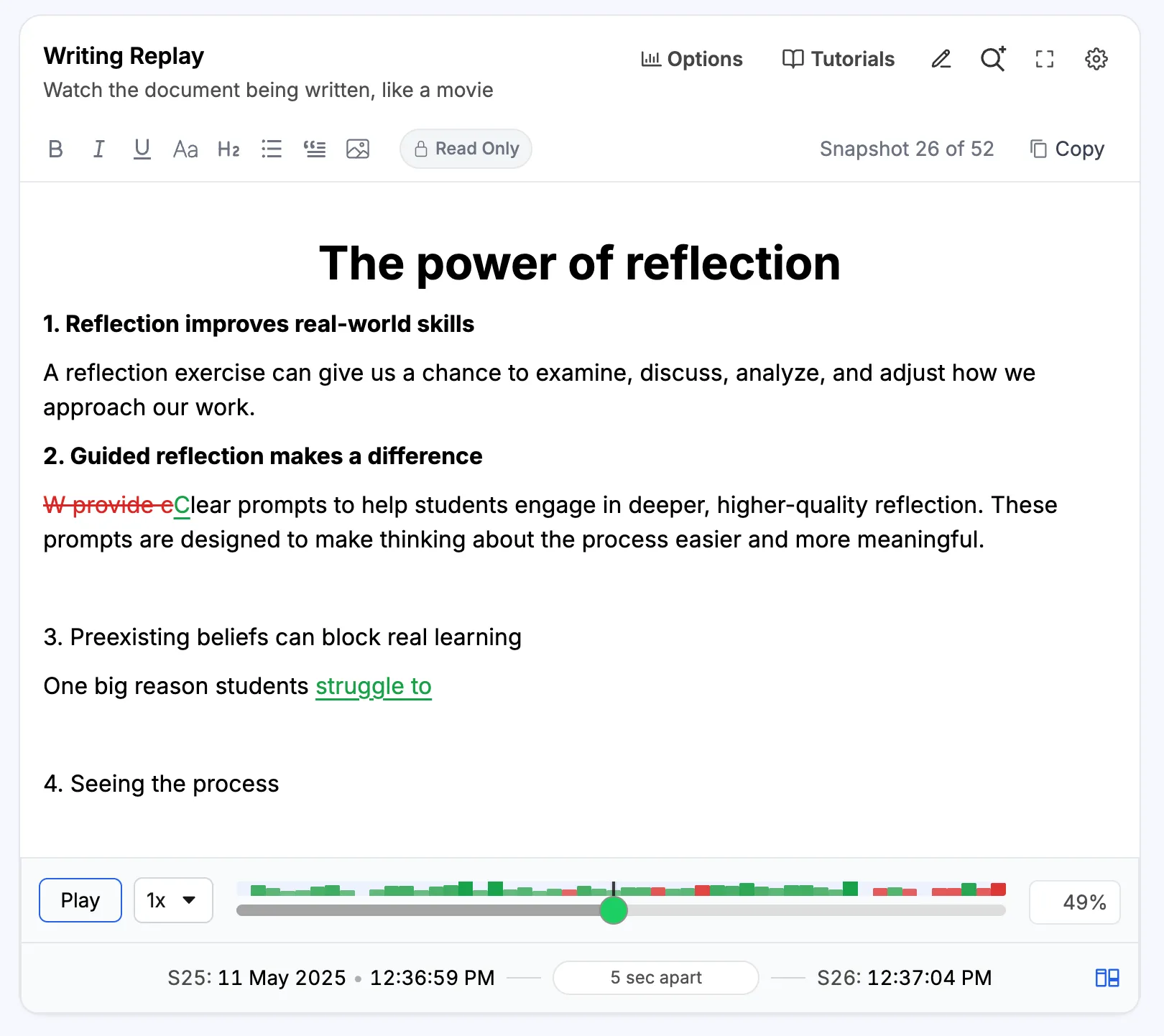
- Active writing time is the time the writer spent typing, with short pauses counted as writing and longer pauses left out. Here, it is 8 min 47 sec. Active Writing Time explains how it is counted, and Writing Flow and Pauses shows each writing session.
- Words written is the number of words in the final text. Here, it is 136. Words that were typed and later deleted are not counted.
- Writing pace is the final word count divided by the active writing time, rounded up. Here, 136 words in about 8.8 minutes gives 16 words per minute (wpm). Revising and deleting lower this number, which is expected. The Writing Pace section shows how the pace changed over time.
- Largest paste-like change is the largest block of text that appeared at once and likely came from outside the document. Here, it is 31 words. The grey line tells you where to find it: snapshot 41 in the Paste-Like Changes section.
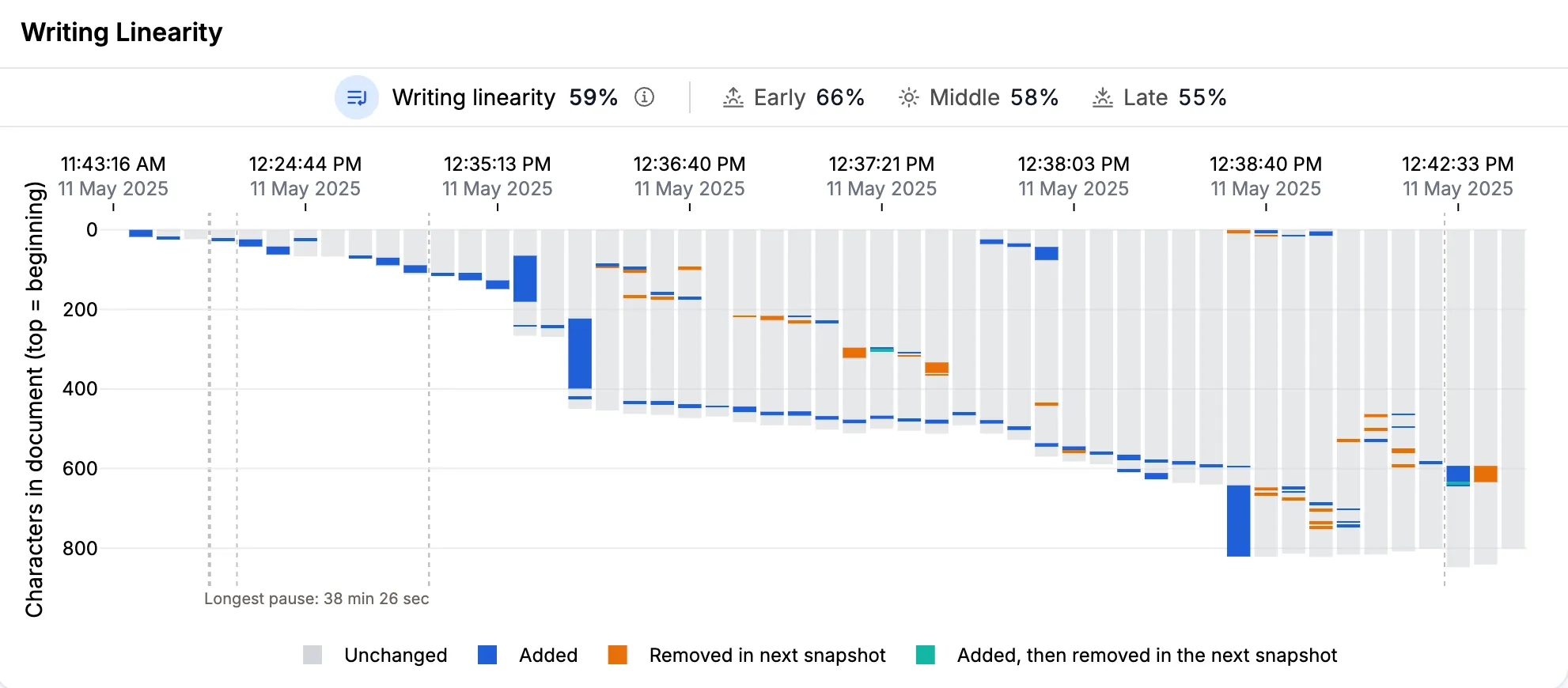
- Writing linearity shows how much the writer composed the text in order, from beginning to end, rather than going back into what they had already written. Here, it is 59%. Writing Linearity explains the number.
- Last active is the date and time of the last recorded change. Here, it is 11 May 2025 at 12:42:46 PM, about a year before the report was opened.
To see a short explanation of a number in the report, hover over the ⓘ icon next to it.
Words are counted the way most online word counters count them. Spaces and line breaks separate words. Punctuation such as a comma or period separates words only when it touches a space or the start or end of the text, so “example.com” and “v4.1.0” each count as one word. Small differences from other word counters are normal. You can change which characters separate words in Settings.
“Paste-like” because Google Docs does not record pasting. The report looks for large amounts of text that appeared at once between snapshots. It then checks where each one came from, and this card counts only those that likely came from outside the document. In other reports, the card is called Largest paste. Instead of a number, the card can show:
- None, when there were no paste-like changes.
- None from outside, when no paste-like change likely came from outside the document, for example when text was only moved within it.
- A note to turn on Paste-Like Changes in Report Options, when that section is not in the report.
Last active is shown in your time zone, not the writer’s. The time zone in the figure (CST) is the one set on the computer viewing the report. If you and the writer are in different time zones, the time will not match the writer’s clock.
B. Show more details
Click Options to find two checkboxes. Both are off by default, and your choices are saved in your browser.
- Show more details adds First active, Start-to-finish time, Total sentences, and Total characters. Google Docs reports also get Text insertions, Text deletions, and Text formattings.
- Show snapshots info adds Available changes and Shown in this report.
The figure below has both turned on. Numbers 1 to 10 are the same as in the first figure, so they are not marked again.
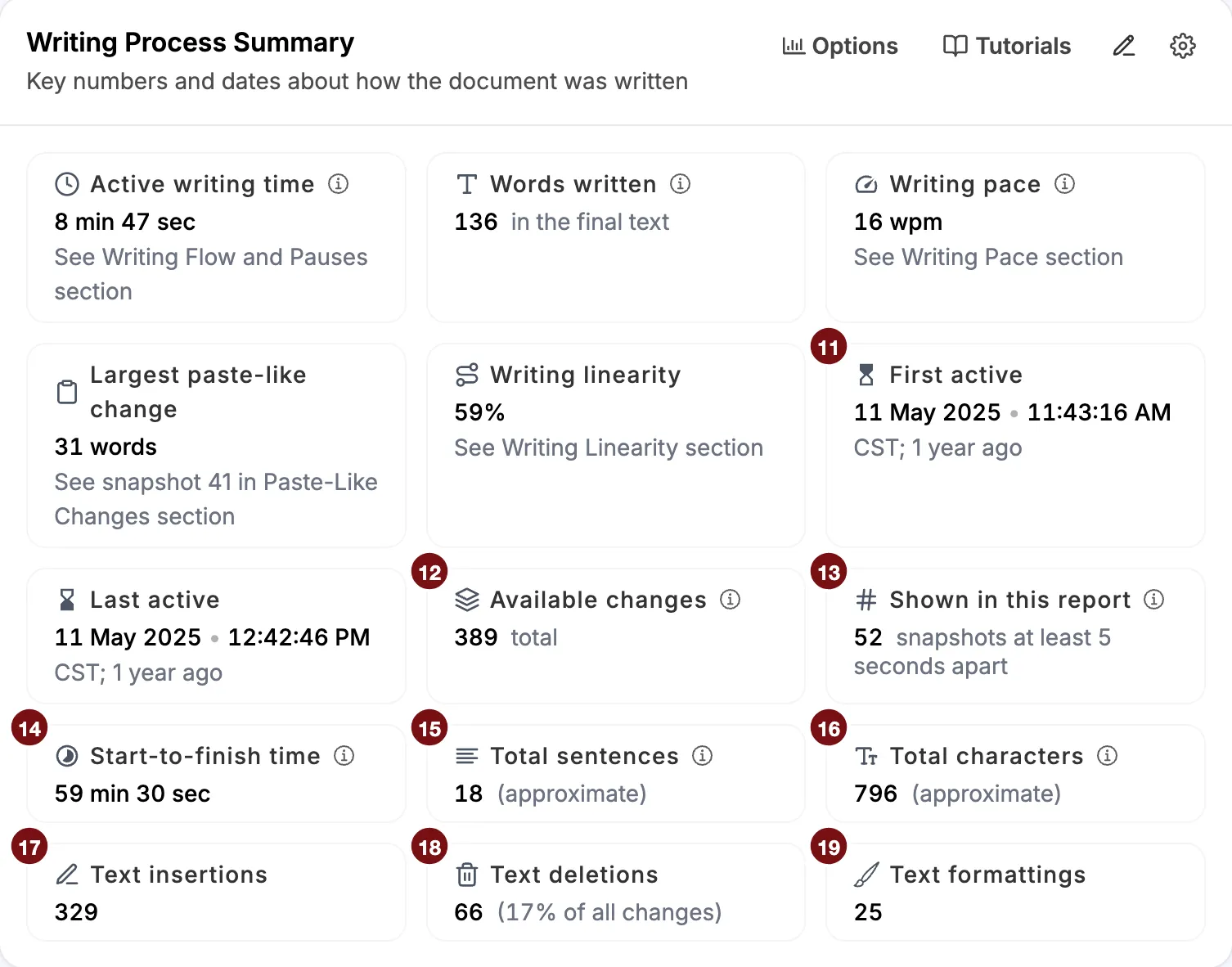
- First active is the date and time of the first recorded change, in your time zone. Here, it is 11 May 2025 at 11:43:16 AM.
- Available changes is every change recorded for this document. Here, it is 389. Google Docs records changes almost character by character. In other reports, this card is called Available snapshots.
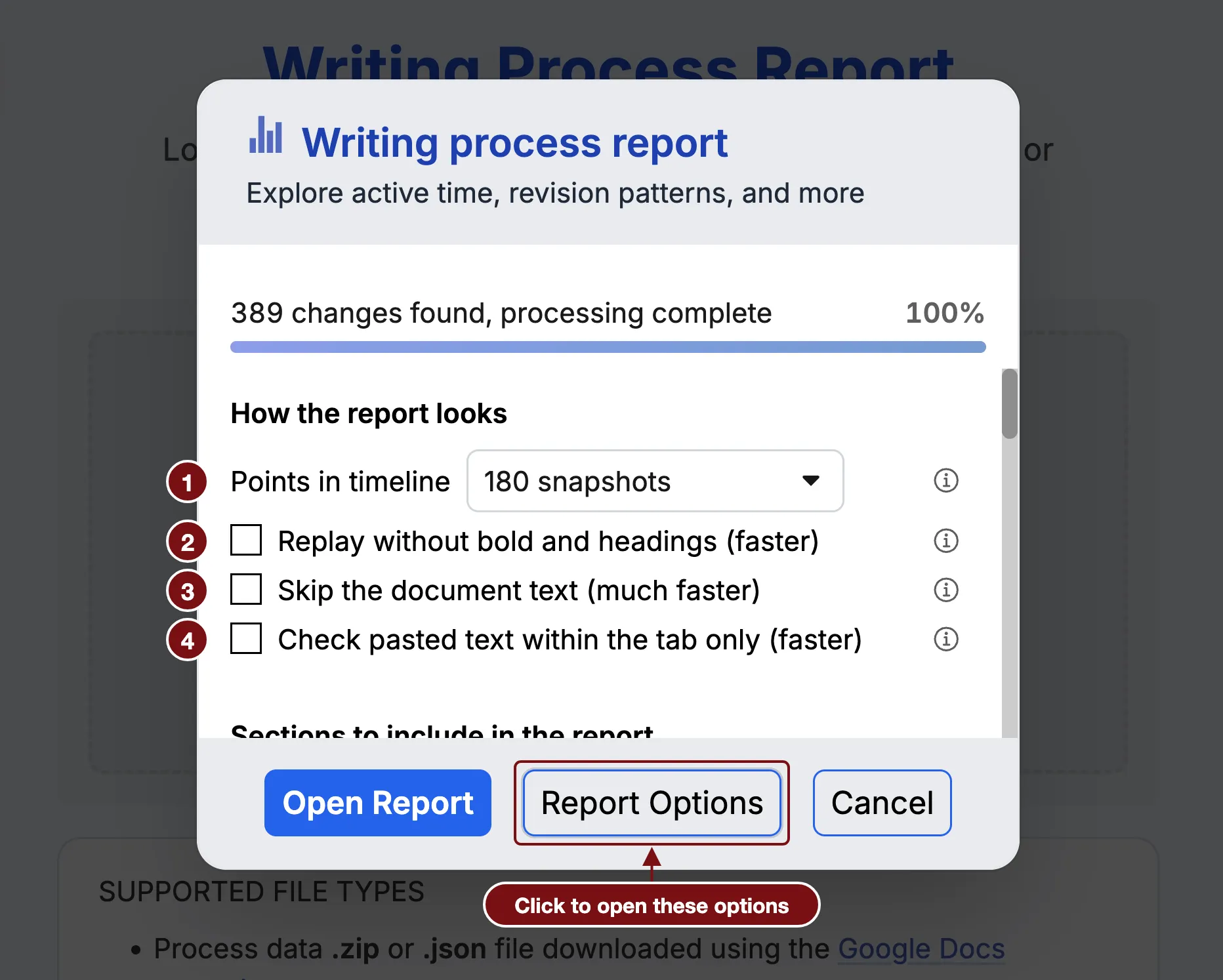
- Shown in this report is the number of snapshots the report uses. Here, it is 52. Snapshots less than five seconds apart are never shown, so the 389 changes appear in 52 snapshots. If more snapshots are available, you can raise Points in timeline in Report Options when you open the report.
- Start-to-finish time is the time from the first change to the last, including every pause and break. Here, it is 59 min 30 sec.
- Total sentences is the number of sentences in the final text. Here, it is about 18. By default, a sentence ends at a period, question mark, or exclamation mark, and you can change these in Settings. The number is approximate, because a period does not always end a sentence, as in “e.g.”
- Total characters is every character in the final text, including spaces and line breaks. Here, it is about 796.
- Text insertions is the number of changes that added text. Here, it is 329.
- Text deletions is the number of changes that removed text. Here, it is 66, which is 17% of the 389 available changes.
- Text formattings is the number of changes that changed formatting, such as bold or italics. Here, it is 25.
Compare start-to-finish time with active writing time. In the figure, the document was worked on over about an hour, and the writer was actively writing for about 9 minutes of it. The rest was pauses. Writing Flow and Pauses shows where those pauses fell.
One change can do more than one thing. A single change can add and remove text, so insertions, deletions, and formattings can add up to more than the available changes. In the figure, 329 + 66 + 25 = 420, from 389 changes.
C. Other things you might see
Defective changes. This card appears with a warning icon when some changes were recorded with the wrong time, because the clock on the writer’s device was set incorrectly. It always shows, even when more details are turned off.
Only the time cards. If the report was opened with Skip the document text (Google Docs only), the summary shows only the cards about time, such as Active writing time and Last active. See Report Options.
D. What the summary does not tell you
These numbers describe how much was written and when, not how well. A short active writing time can mean efficient writing, or work drafted somewhere else and brought in. A paste-like change can be the writer’s own text moved in from another file. Open the section each card points to before drawing a conclusion.