Before a writing process report opens, a window shows how many changes were found in the document. Click Report Options at the bottom of that window to choose how the report looks and which sections it includes. Then click Open Report.
Your choices are saved in your browser and used for the next report too. To go back to the original settings, click Reset to Defaults at the end of Report Options.
A. How the report looks
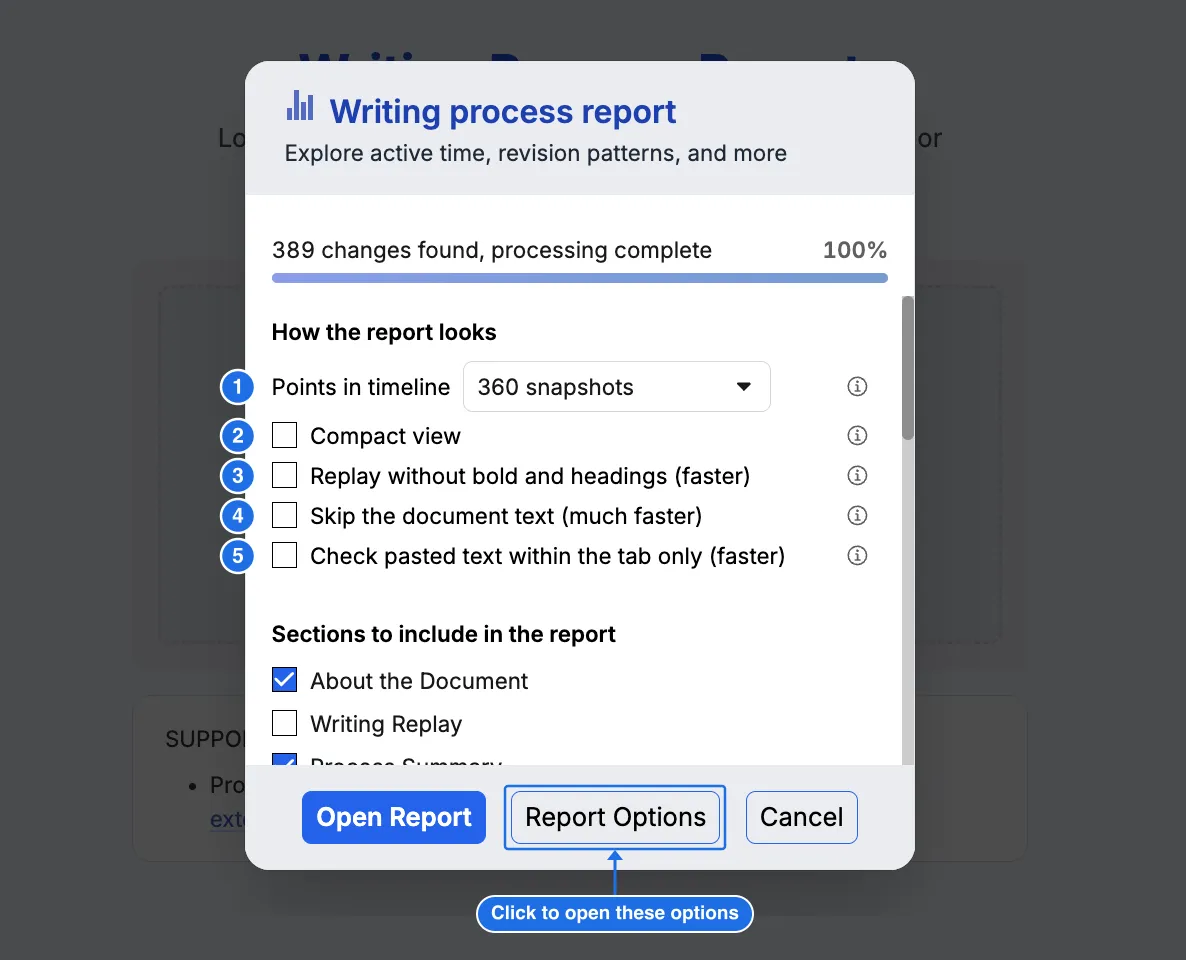
Points in timeline and Compact view are available in every report. The other three settings are available only in Google Docs reports.
- Points in timeline sets the largest number of snapshots the report shows. The default is 360, and you can choose from 45 to 5,760. If the document has more snapshots than this, the report shows only this many, and a red exclamation mark appears next to the chart titles. More points show more detail, but the report takes longer to open. Very large values can make the page crash.
- Compact view hides section subtitles, chart settings summaries, and chart toolbars. It also uses less spacing and makes tall charts a little shorter. This is useful when you want to compare charts one above the other. It does not make the report open faster.
- Replay without bold and headings (faster), Google Docs only, shows the text in Writing Replay without bold, italics, headings, lists, or other styling. The words are the same. Large documents open faster with this turned on. It is off by default.
- Skip the document text (much faster), Google Docs only, opens a report about time only: when and how long the document was edited. The report keeps About the Document, Active Writing Time, Writing Flow and Pauses, Document Comments, and Daily Writing Activity. All sections that need the document text are turned off. This is the fastest way to open a very large document. It applies only to the current browser tab.
- Check pasted text within the tab only (faster), Google Docs only, matters only for documents with more than one tab. Normally, each paste is compared with the text of every tab in the document. With this turned on, each paste is compared only with the open tab, so the report opens faster. Text copied from another tab then shows as “Likely from outside this document.” It is off by default.
B. How to open large reports faster
A document with a long editing history can take a long time to open, and in some cases the page can crash. Try these steps in order. Each one makes the report faster, and the later ones leave out more.
- Turn on Replay without bold and headings (Google Docs only). You lose only the styling in Writing Replay.
- Turn on Check pasted text within the tab only (Google Docs only), if the document has more than one tab. Text pasted from another tab will then look like it came from outside the document.
- Choose fewer Points in timeline, such as 180 or 90. The charts show less detail.
- Uncheck sections you do not need under Sections to include in the report.
- Turn on Skip the document text (Google Docs only). This is the fastest option. The report shows only when and how long the document was edited.
If the report still does not open, contact us with the number of changes shown at the top of the window.