The Writing Replay plays the document back from an empty page to the final text, one snapshot at a time. You can watch text being added, rewritten, and removed in the order it happened.
It is often the quickest way to get a feel for how a piece of writing came together.
A. Annotated figure
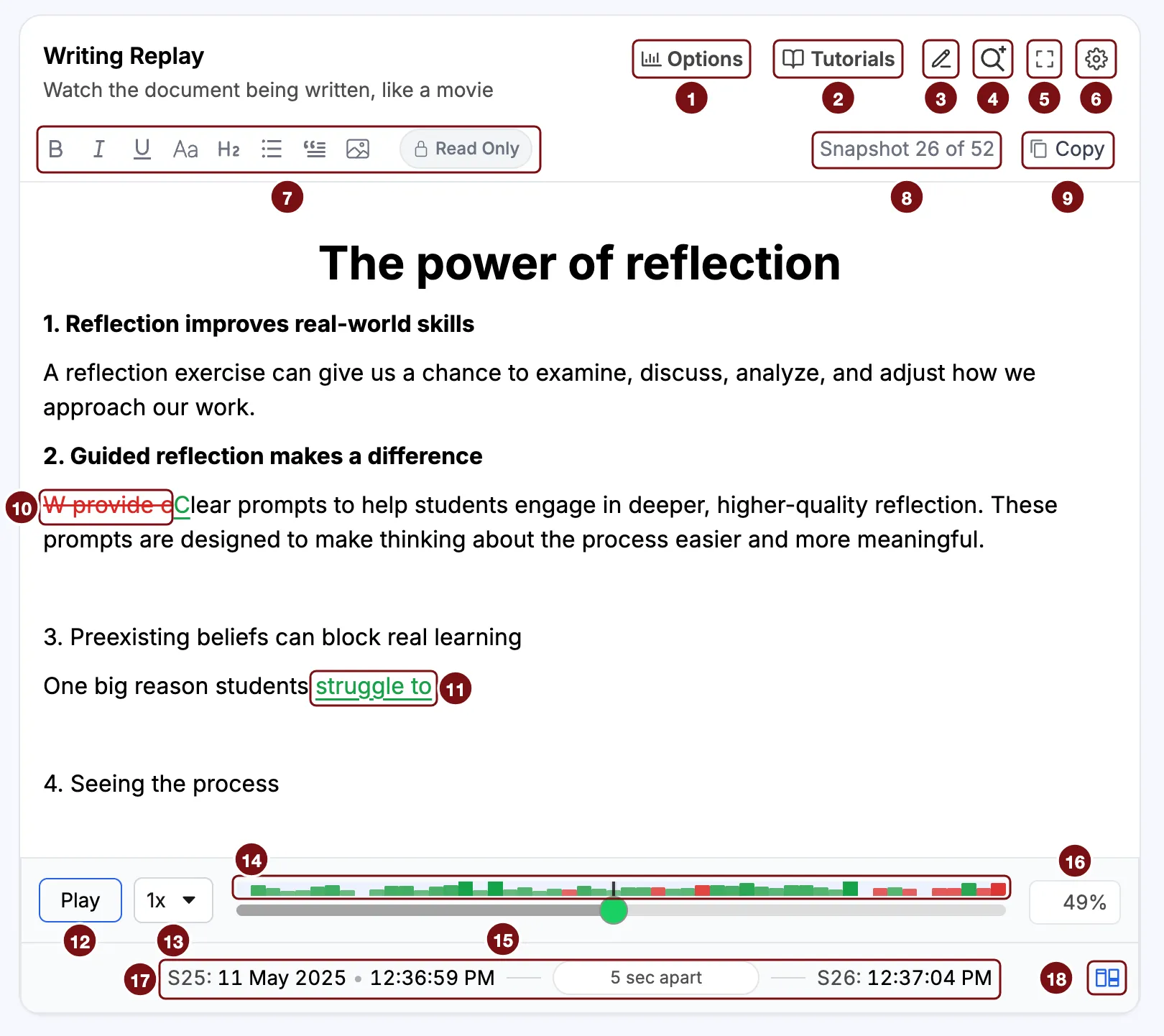
Buttons at the top
- Options changes how changes are shown. See C. Options.
- Tutorials opens tutorials and help for the report.
- Add note lets you write a comment on this section that travels with the report.
- Explore raw Google Docs data (Google Docs only) opens our advanced explorer in a new tab. It lets you play back every character change Google recorded, including the changes between snapshots.
- Fullscreen shows the replay on the whole screen. Click it again to go back.
- Layout options let you minimize the section or move it up or down in the report.
Above the text
- Read Only. The formatting icons are there so the replay looks like an editor, but you cannot change the text.
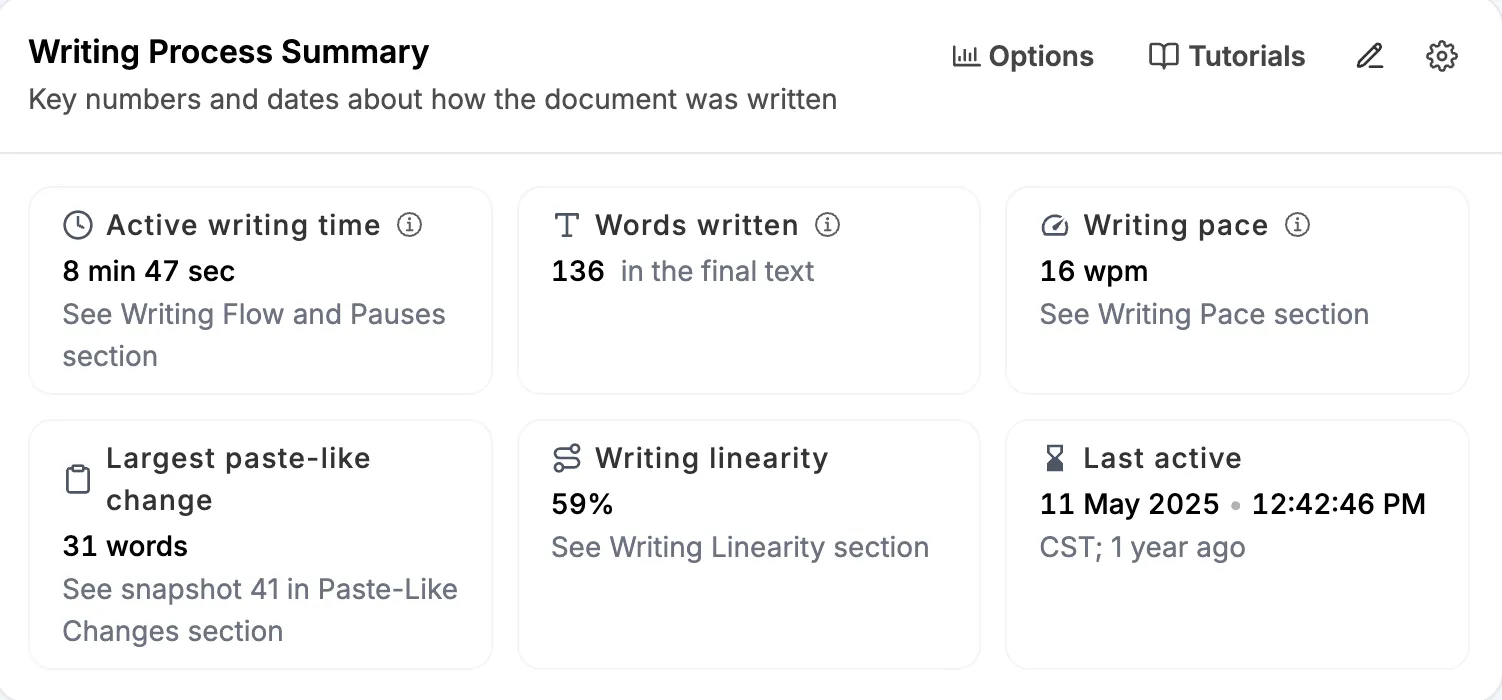
- The snapshot counter shows which snapshot you are looking at and how many there are. Here, it is snapshot 26 of 52. The total is the same number as Shown in this report in the Writing Process Summary.
- Copy copies the text as it stood at this snapshot, without the colored markings.
In the text
- Removed text is red, with a line through it. It was in the previous snapshot but not in this one. Here, “W provide c” was removed.
- Added text is green and underlined. It is new since the previous snapshot. Here, “struggle to” was added, and so was the capital “C” that replaced “W provide c”.
Playback controls
- Play starts and pauses the replay. While it plays, the text scrolls to each change. At the end, Play starts again from the first snapshot.
- The speed menu offers .2x, .5x, 1x, 2x, and 4x. At 1x, the replay moves about five snapshots per second.
- The change heatmap has one bar for each snapshot. A green bar means the text grew at that snapshot, and a taller bar means a larger change. Red bars, for snapshots where the text got shorter, appear only when Show text removals in change heatmap is on. Click a bar to jump to that snapshot.
- The slider moves through the snapshots. Drag the handle, or click it and use the left and right arrow keys to move one snapshot at a time. When you point at the slider, a small box shows the size of the change, its date and time, and the snapshot number.
- The position shows how far through the snapshots you are. Here, it is 49%.
Below the controls
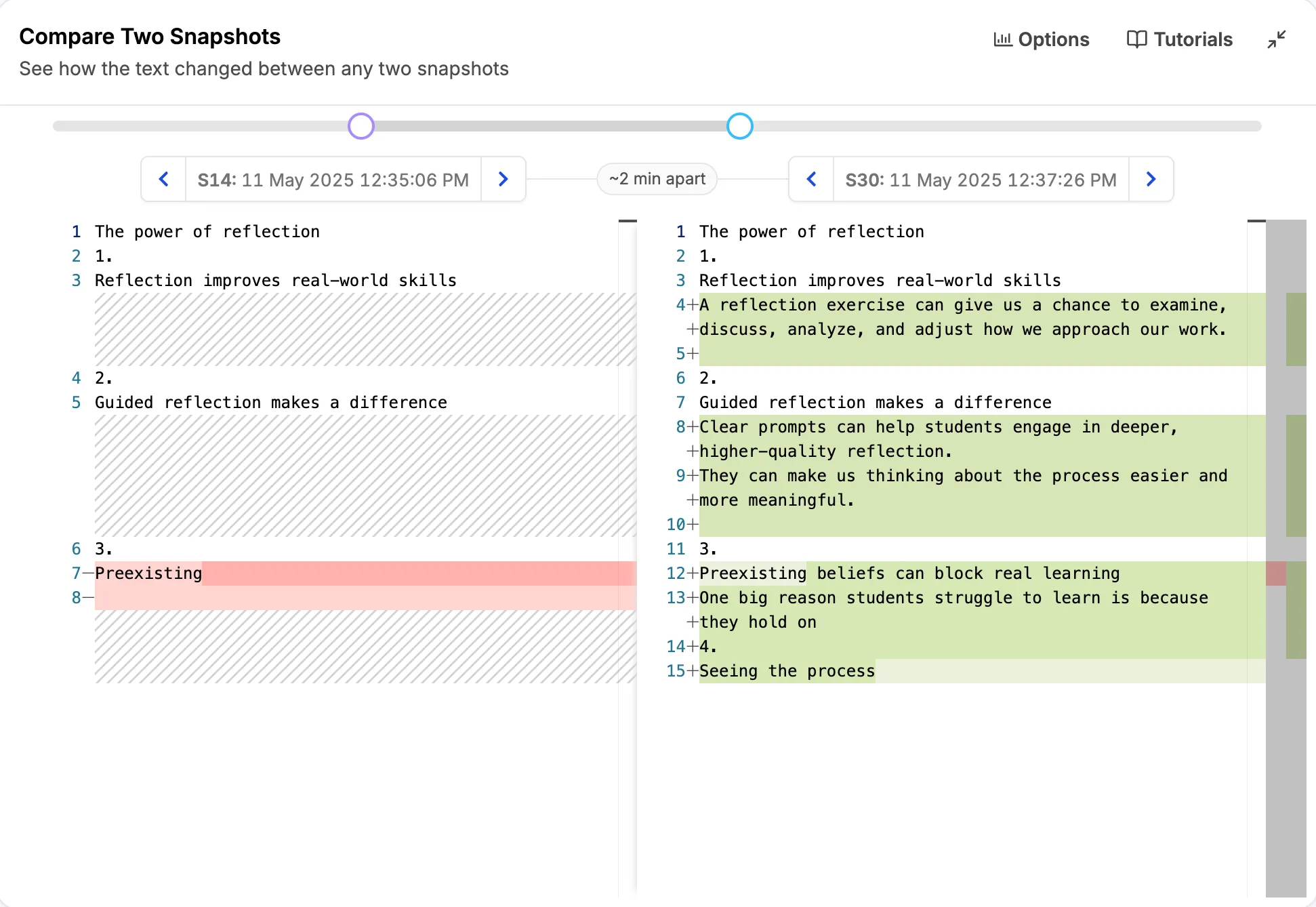
- The status line shows the previous snapshot (S25) on the left, this snapshot (S26) on the right, and the time between them in the middle. Here, they are 5 sec apart. Times are shown in your time zone.
- Compare opens these two snapshots in the Compare Two Snapshots section, where you can see exactly what changed between them.
The first time you press Play, a short legend explains the colors.
B. How to watch a replay
- Press Play at 1x. Watch for a minute to get a sense of how the text grows.
- Look at the change heatmap. It shows the whole history at a glance: where the large changes are, and where the writing was steady.
- Stop at the tall bars. Click a tall bar in the heatmap to jump to that snapshot.
- Use your keyboard to move the slider handle. Click the handle once, then press the left and right arrow keys to move back or forward one snapshot at a time. This is the easiest way to look closely at the snapshots around a large change.
- Read the status line at each stop. It tells you how much time passed between two snapshots.
- Open Compare when you want the details. It shows exactly what changed between the two snapshots.
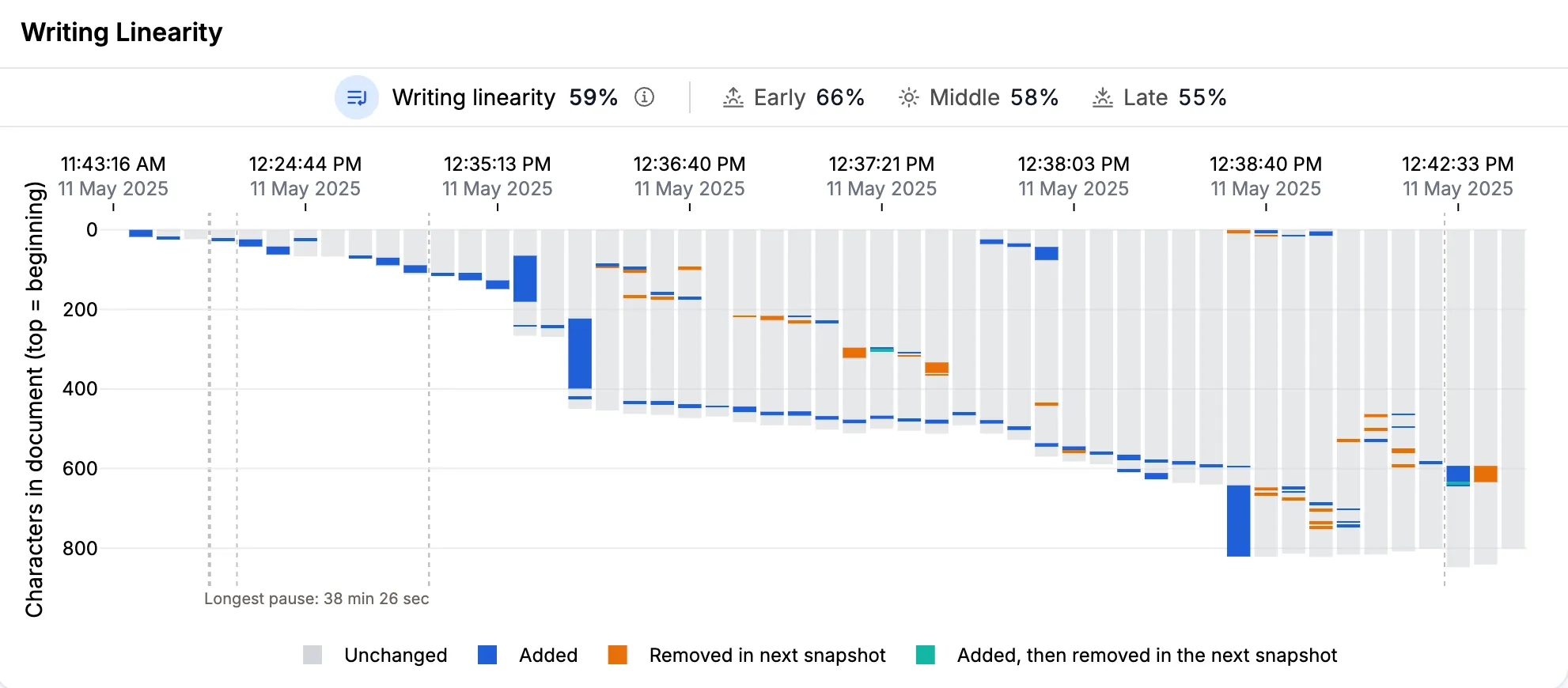
The replay moves by snapshot, not by clock time. Two snapshots take the same time to play whether they are 5 seconds or 5 hours apart. A long pause in the writing does not slow the replay down. You can only see it in the status line. To see the pauses on a timeline, use Writing Sessions.
C. Options
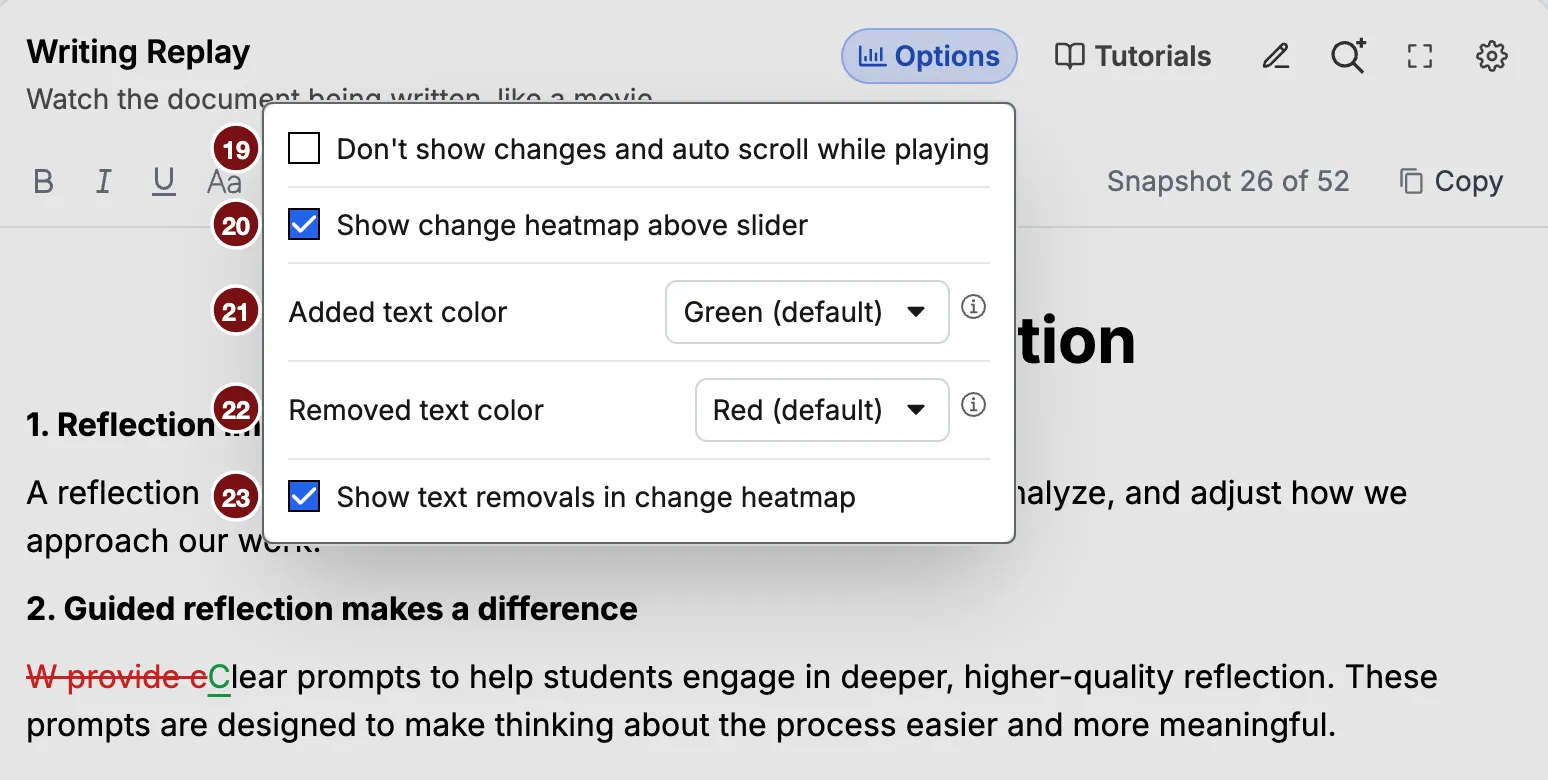
- Don’t show changes and auto scroll while playing plays the plain text, without colors, and stops the text from jumping to each change. It is off by default. With it on, the other options are turned off, and the replay can load faster on long documents.
- Don’t show change heatmap above slider hides the heatmap. It is unchecked by default, so the heatmap shows. If you have not used the replay before, this option reads Don’t show change heatmap on replay, and the heatmap appears once you press Play.
- Added text color sets the color of added text. It is green by default. Choose another color if green is hard to see, or Don’t show to leave added text unmarked.
- Removed text color sets the color of removed text. It is red by default. Choose Don’t show to hide removed text.
- Show text removals in change heatmap adds red bars for snapshots where the text got shorter. It is off by default. Turn it on when you are looking for heavy editing, not only heavy drafting.
Your choices are saved in your browser and used for later reports too.
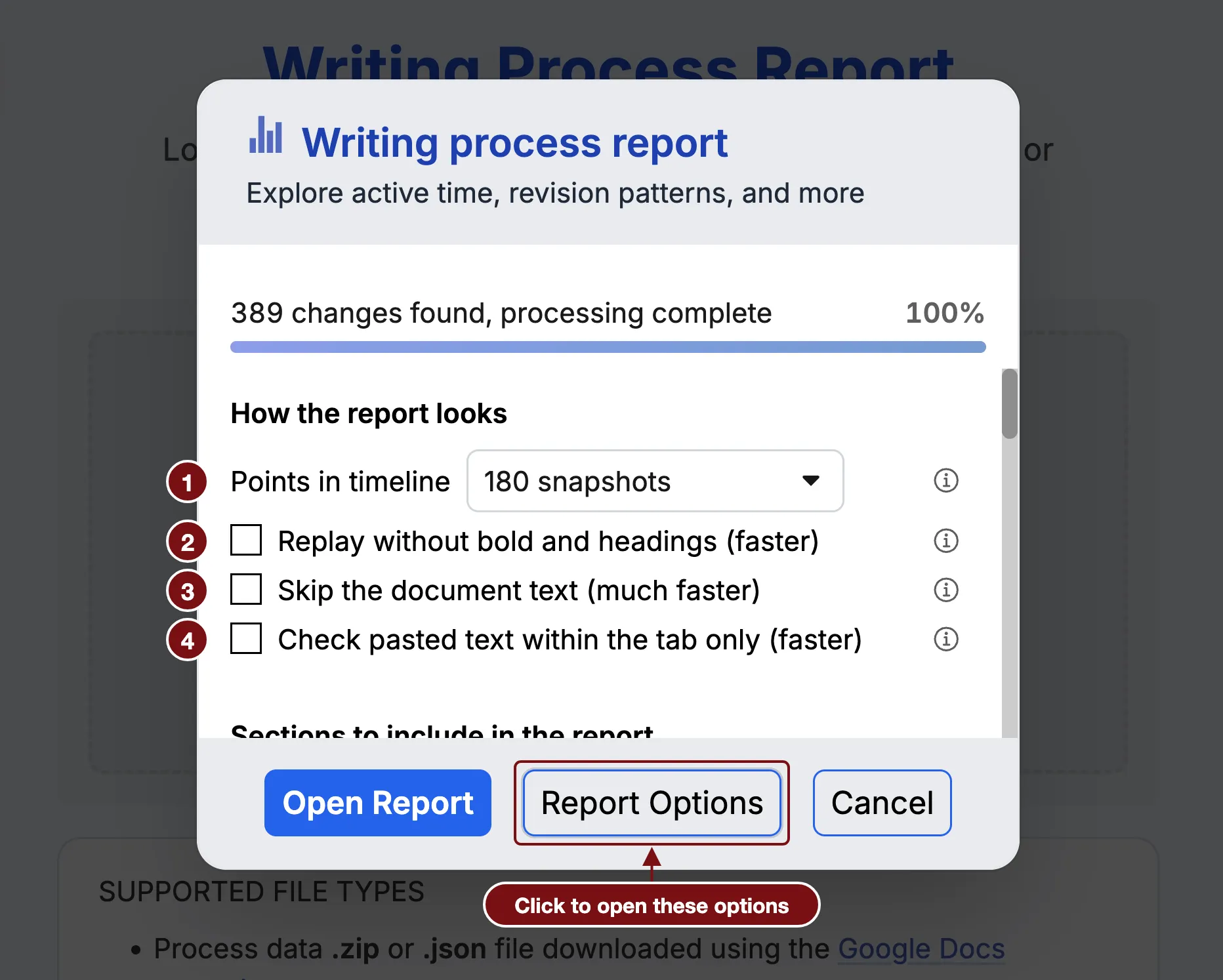
For large Google Docs reports, the replay can be slow to open. In Report Options, Replay without bold and headings makes it faster. The words stay the same, but bold, headings, and other styling are not shown.
D. What it does not show you
It does not show what happened between snapshots. Each snapshot bundles everything that changed since the previous one, so the replay is not keystroke by keystroke. In Google Docs reports, the advanced explorer shows the finer detail.
It does not show work done outside the document. Notes on paper, an outline in another file, or thinking done on a walk do not appear. A writer who plans carefully before typing produces a very different replay from one who drafts on the page, and neither is better writing.
It does not show where text came from. A chunk of new text looks the same whether it came from the writer’s own notes, an earlier draft, or somewhere else.