Browser Extension for Word Online
Now available in beta — writing process reports for Microsoft Word Online
Beta released
Students must install before writing
No automatic data collection
Free for teachers and students
Beta version released
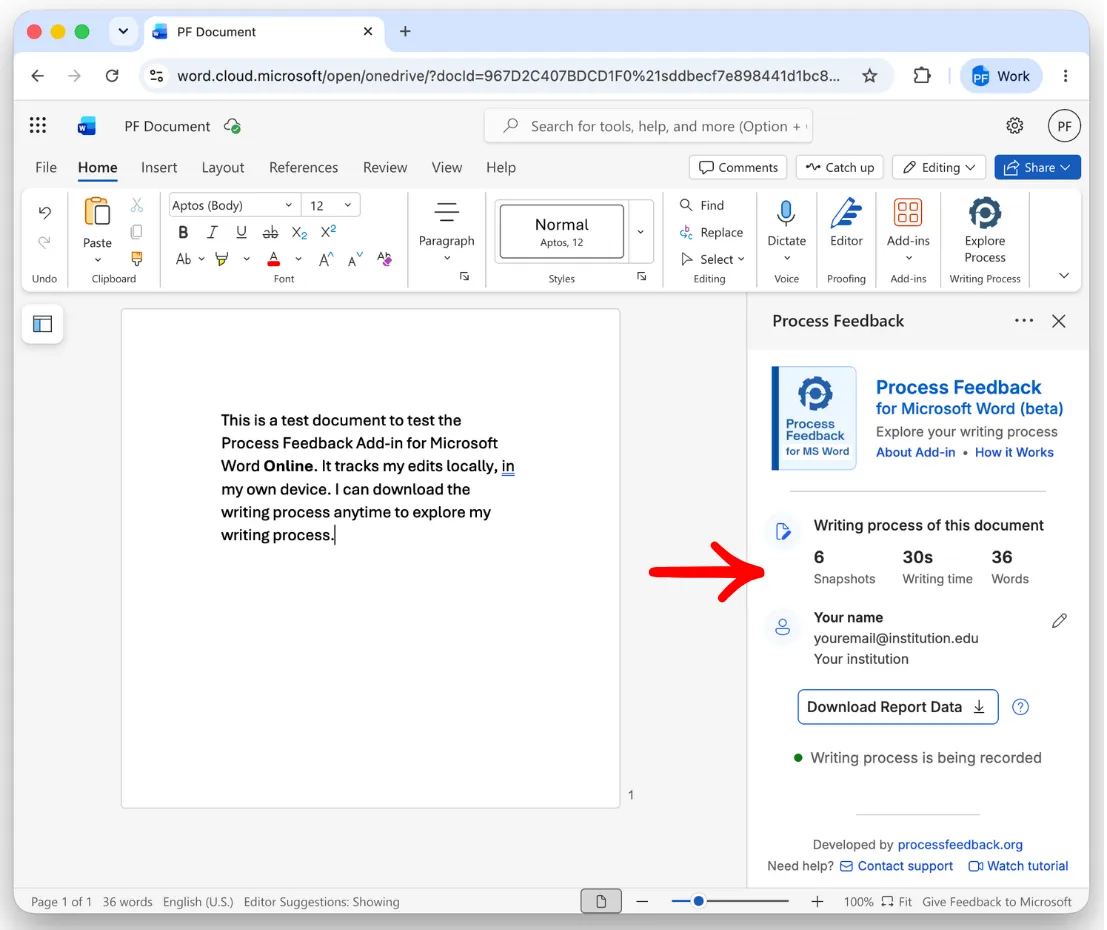
Process Feedback for Word Online is released in beta and available now from the Chrome Web Store as Process Feedback for Word Online, Canvas, and More. Either a student or a teacher can install it — no administrator setup, and no Process Feedback account.
This is the same extension that works in Canvas and other LMS editors — one install covers Word Online, LMS assignments, and discussion boards. If you already have it, you already have Word Online support.
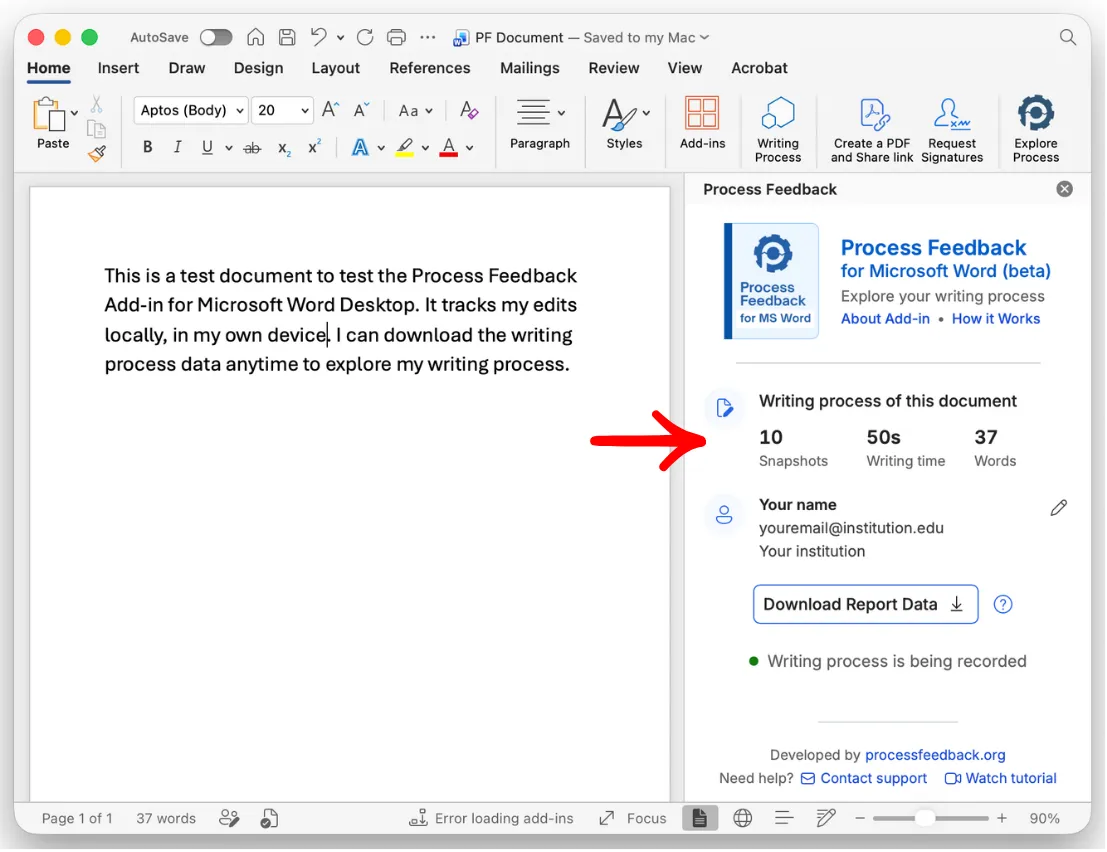
It works with Word Online (Word for the web), not the Microsoft Word desktop app. We would like to hear what breaks or feels wrong: please tell us.
Important: Students need to install it before writing
Unlike Google Docs, Microsoft Word Online keeps no edit history, so there is nothing for us to look back at. Instead, the extension captures the writing process as it happens, taking snapshots of the document while it is being written.
In practice, this means:
-
Students install the extension ahead of time — anything typed beforehand is not part of the report. -
Students write in the same browser where the extension is installed, since that is where the snapshots are kept. -
If a student drafts a document first and installs afterwards, the report covers only what came after.
No data is collected — everything happens locally
The extension does not collect any data. Snapshots are stored locally, in the browser on the student's own device, and the writing process report is generated in the browser from those snapshots. Nothing is uploaded to us, no account is created, and nothing is shared automatically.
The writer decides what, if anything, leaves their machine: a shared report link, a PDF, or a downloaded process data file they hand to a teacher. If they do nothing, the writing process stays with them.
Because the data is local, it is only as durable as the browser's storage. Snapshots live in that one browser, on that one device — and they can disappear without warning.
Snapshots can be lost when:
-
The browser is updated, reinstalled, or reset — a browser update can clear the extension's local storage. -
Browsing data, cookies, or site data are cleared, by the student or by a cleanup tool or IT policy. -
The extension is removed, disabled, or reinstalled. -
The student switches to a different browser, computer, profile, or a guest or incognito window.
So treat the snapshots as temporary. Open the report and save it — the PDF, or the downloaded process data file — while the work is still fresh, rather than assuming the writing process will still be in the browser weeks later.
Known limitations in this beta
A few things are worth knowing before you introduce this to a class:
-
Voice typing (dictation) is not captured. Text entered by dictation does not produce a meaningful writing process, so plan assignments accordingly. -
Word Online only. The Microsoft Word desktop app is not supported. -
Chrome only for now. Other browsers are not yet supported. -
Writing done before installation is not included, because Word Online keeps no edit history to recover it from. -
Snapshots are stored only in the browser and can be lost if the browser is updated or reset, or if browsing data is cleared — so save the report or the process data file before then.
If you need reports for writing that has already happened, Google Docs is the better fit — its revision history makes that possible.
Other ways to capture the writing process
Word Online is one of several options. Students can also write in Google Docs with our extension, use our online writing space, write inside an LMS with the Process Feedback extension, or code in VS Code or our online compiler.