Daily Writing Activity shows the days the document was worked on, on a calendar. Each square is a day. The darker the blue, the more writing happened that day.
It is the quickest way to see whether a document was written over many days or in a few sittings.
A. How to read the calendar
1. The summary row
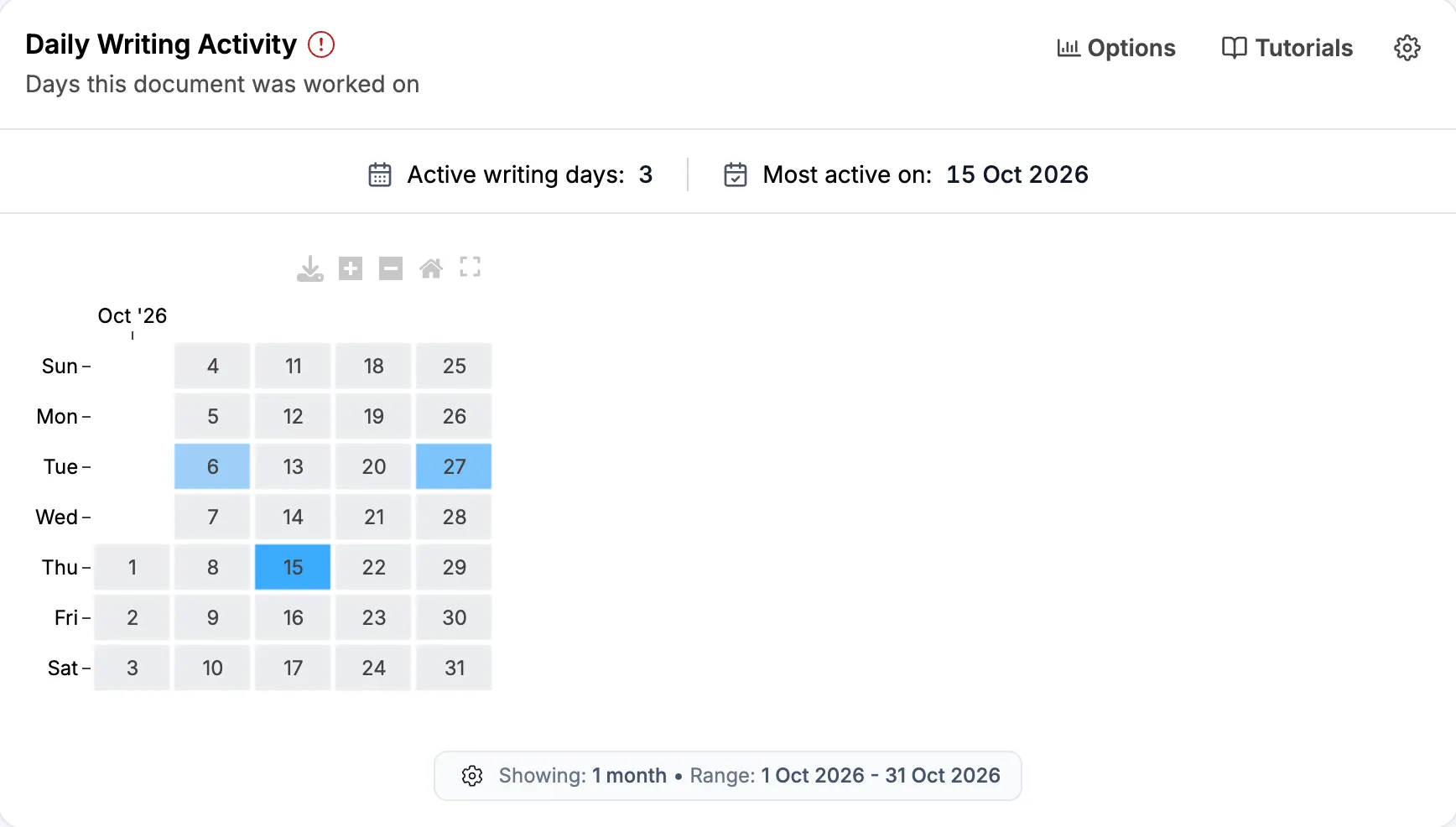
- Active writing days is the number of days with any writing. Here, it is 3.
- Most active on is the day with the longest active writing time. Here, it is 15 Oct 2026.
Both numbers cover every day in the report, including days outside the months the calendar shows.
2. Each square is a day
Weeks run from left to right, with Sunday at the top. The month names are along the top, and the number in each square is the day of the month.
- Grey means nothing was written that day.
- Blue means something was written. The darker the blue, the more snapshots were recorded that day. In Google Docs reports, this counts edits instead of snapshots.
The darkest square is the busiest day in the months shown. So the shades compare the days with each other, not with a fixed scale.
In the example, the writer worked on three days in October: the 6th, the 15th, and the 27th. The 15th was the busiest.
3. Hover and click
Hover over a day to see:
- the number of snapshots recorded that day (edits, in Google Docs reports),
- how many of those are shown in this report,
- the active writing time for that day.
Click a blue day to jump to the Compare Two Snapshots section of the report. It opens on the first and last snapshot of that day, so you can read what was written that day.
The buttons above the top right of the calendar let you download it as an image, zoom in and out, reset the view, and show it on the whole screen. A downloaded image includes the summary row at the top, as in the examples below.
4. Other things to know
Days follow your time zone. A day is a calendar day in the time zone of the computer viewing the report, not the writer’s. Writing late at night in another time zone can show up on the next day or the day before.
The red icon next to the title means the report is not showing every detail. It may show fewer snapshots than were recorded, or cut very long snapshots short. Click the icon to learn more. The squares still count every recorded snapshot, but the “in this report” number in the hover box can be smaller. To see more, raise Points in timeline in Report Options.
The settings bar at the bottom shows how many months are shown and the date range. To change them, click Options in the section header.
B. Table view
To see the table, open Options and choose Table under Show data as. The table has one row for each day with writing.

- Day is the date. Click it to jump to Compare Two Snapshots for that day, the same as clicking a square.
- Active Writing Time is the time spent typing that day. It is counted the same way as Active Writing Time for the whole document, and a day with any writing counts as at least one minute. Because each day is counted on its own, the daily times can add up to a little more than the document’s total.
- Snapshots is the number of snapshots recorded that day. It is the number behind the blue shading. In Google Docs reports, this column is called Edits, and it counts every recorded change.
- First Edit and Last Edit are the times of the first and last change that day.
You can sort by Day, Active Writing Time, and Snapshots. The table always lists every day in the report, whatever months the calendar is set to show.
Read First Edit and Last Edit together with Active Writing Time. On 15 Oct, the writer worked from 9:40 AM to 2:24 PM, but was actively writing for 55 minutes. The rest of that time was pauses. Writing Sessions shows where those pauses fell.
C. Options
- Show data as switches between Calendar, the default, and Table. Your choice is saved in your browser.
- Months to show sets how many months the calendar shows: 1, 3, 6, or 12. The default is 1 month, and it goes back to 1 month each time you open a report.
- Interval picks which months to show. When 1 month is shown, it is called Month. The blocks of months are counted back from the most recent month with writing, and only blocks with writing are listed. The default is the most recent block.
Months to show and Interval apply only to the calendar.
Check the months before you read the calendar. By default, the calendar shows only the most recent month with writing. Compare the number of blue squares with Active writing days in the summary row. If the summary row shows more days, choose more months, or an earlier interval. In example 1 below, the default view of October shows 2 blue squares, while the summary row says 15.
D. Example student reports
These two calendars were downloaded with the download button, so the summary row is at the top.
1. Every weekday for three weeks
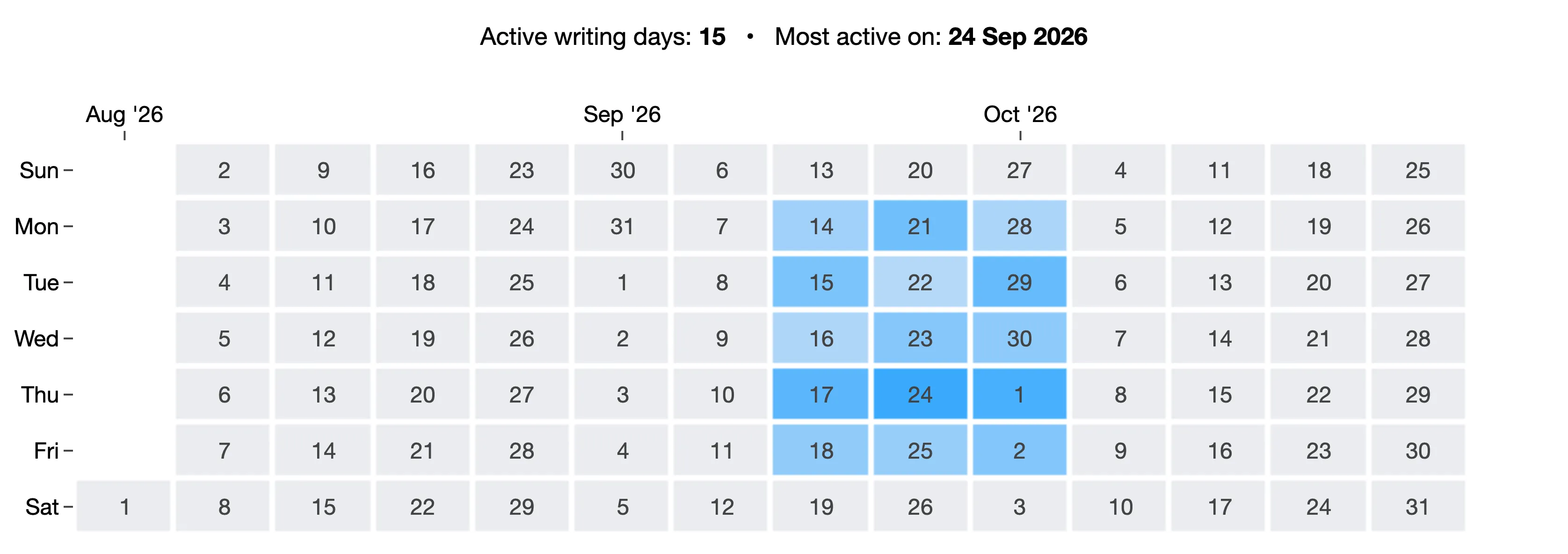
The student wrote on every weekday for three weeks, from Monday 14 Sep to Friday 2 Oct, and never on a weekend. Each day was one short visit, from 2 to 20 minutes, between about 9:30 AM and 3:15 PM.
The busiest day was 24 Sep, the only day with two visits, one in the morning and one in the afternoon.
2. A few long days and short visits over three months
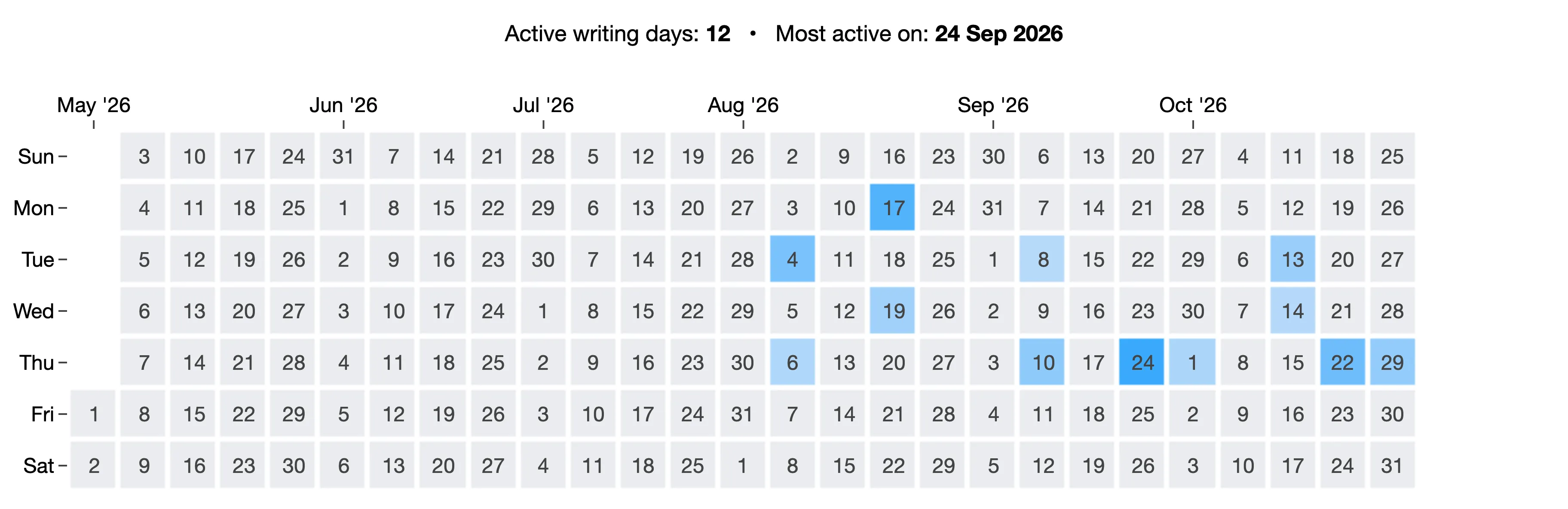
The student wrote on 12 days between 4 Aug and 29 Oct. The gaps between visits were up to almost three weeks long, from 19 Aug to 8 Sep.