Compare Two Snapshots shows the text of two snapshots side by side. The earlier one is on the left and the later one is on the right. Text that was removed is shaded red, and text that was added is shaded green.
Most other sections send you here. Clicking a bubble in Characters Added and Removed, a dot in Writing Pace, a day in Daily Writing Activity, or a time in a table opens this section on that moment. When another section raises a question, this is where you read the text that answers it.
A. Annotated figure
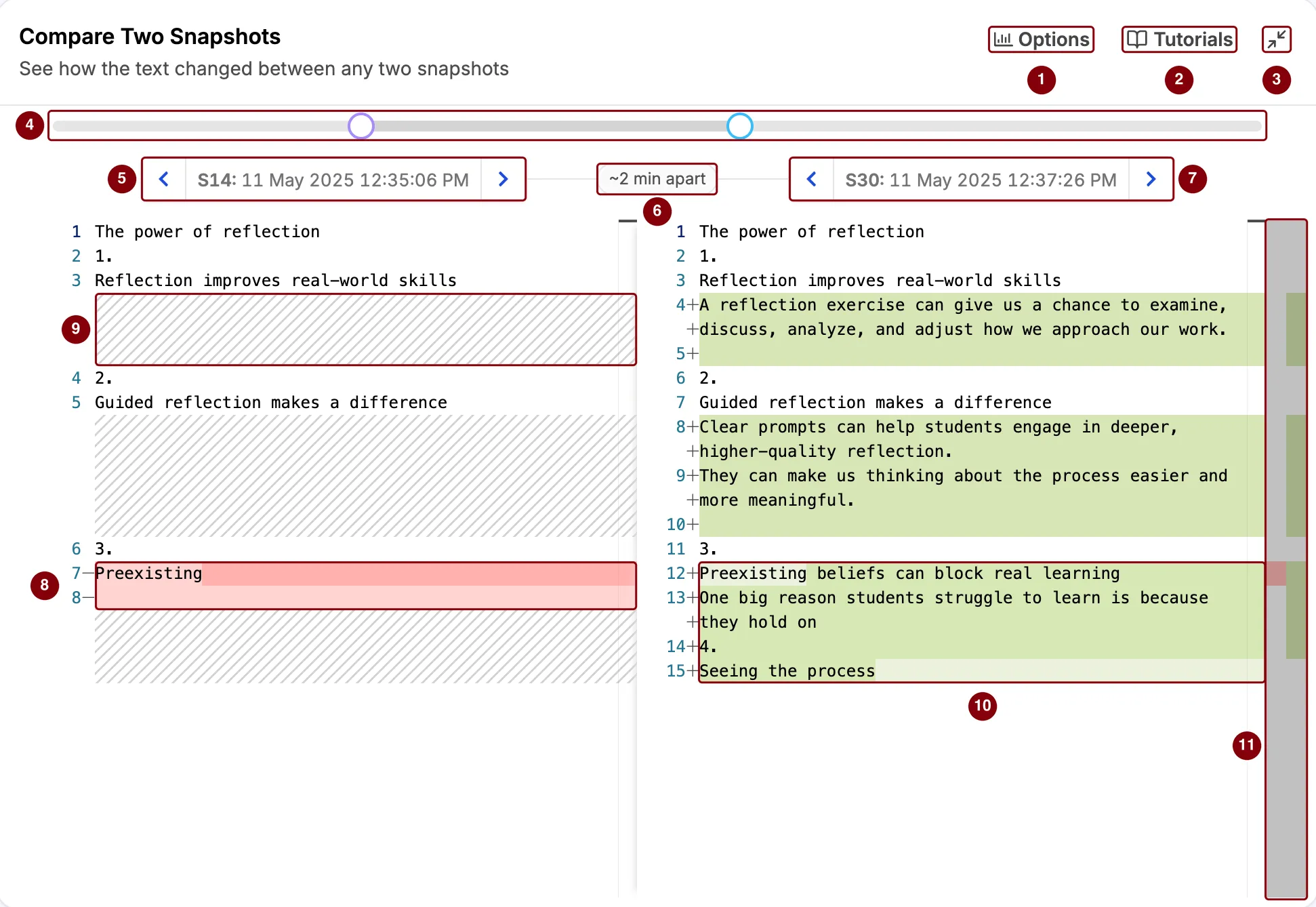
Buttons at the top
- Options has one setting. See C. Options.
- Tutorials opens tutorials and help for the report.
- Minimize folds the section away.
Choosing the snapshots
- The slider has two handles: the purple one for the left snapshot and the blue one for the right. Drag a handle to choose a snapshot. The comparison updates when you let go.
- The left snapshot shows its number and time, here S14 at 12:35:06 PM. The arrows step one snapshot back or forward.
- The gap between the two snapshots, rounded, here about 2 minutes. Hover over it to see the exact time. On narrow screens, it is not shown.
- The right snapshot, here S30 at 12:37:26 PM, with its own arrows.
The left snapshot is always earlier than the right one, so the arrows stop where the two would meet.
The comparison
- Red on the left is text that was in the earlier snapshot but is gone from the later one. A minus sign (−) next to the line number marks a removed line.
- Hatched grey areas fill the space where one side has lines and the other does not, so the two sides stay lined up.
- Green on the right is text that is new in the later snapshot. A plus sign (+) next to the line number marks an added line.
- The change map down the right edge shows where the changes are in the whole document. In a long document, it shows where to scroll.
B. How to read the comparison
1. Red, green, and both
- Green with no red means text was added. The writer was drafting.
- Red with no green means text was cut.
- Red and green in the same place means text was rewritten: something was removed and something else took its place.
Within a changed line, the words that stayed the same are not shaded. Only the part that changed is. In the figure, “Preexisting” is not shaded on either side. The writer kept that word and finished the heading after it: “Preexisting beliefs can block real learning”.
2. Reading the figure
The two snapshots in the figure are 16 snapshots and about 2 minutes apart. In that time, the writer:
- added a paragraph under the first heading (lines 4 and 5 on the right),
- added two sentences under the second heading (lines 8 to 10),
- finished the third heading and started a sentence under it (lines 12 and 13),
- started a fourth heading, “Seeing the process” (lines 14 and 15).
Nothing was removed except the unfinished heading, which came back finished. This is drafting: new text going in, with almost nothing taken out.
3. Close together or far apart
- Two neighboring snapshots show one small step, usually a few seconds of writing. This is what most other sections open when they send you here.
- Two snapshots far apart show everything that changed between them, added up. Comparing the first snapshot with the last shows how the whole document came together.
To compare snapshots far apart, turn off Keep left and right time together in Options.
4. Other things to know
The text is plain. Formatting such as bold and headings is not shown. A long paragraph wraps onto more rows under one line number.
The view scrolls to the first change, so you do not have to look for it.
On narrow screens, the two snapshots are shown in one column instead of side by side, with the removed lines above the added ones.
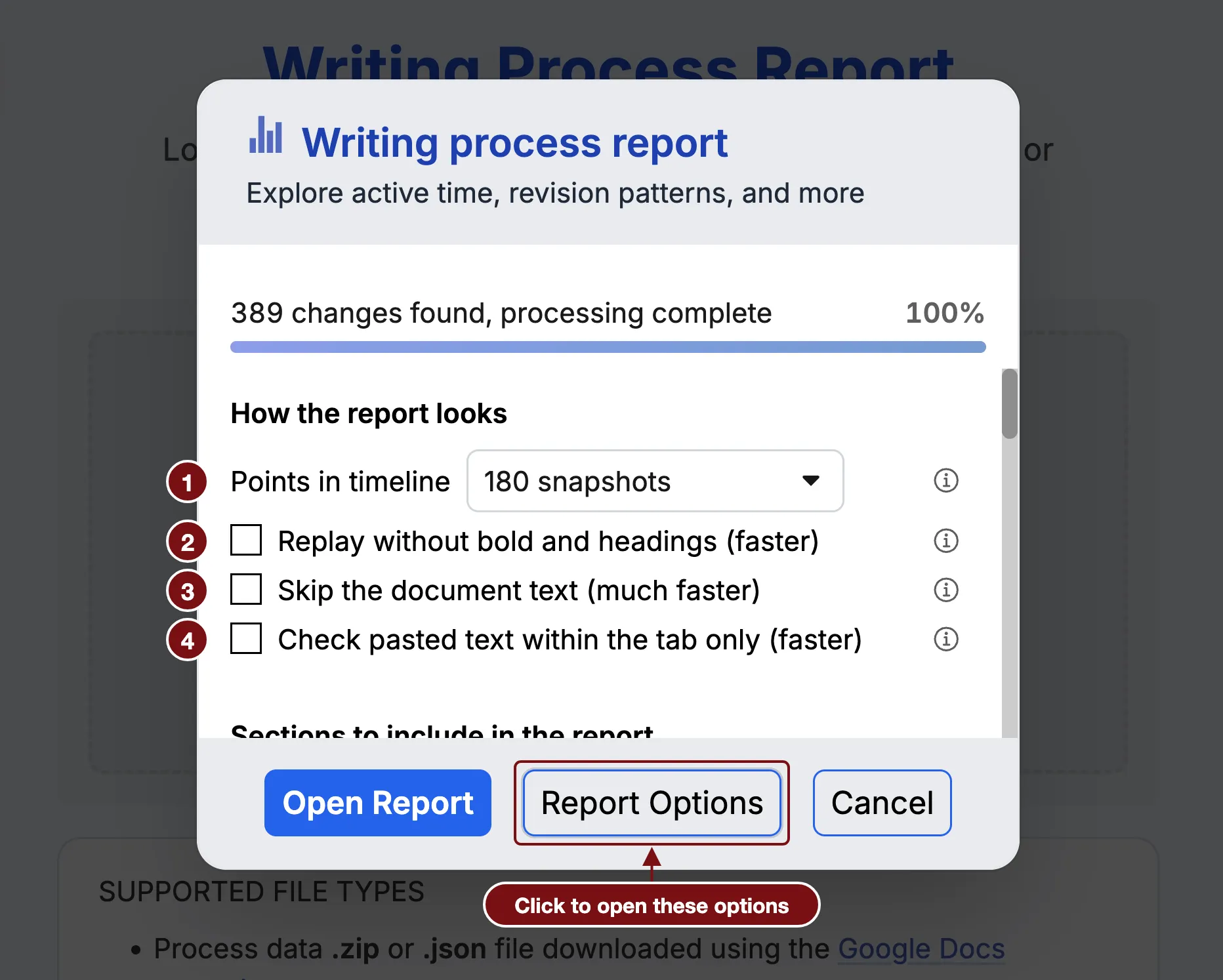
The orange icon next to the title, when it appears, means the report is not showing every detail. It may show fewer snapshots than were recorded, or cut very long snapshots short. Click the icon to learn more. To see more, raise Points in timeline in Report Options.
C. Options

- Keep left and right time together keeps the two snapshots next to each other. With it on, moving either side moves the other with it, so you always compare one snapshot with the one just before it. This is the easiest way to step through the writing one snapshot at a time. With it off, the two sides move on their own, so you can compare snapshots far apart, as in the figures on this page.
It is on by default, and it goes back on each time you open a report.