The writing linearity section (formerly Edit Location in the Document) in a writing process report answers one question in two ways: did the writer compose the text in order, from beginning to end, or did they keep going back into what they had already written?
- The linearity numbers at the top sum this up as a percentage.
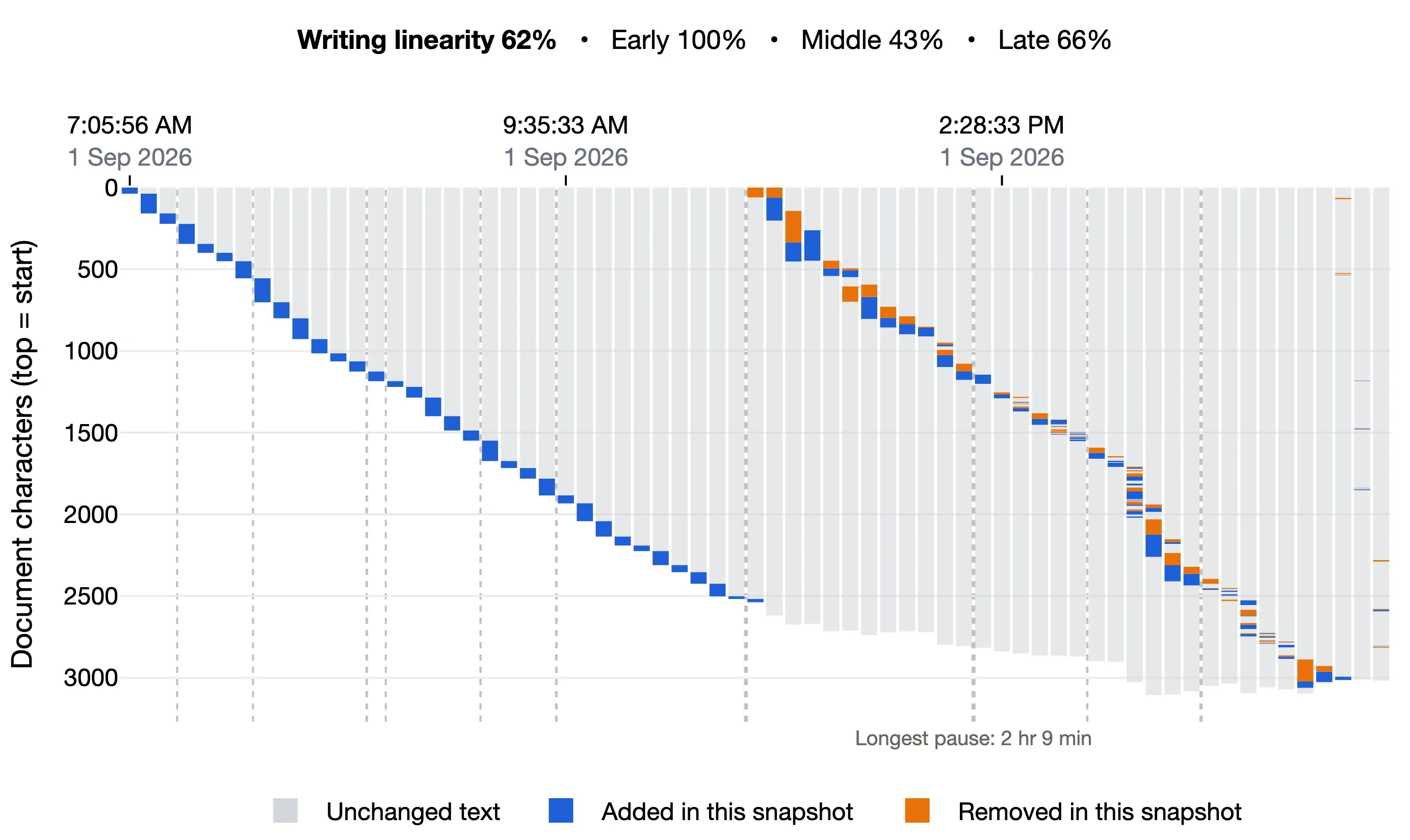
- The chart shows where in the document each change landed at each snapshot.
Linearity helps you answer questions like these:
- Did the student write straight through, without going back to change anything?
- Did they revise at all, and how often did they return to earlier passages?
- Did they revise as they went, or in one pass at the end?
- In what order did they write the sections? For example, did they write the conclusion first?
Why it matters: Most writers do not write in a straight line. They plan, write, reread, and fix things, going back and forth. Linearity shows how much of that happened, when, and where. This gives teachers and students something real to talk about: how the draft was built, where the student went back, and why. It is especially useful when students use AI. It helps them think about how they shaped the text themselves, instead of just taking what AI gives them. For example, if a student wrote a long draft straight through and almost never went back, it is worth asking them about it (unless the assignment asked for free writing). But linearity alone does not tell us whether AI was used.
Linearity describes how the text was written, not how good it is. A low score is not bad, and a high score is not good. See the example student reports for what these patterns look like.
A. How to read the linearity numbers
The row at the top shows the overall Writing linearity, then Early, Middle, and Late.
- The writer’s current place is the spot where they are typing right now. 100% means every change was made there.
- Lower values mean the writer went back to change earlier text.
- A dash (–) means there are too few snapshots to judge (fewer than 10).
- The score is not the percent of text that stayed the same. It is also not the percent of changes that went back.
- The scale is stretched near 100%, so 90% does not mean 10% of changes went back. Use it to compare writers, or Early with Late.
Early, Middle, and Late are three separate scores, one for each third of the writing. They do not add up to the overall score, and the overall score is not their average. The thirds are counted in snapshots, not hours, so one long final evening can make up most of Late.
For example, if a student wrote in order for the first two-thirds of the writing and revised in the last third, you can expect Early and Middle to be high and Late to be much lower.
What counts as going back:
- The farther back a change is, the more it lowers the score.
- Each change counts once, whatever its size.
- Backspacing while typing does not count.
This follows the idea used in writing research of measuring how far, and how often, a writer moves back from the point where they are writing (Buschenhenke, Conijn & Van Waes, 2023).
B. How to read the chart
The time labels are at the top of the chart, not the bottom. Read left to right to follow the writing over time, from the first snapshot to the last. Read top to bottom to move through the document, from its beginning to its end.
Each entire vertical bar (the full height) is the whole document at one snapshot, from its beginning at the top to its end at the bottom. As the document grows, the bars get taller. A bar that also shows removed text is taller than the document was; see Limitations.
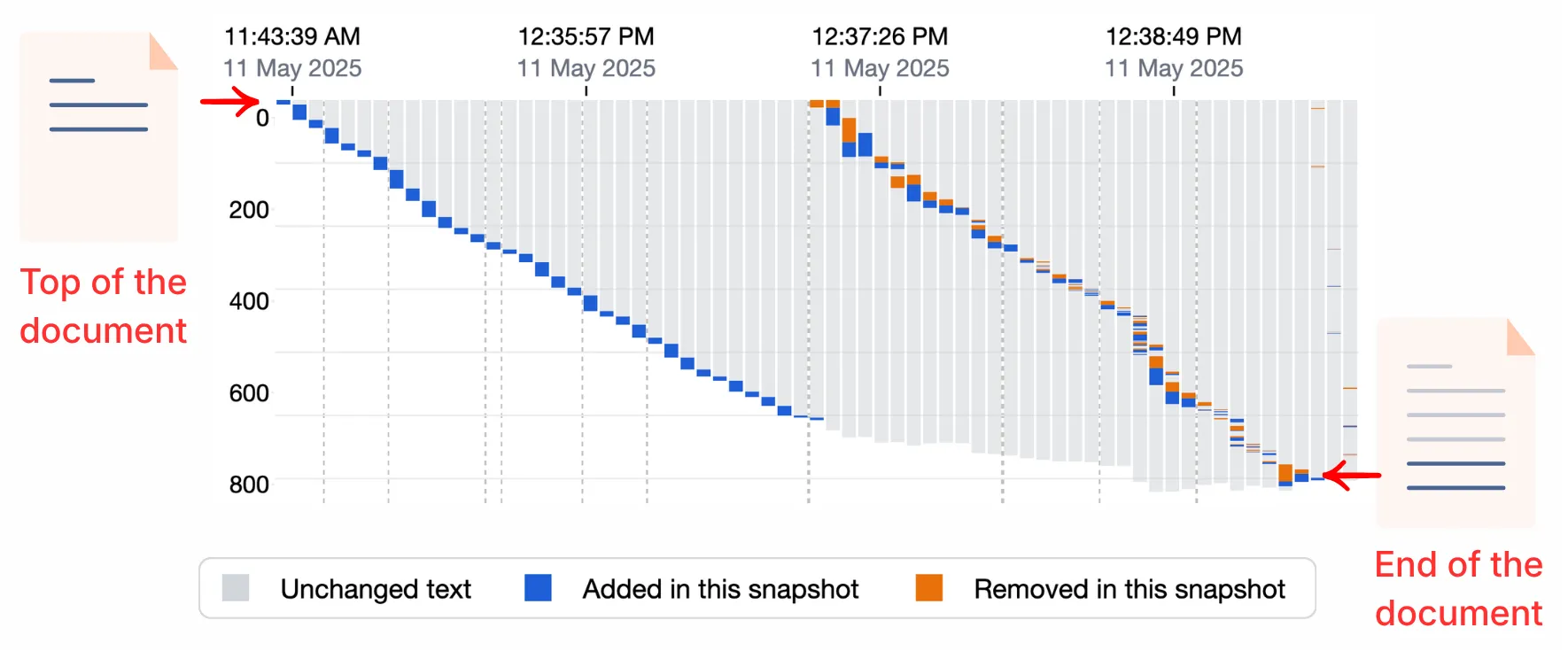
Colors show what changed and where. In the default view:
- Unchanged (faint) parts of a bar are text that stayed the same.
- Added marks text that arrived at that snapshot.
- Removed marks text that was deleted at that snapshot, shown where it was cut from.
With Keep bar height equal to document length turned on in Options, removed text moves to the bar before, and the legend changes to Removed in next snapshot and Added, then removed in the next snapshot. See Limitations.
1. Look for the shape
- If the colored parts form a steady line going down from left to right, the writer wrote in order. This is what a score near 100% looks like. Watch the colored parts, not how tall the bars are. A bar gets taller whenever the document gets longer, no matter where the new text was added.
- Changes that jump back toward the top are returns to earlier text. Each one lowers the score, and the farther up it lands, the more it counts.
2. Hover and click
- In the report, hovering over a colored part of a bar shows what kind of change it is, how many characters it covers, a preview of the text, the time, and the snapshot number.
- Clicking it opens Compare Two Snapshots for that moment, so you can read the before and after.
3. Look for typing pauses or view in true time scale
- By default the horizontal axis shows the sequence of snapshots, not real time. Idle stretches take up no width at all, so a five-minute gap and a five-hour gap look the same. Dashed vertical lines mark the typing pauses, with the longest one labeled.
- To see the real timeline, turn on Display timeline in true time scale in Options. The axis becomes clock time, and you can see when the writing actually happened.
- A pause only means no typing was captured. The writer may have been reading, planning, thinking, or away entirely.
C. Annotated figure
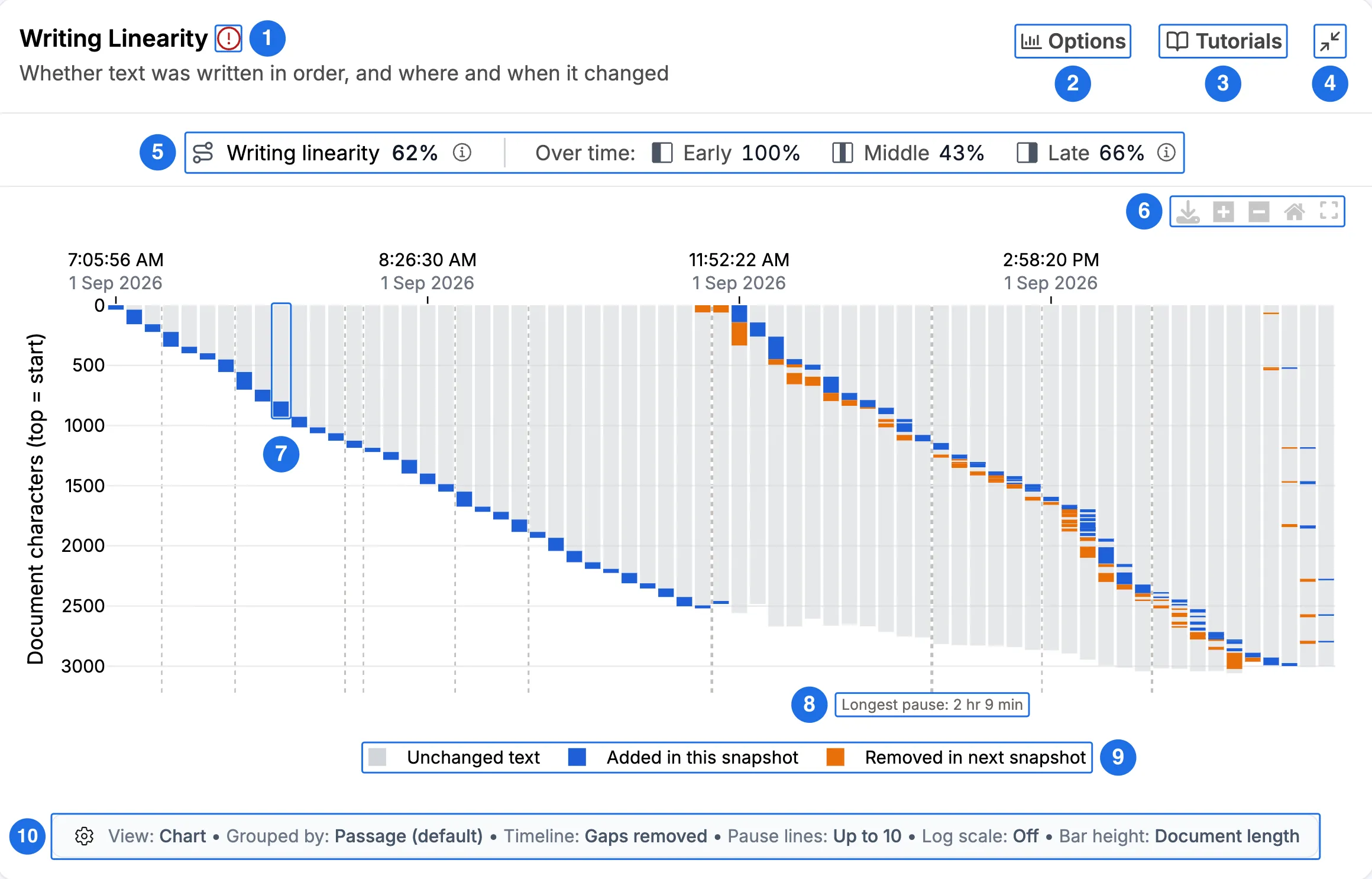
- The red exclamation mark appears only when some snapshots are not shown. Click it to learn how to include more.
- Options opens the chart settings described below.
- Tutorials opens this help page.
- The collapse button collapses the section.
- The linearity row shows the overall score, then Early, Middle, and Late. Hover the information icons for a short reminder of what the numbers mean.
- The chart toolbar lets you download the chart as an image, zoom in and out, reset the view, and go fullscreen.
- Each bar is the whole document at one snapshot. Colored parts show where text was added or removed.
- The longest pause is labeled. Dashed vertical lines mark the typing pauses.
- The legend names each color.
- The status bar shows the current settings without opening Options.
D. Options and chart settings
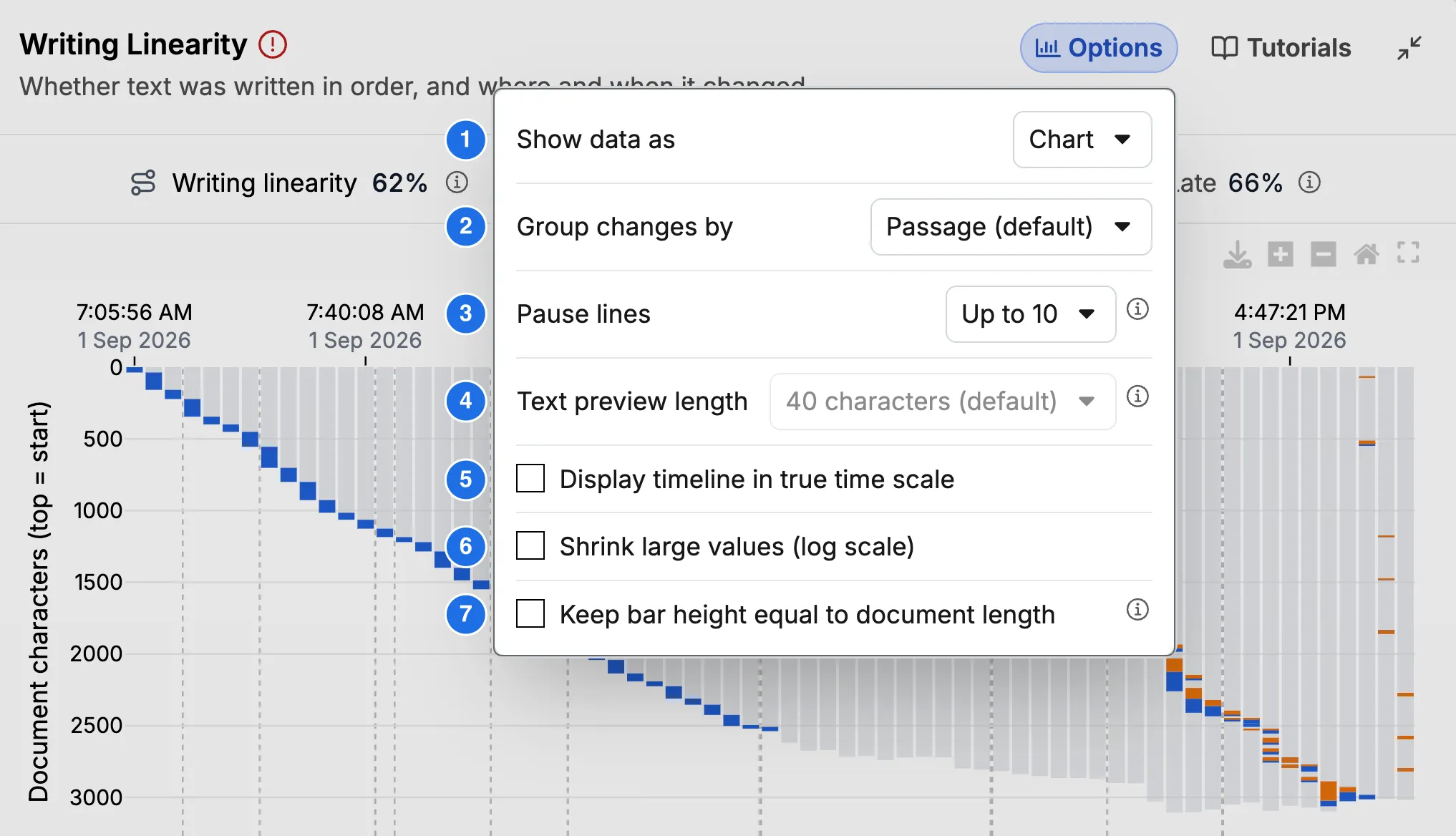
- Show data as switches between the chart and the table.
- Group changes by sets how changes are drawn:
- Passage (the default) colors each change by its type: added, removed, or both.
- Sentence and Paragraph give each edited sentence or paragraph its own color, the same color in every snapshot. This makes it easy to follow one sentence or paragraph through the session and spot every time the writer came back to it.
- Pause lines limits how many dashed pause lines are drawn. It applies only when true time scale is off.
- Text preview length sets how much changed text each table row shows before it is cut off. It applies only to the table, so it is grayed out in chart view.
- Display timeline in true time scale switches the horizontal axis from the sequence of snapshots, where idle time is invisible, to real clock time.
- Shrink large values (log scale) compresses the position axis. This helps with a long document, where everything near the beginning gets squeezed into a thin band at the top.
- Keep bar height equal to document length makes every bar exactly as long as the document at that snapshot, by drawing removed text on the bar before. It is off by default, and it is not available when changes are grouped by Sentence or Paragraph. See Limitations for the trade-off.
The linearity numbers do not change with any of these options. Only the chart changes.
E. Table view
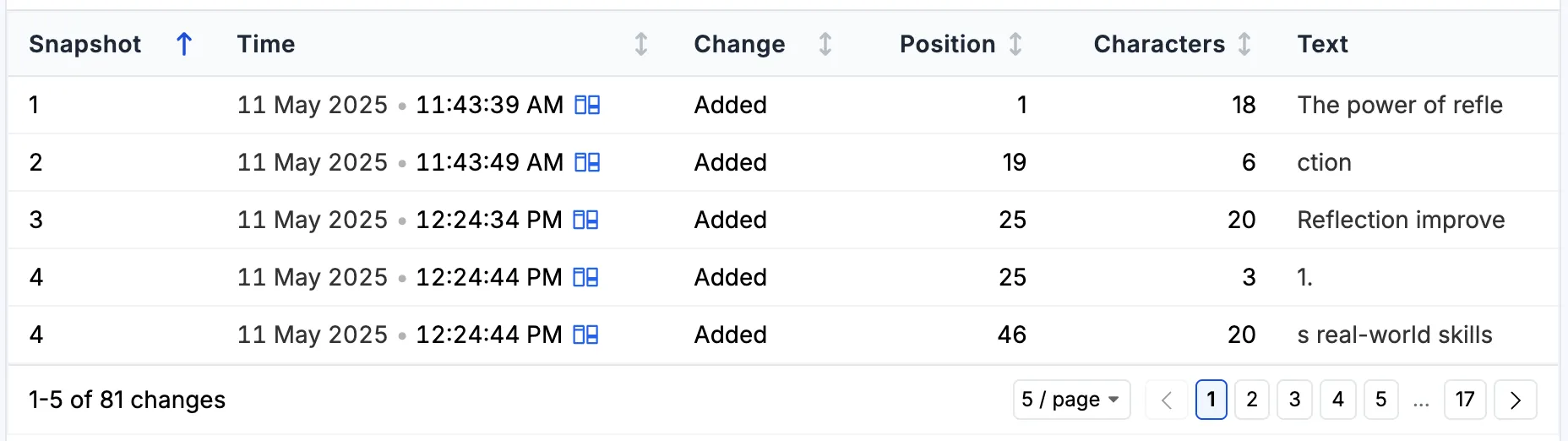
When you want precision, the table lists every change as a row: the Snapshot, the Time, the type of Change, its Position in the document, the number of Characters, and the Text itself. Click the dots (…) to read text that has been cut off.
A snapshot can have more than one row when the writer changed text in more than one place before it was recorded. In the example, snapshot 4 has two additions, at positions 25 and 46.
It is also the accessible view. Readers who cannot interpret the chart visually can explore the same changes as rows.
As with clicking the chart, the icon beside each timestamp opens that moment in Compare Two Snapshots.
F. Example student reports
1. Using AI or Grammarly to fix all the grammar at once
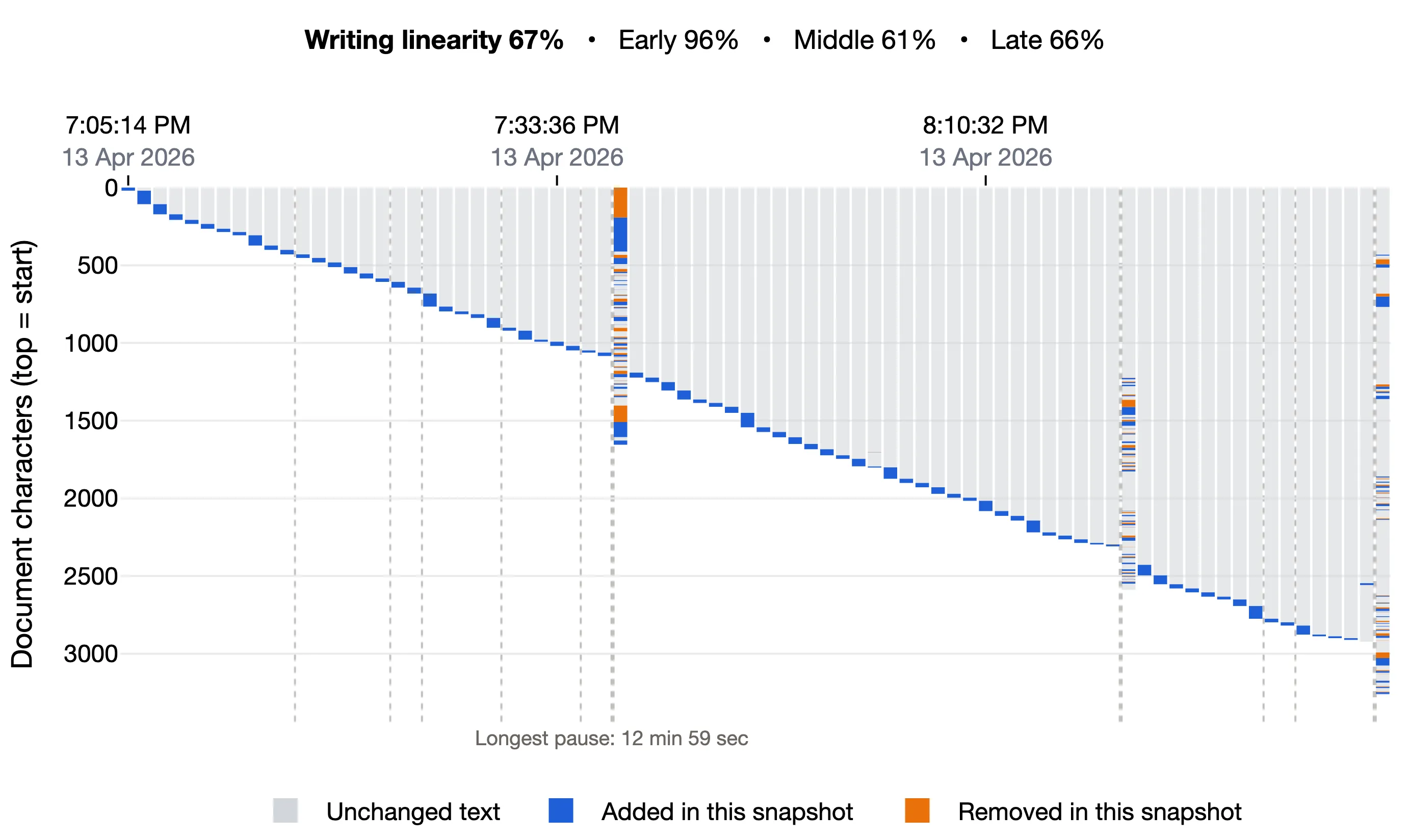
The writing moves steadily forward, but three times, each at a short pause, a single bar shows many tiny changes spread from the top of the document to the bottom. Fixes this small and this widespread, arriving all at once, look as if the student copied the text into a grammar tool such as Grammarly or an AI assistant, then pasted the corrected text back in one go.
Pasting new text shows up as one big block. But if a student pastes a corrected copy over their own text, the chart shows only the words that changed. That is why each round of fixes looks like many small changes, not one big paste.
Each fix counts as a separate change far behind the end of the text, so even small corrections lower the score: Early is 96%, but Middle drops to 64% after the first round of fixes. In the report itself, clicking one of these bars opens Compare Two Snapshots, so you can see exactly what changed.
Note: This screenshot was taken with Keep bar height equal to document length turned on (the default), so in each round of fixes the removed words appear on the bar just before the pause, and the corrected words on the bar after it. See Limitations.
2. Composing in order
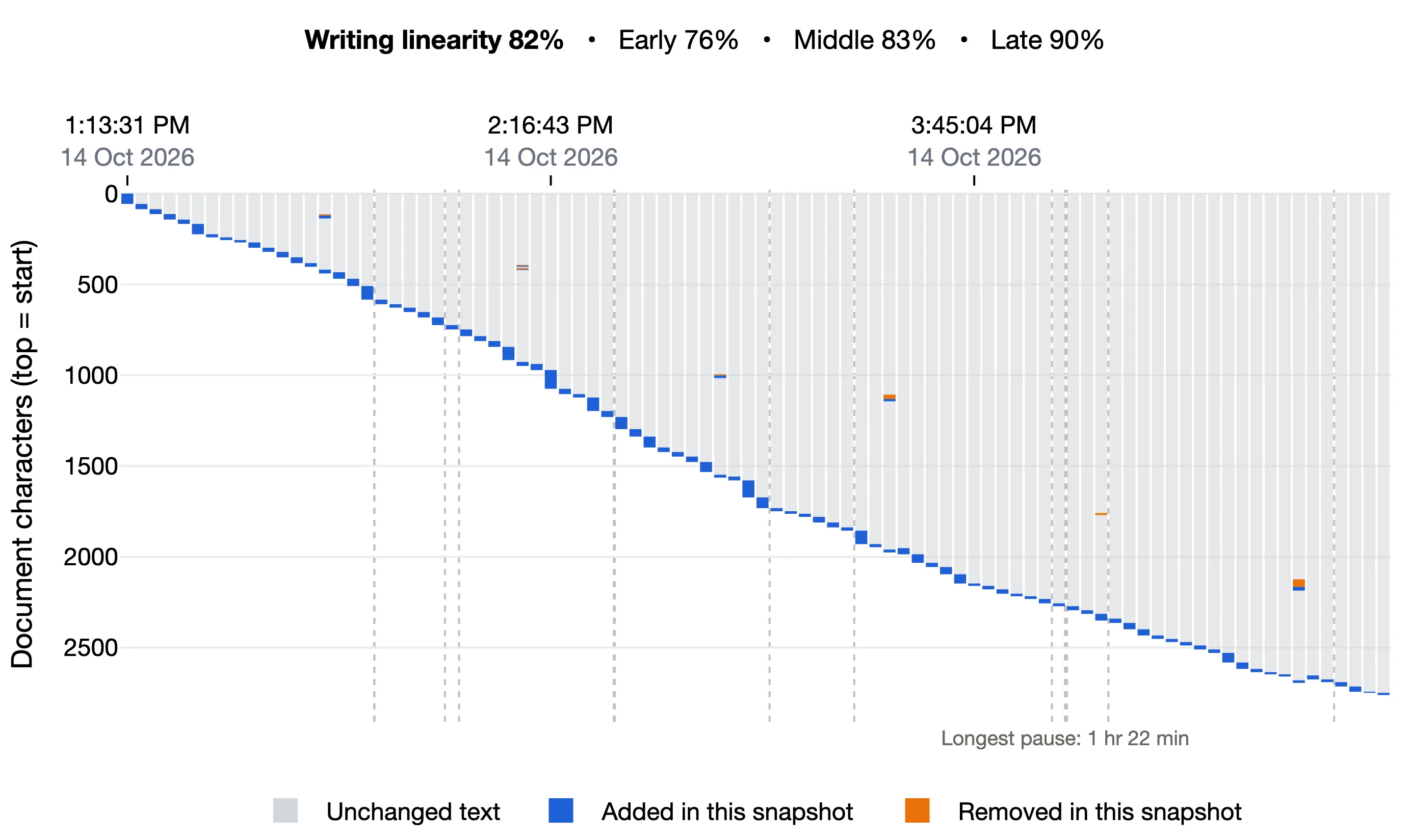
The changes form a steady diagonal from the top left to the bottom right, with only a handful of small returns to earlier text. The writer composed the text from beginning to end.
The score is 82%, not 100%. Because the scale is stretched near the top, even a few small returns pull it down noticeably.
3. Drafting, then revising
The first part is a clean diagonal with no going back, so Early is 100%. Then the writer returns to the top and works down through the whole draft, adding and removing text.
4. Introduction, conclusion, then the body
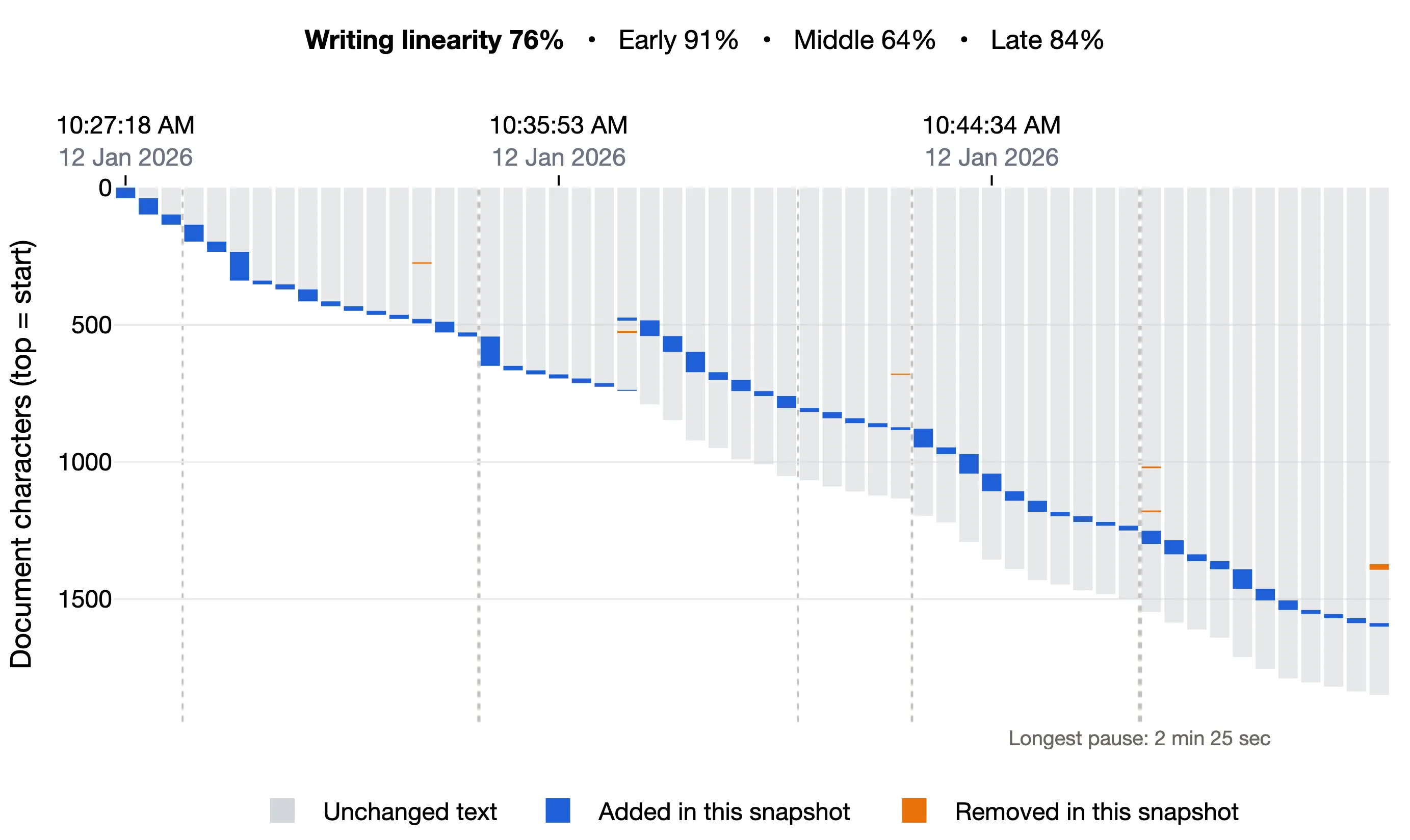
The writer types the introduction, then the conclusion, then goes back and fills in the body between them. From then on, the faint part of each bar below the new text is the conclusion, already written. Every body addition lands above it rather than at the end of the document.
5. Several bursts of revision in the writing timeline
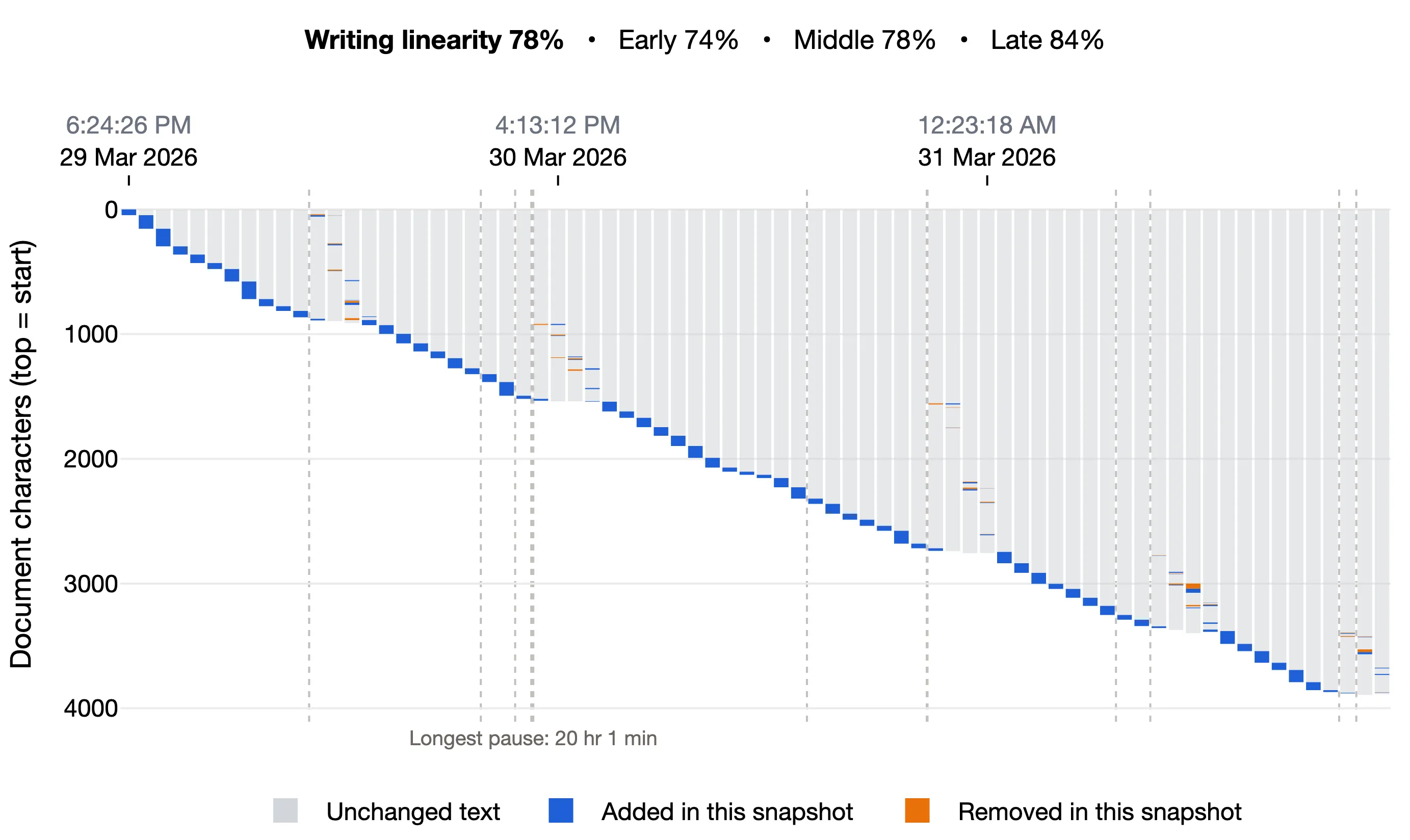
The writing mostly moves forward, but it is interrupted by short bursts of changes higher up the document. Each burst comes right after a long typing pause (a dashed line): the writer comes back, rereads, fixes earlier text, and then carries on writing.
6. Iterative revision
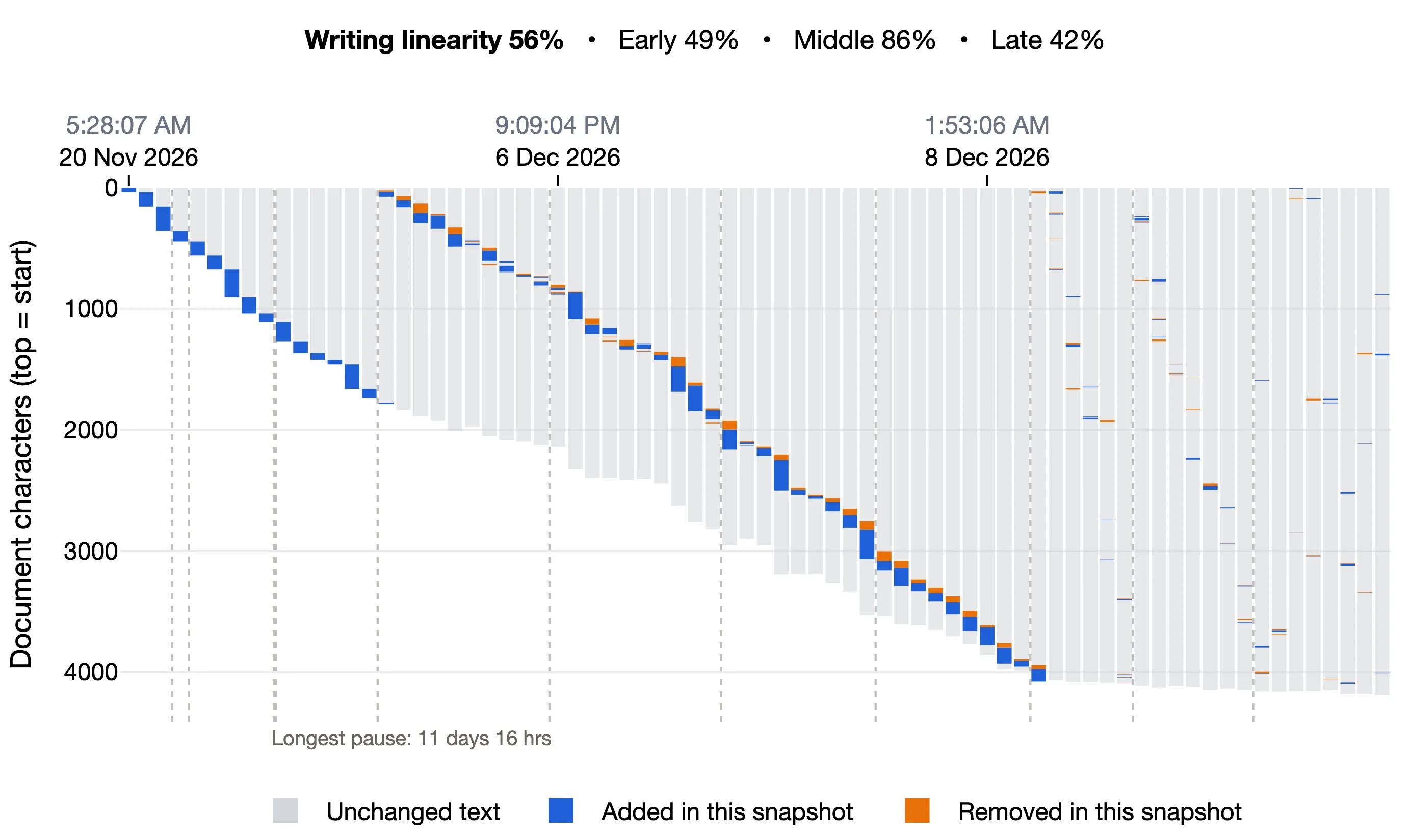
A linear first draft is followed by a long revision pass from the top of the document to the bottom, then quick passes and scattered fixes. Late is lowest, at 42%, because the final fixes land all over the document.
7. Starting with prewritten text and revising it from top to bottom
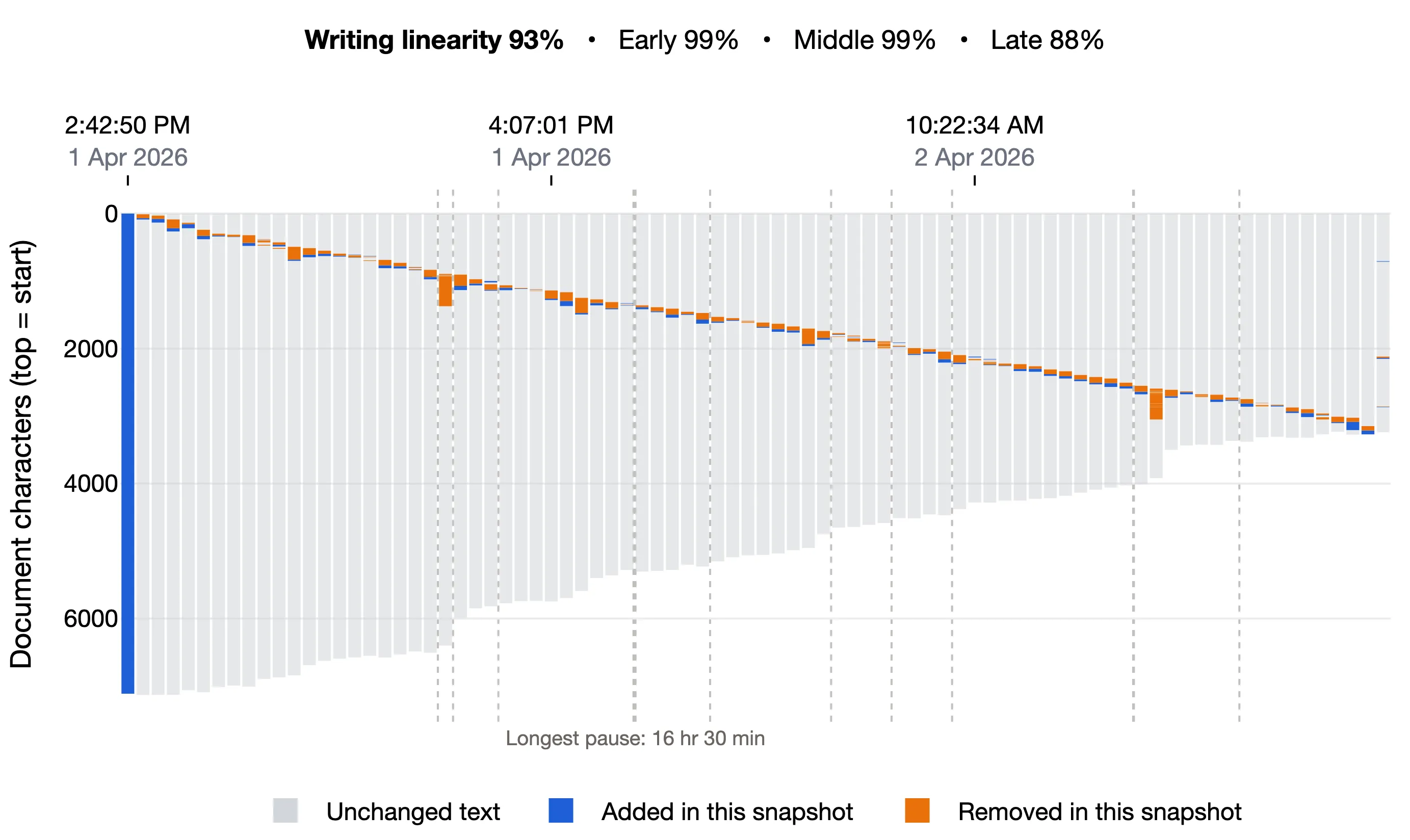
One tall blue bar at the start shows the whole text arriving in a single paste. The writer then edits it from top to bottom, cutting it down as they go. The linearity score is high, 93%, because most edits come just after the previous one.
8. Pasting a paragraph, revising it, and repeating
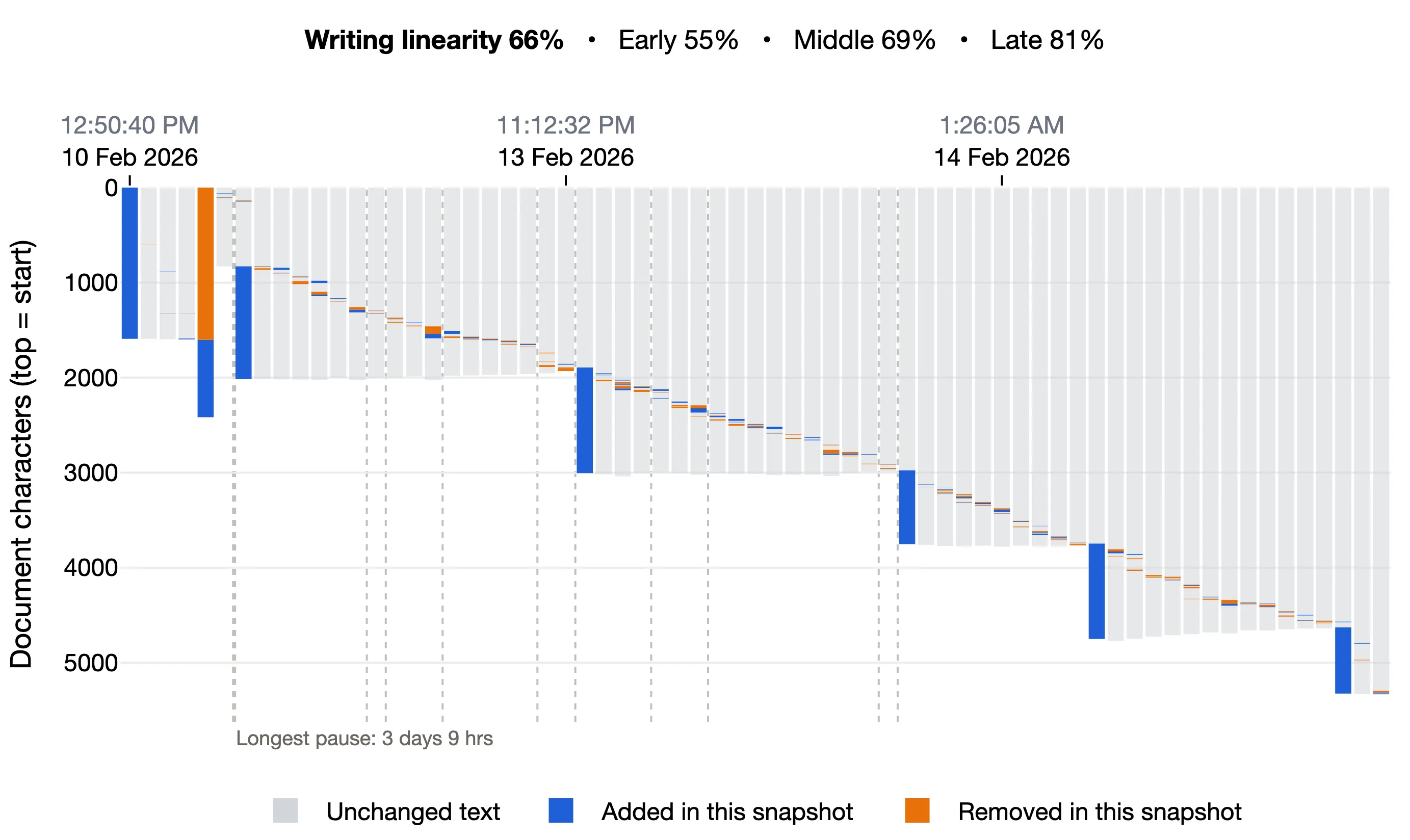
Each tall blue bar is a pasted paragraph. After each paste, small changes sweep down through the new paragraph before the next one arrives. The pattern repeats down the document like a staircase.
9. Highly non-linear, always adding paragraphs at the top
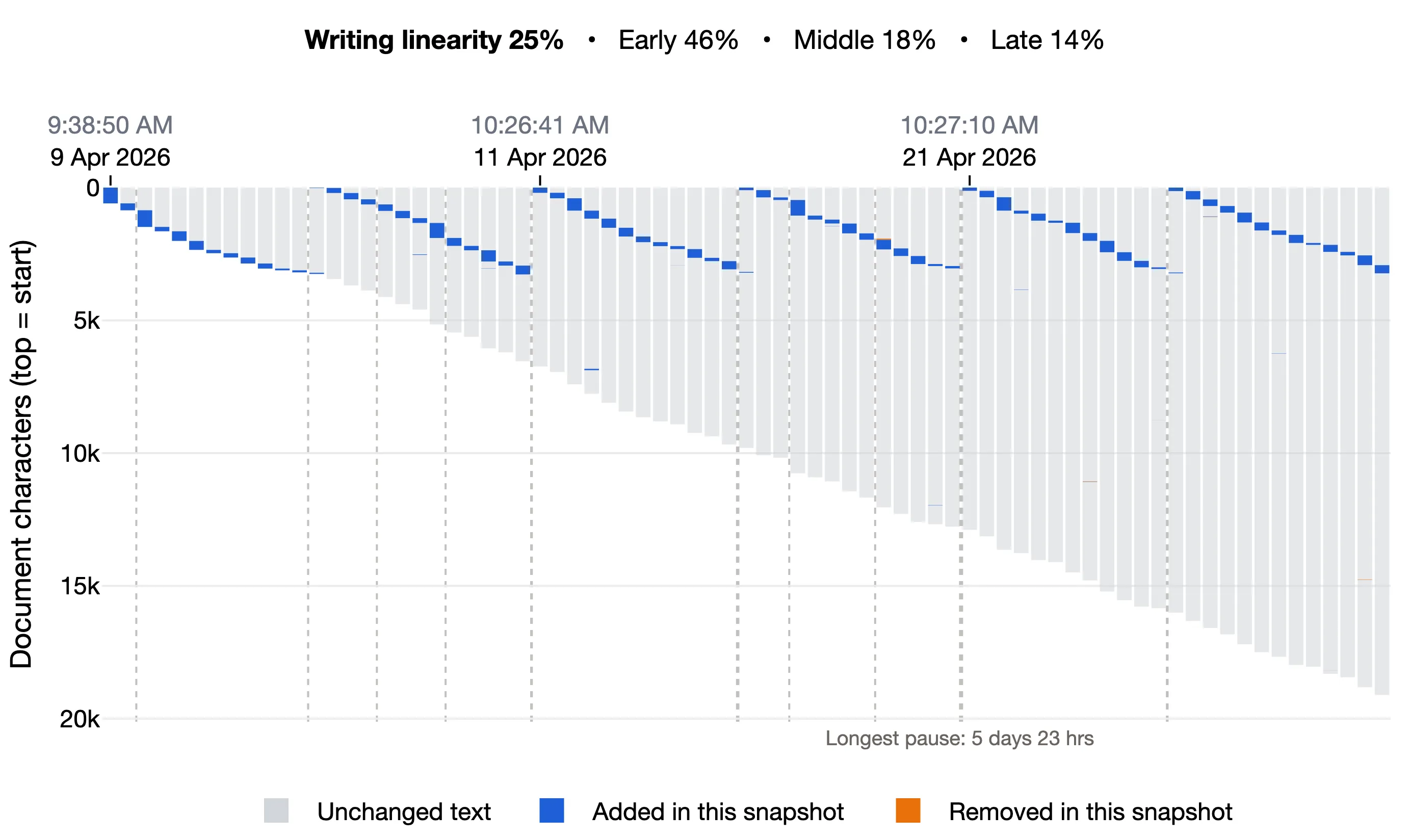
Every session starts at the very top of the document and adds a new entry above everything already written, like a journal with the newest entry first. Each session draws a fresh diagonal from the top while the document grows beneath it.
The score is very low, 25%, even though each entry was written in order. Almost all the writing lands far above the end of the document. A low score here means the writer worked behind the end of the text, not necessarily that they revised.
10. When the score does not apply: pasting new text over and over
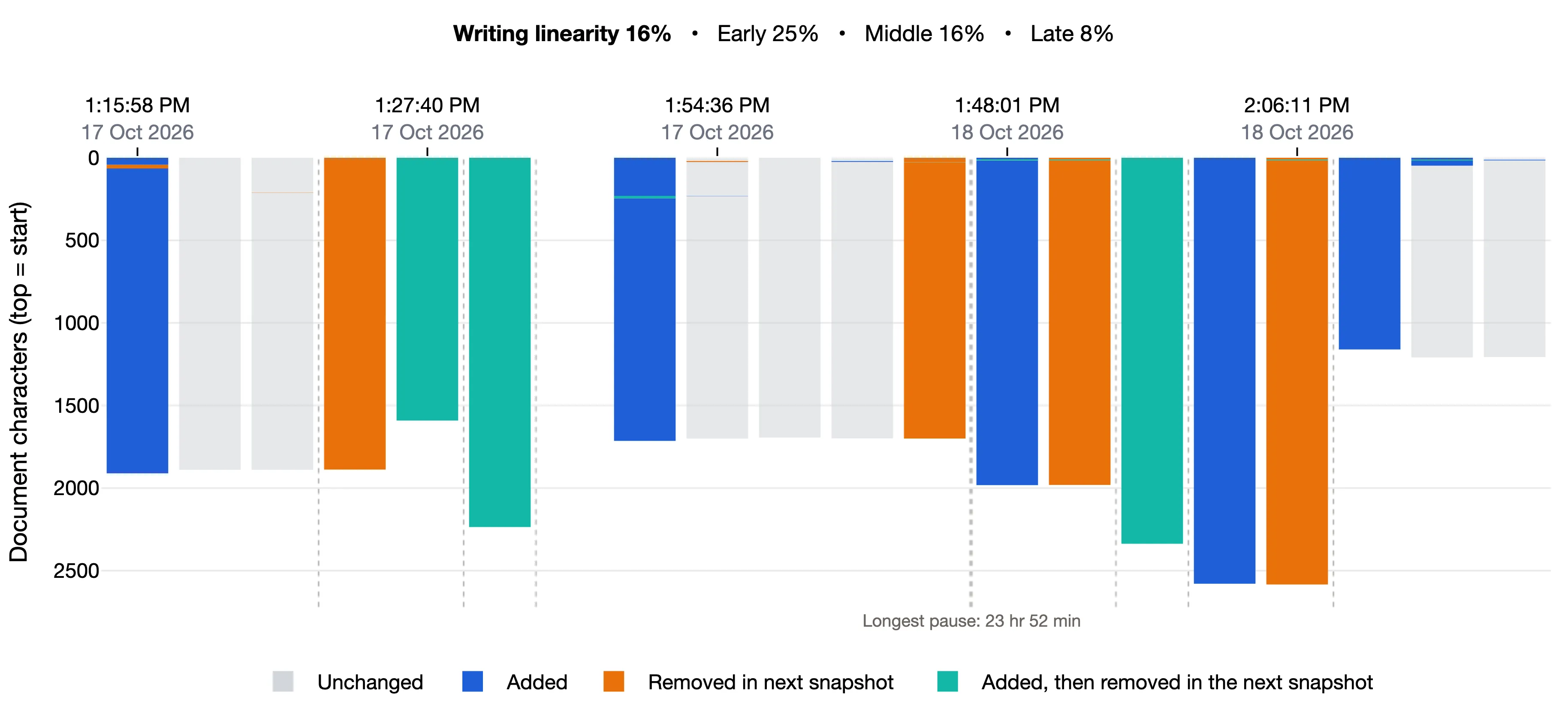
This document was not used for writing. Each tall blue bar is a whole set of song lyrics, copied from a search result and pasted in at once. Soon after, the whole text is removed and a new set is pasted in, again and again over two days. Some sets were pasted and gone by the very next snapshot.
The score is very low, 16%, but it says nothing about how this person writes. Each paste lands on top of or in place of text that is already there, far behind the end of the document.
A pattern like this is rare in student writing. If you see a chart like this, the document was most likely used for something other than usual writing.
Note: This screenshot was taken with Keep bar height equal to document length turned on, so each removed set of lyrics appears on the bar before the snapshot that removed it. See Limitations.
G. Limitations
Bars with deletions are taller than the document
By default, each bar shows the text added and the text removed at that snapshot together. Removed text no longer exists in the document, so a bar with deletions is taller than the document was at that moment, and positions on that bar are not exact positions in the document.
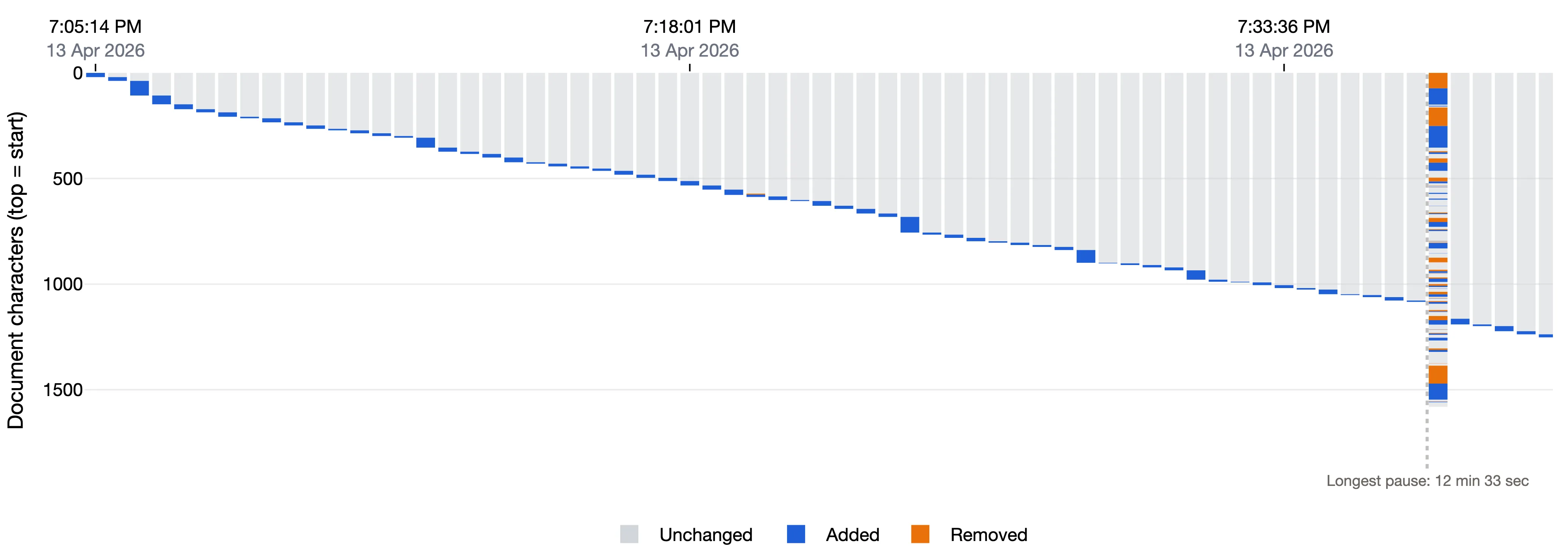
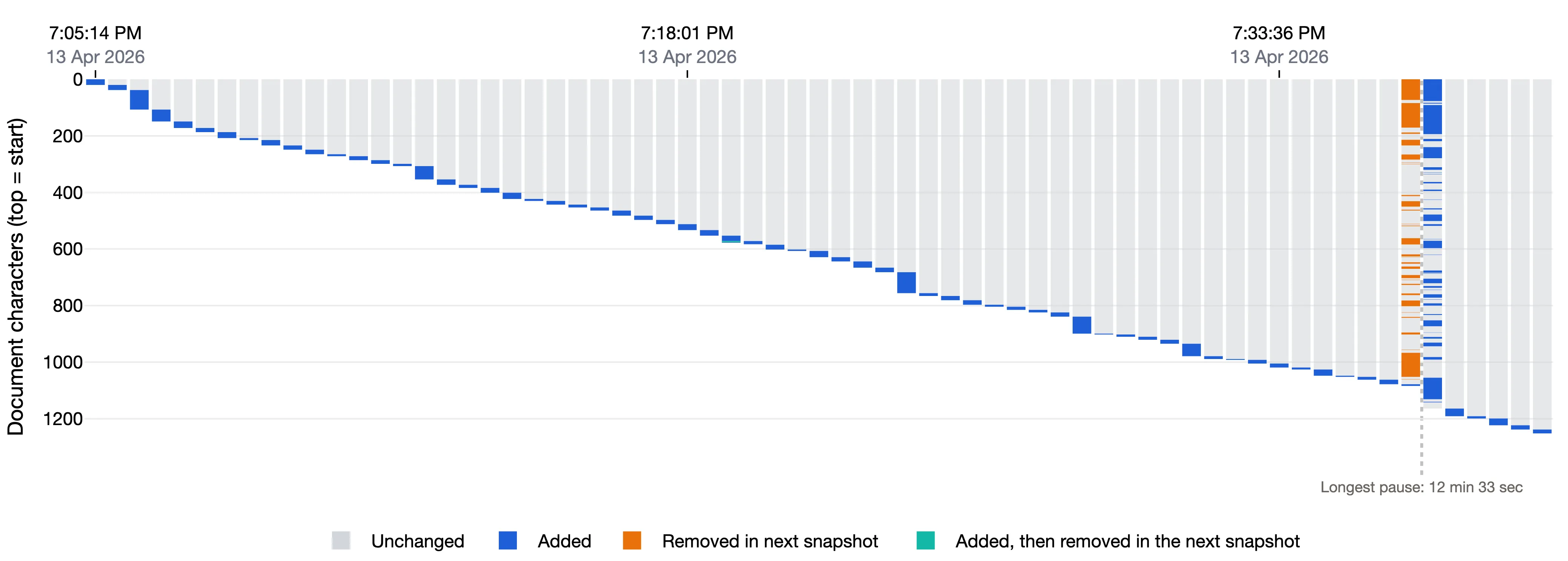
The two charts below show the same document, case 1, drawn both ways.
By default, the removed and added words share one bar. That bar reaches about 1,550 characters, although the document was only about 1,100 characters long, so it can look as if the writer added a lot of new text when they only swapped words:
When you need every bar to match the document length, turn on Keep bar height equal to document length in Options. Every bar is then exactly as tall as the document. The removed words move to the bar just before the pause, the last snapshot that still had them, and the corrections stay on the bar after it:
The cost is that a single edit that replaces some words is split across two neighboring bars. In the figure below, each orange removal and the blue addition beside it happened at the same moment:
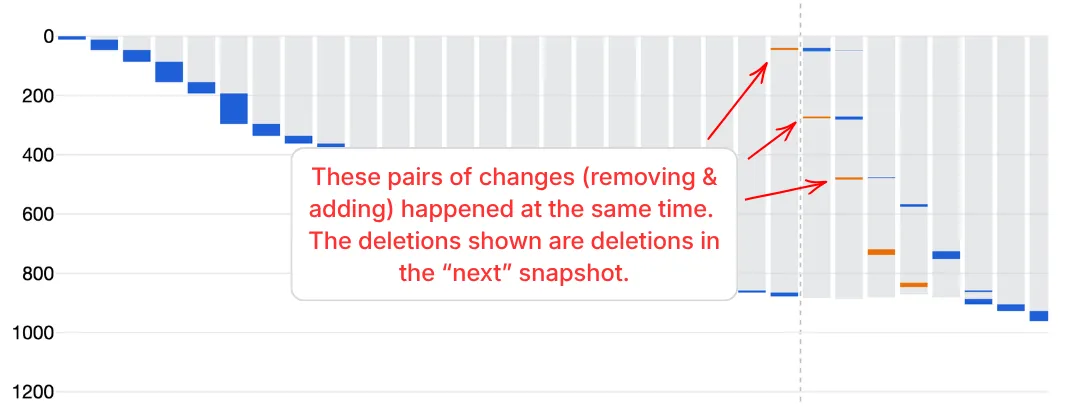
Neither view is wrong; each gives up something:
- Default puts each change at the right moment, but bars with deletions are taller than the document was.
- Keep bar height equal to document length keeps every bar true to the document, but shows each deletion one bar early. Keep this in mind when you line up a change with a time or a typing pause.
Use the default to see when things changed, and turn the option on when you need true positions in the document.
The same score can come from very different writing
The score measures how often, and how far, the writer went back from where they were writing. It does not describe the overall shape of the writing, so two very different processes can get the same number. Both charts below score 85%.
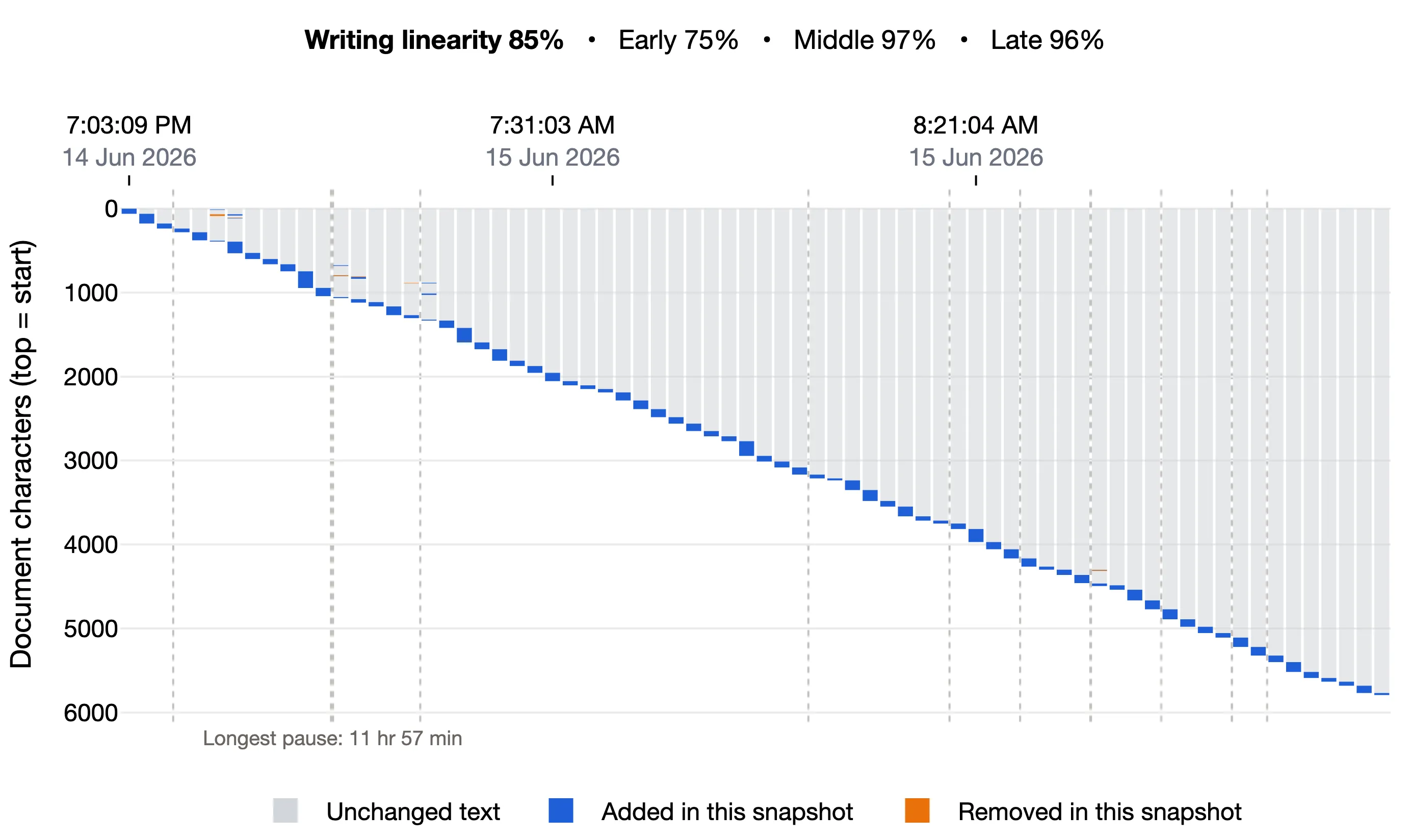
The first writer composed about 5,800 characters in order, from the beginning of the document to the end, over one evening and the next morning. Almost every change is at the end of the text, with a few small edits near the beginning.
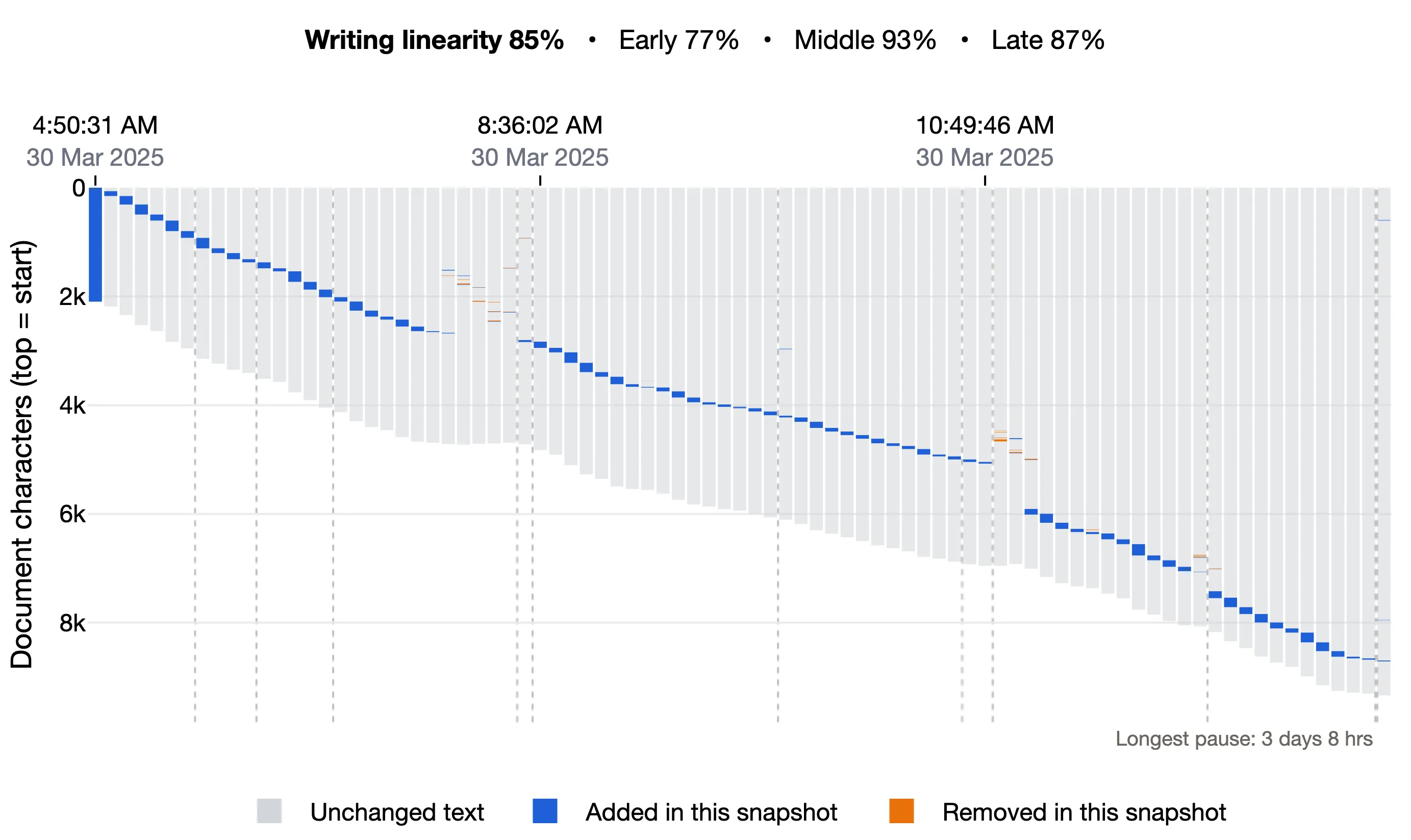
The second writer added about 2,000 characters at once at the start (the tall blue bar on the far left), then wrote new text above it. The grey below the blue additions is that first block of text, pushed down as the document grows. Twice, the additions jump down past part of that text and carry on below it. The last changes come after a pause of more than three days.
Each change is measured from the writer’s current place, so writing steadily above an existing block of text counts as linear, just like writing at the end of the document. The score cannot tell you that the second document started with 2,000 characters already in it. Read the score together with the chart: the score shows how much the writer went back, and the chart shows where the text was written and in what order.