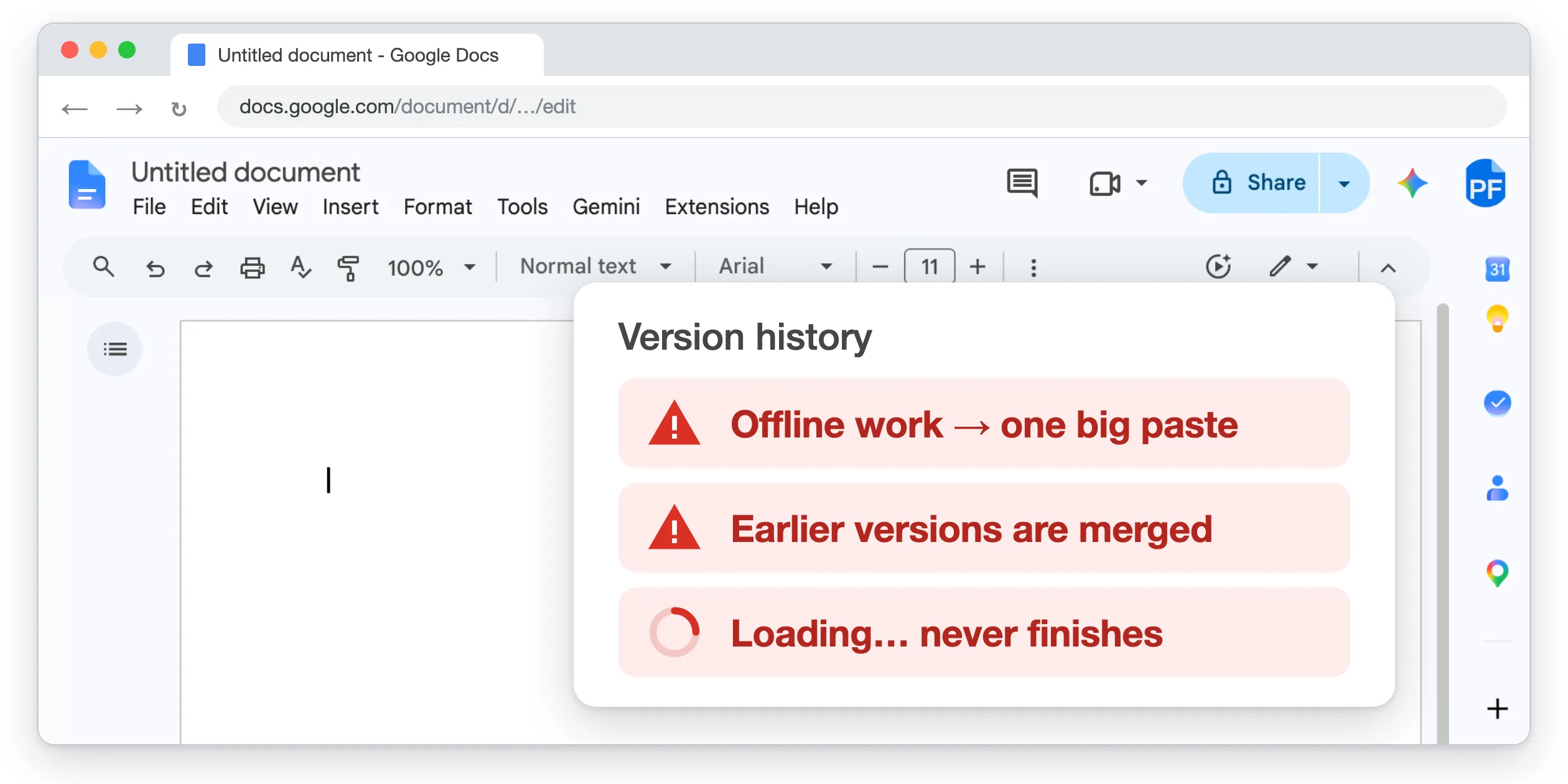
Process Feedback now flags Google Docs written with Dripwriter, an auto-typer. Dripwriter types a finished draft into a Google Doc slowly, so the version history looks like a student wrote it. The flag works because Dripwriter adds the text from outside the Google Docs editor.
This post shows what Dripwriter does, how the flag appears in a report, and which auto-typers the flag does not catch. For more about Dripwriter and other auto-typers, see How students cheat in 2026.
What Dripwriter does
Dripwriter is a website, not a browser extension. A student signs in to Dripwriter, connects a Google account, and pastes in a finished draft. The student then chooses how long the drip should last, from 30 minutes to a week, and picks a new or existing Google Doc. After the student clicks Start Dripping, the text appears in the Google Doc a little at a time.
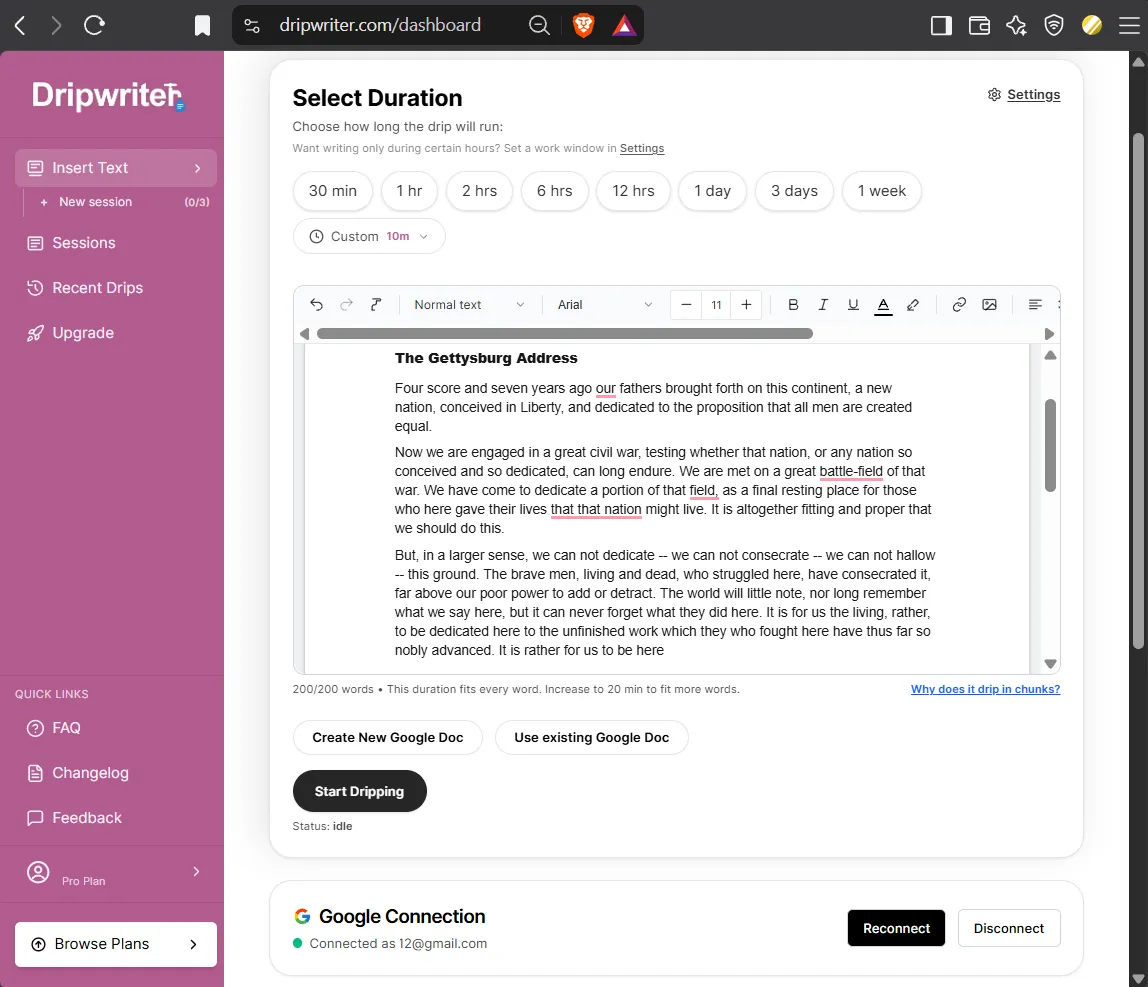
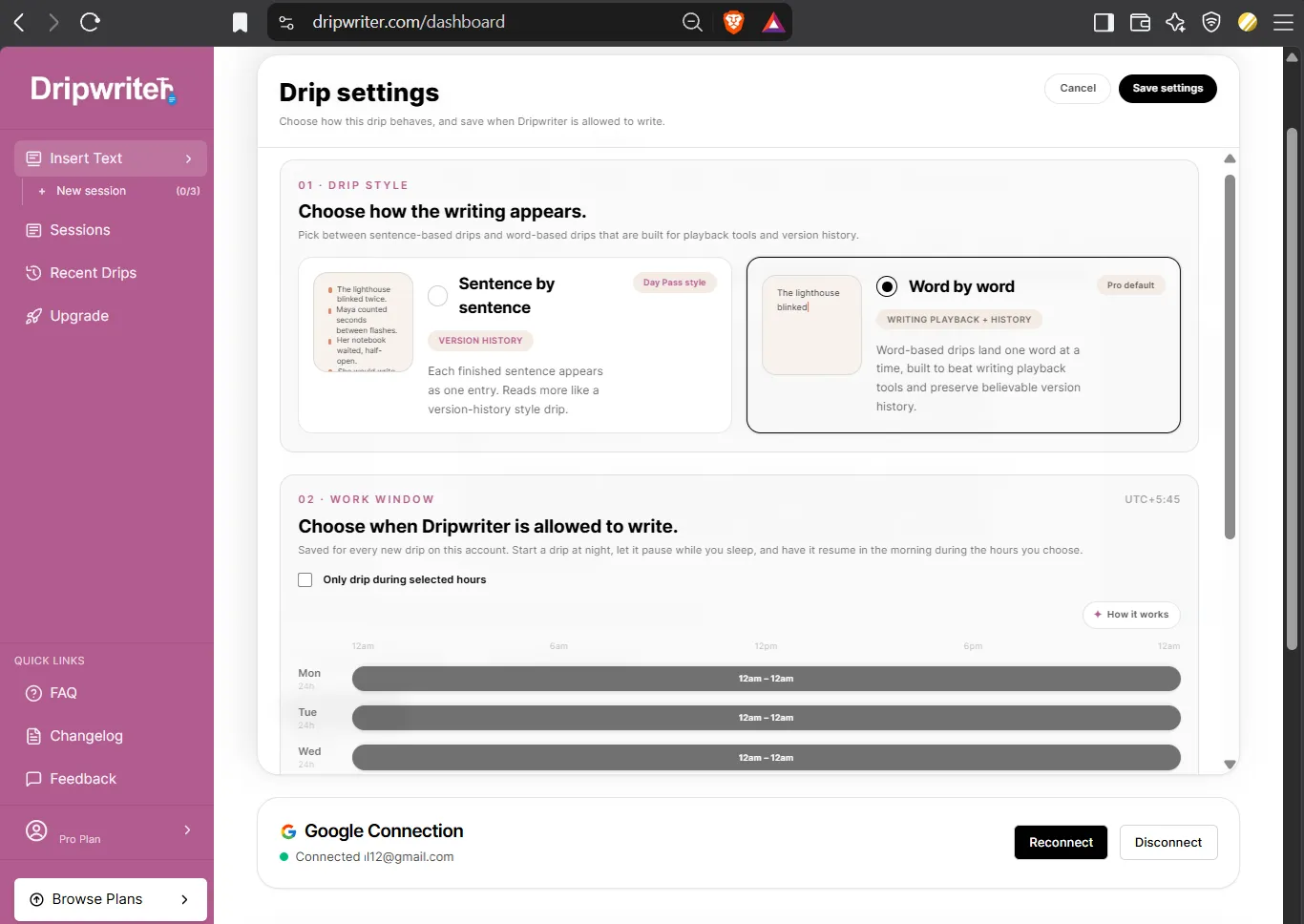
The Pro plan has more settings. With the Word by word style, Dripwriter types the text the way a person would. Dripwriter says this style is “built to beat writing playback tools and preserve believable version history.” A work window sets the hours when Dripwriter is allowed to write, so a drip can start at night, pause while the student sleeps, and continue in the morning.
What a Dripwriter document looks like in Process Feedback
Process Feedback team tested Dripwriter’s Pro plan. Dripwriter typed the Gettysburg Address into a new Google Doc, and the team then opened the writing process report for that document.
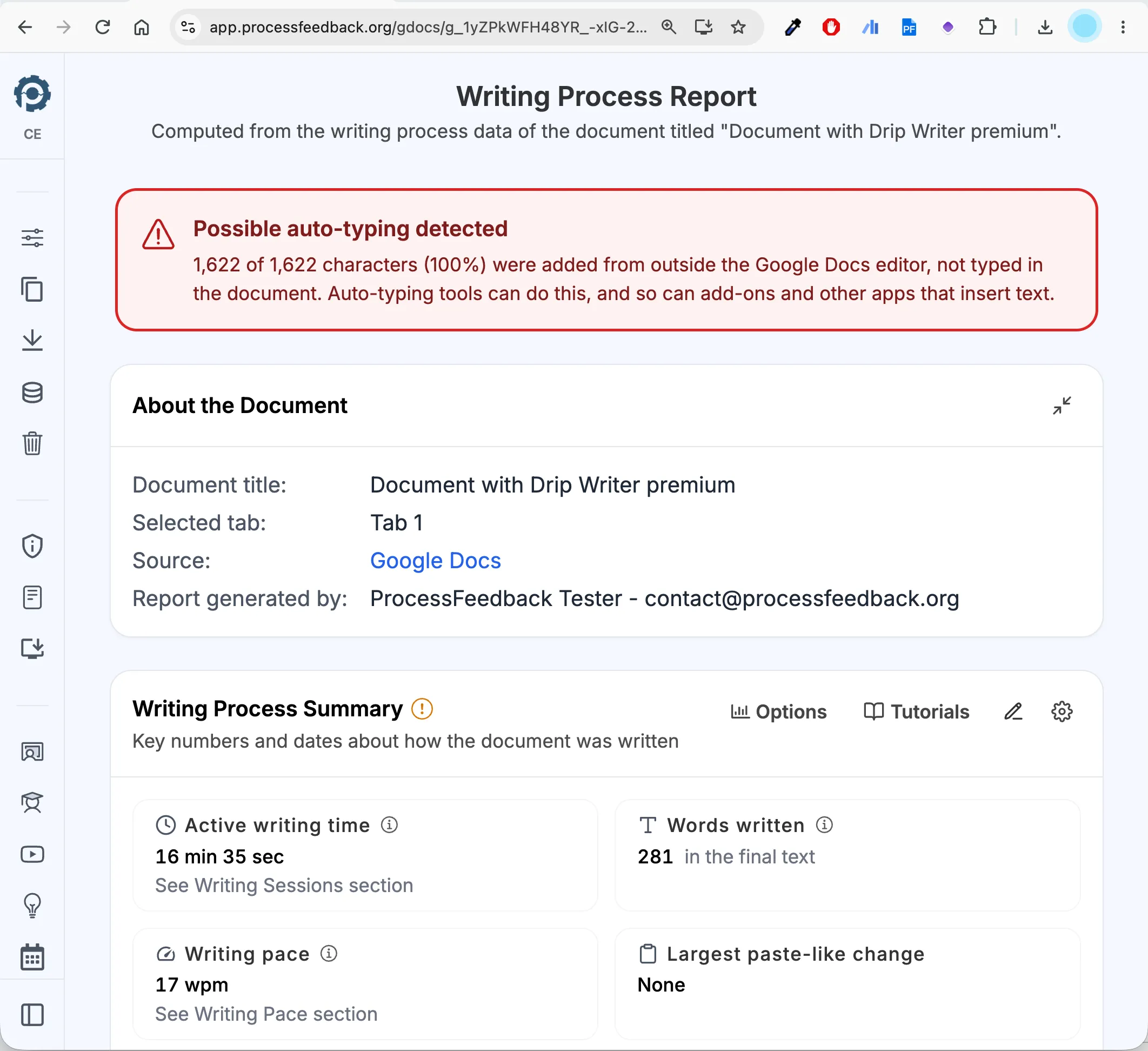
Most numbers in the report looked like a person had typed the text:
- Active writing time was 16 min 35 sec.
- Writing pace was 17 words per minute.
- The report found no paste-like changes.
- Writing linearity was 87%.
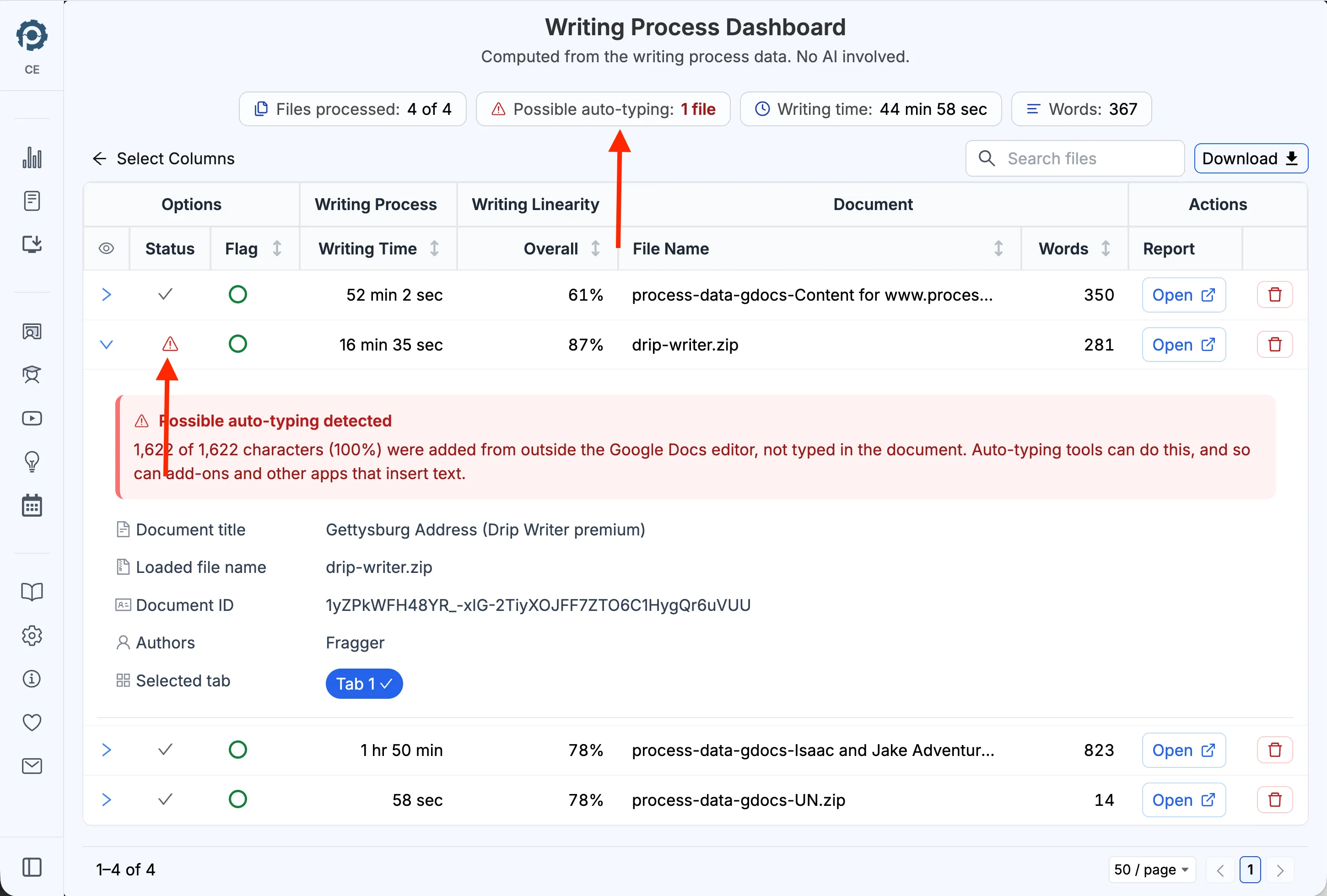
The team also loaded the document into the Writing Process Dashboard next to three other documents that people typed. Their linearity was between 61% and 78%, so linearity alone did not set the Dripwriter document apart.
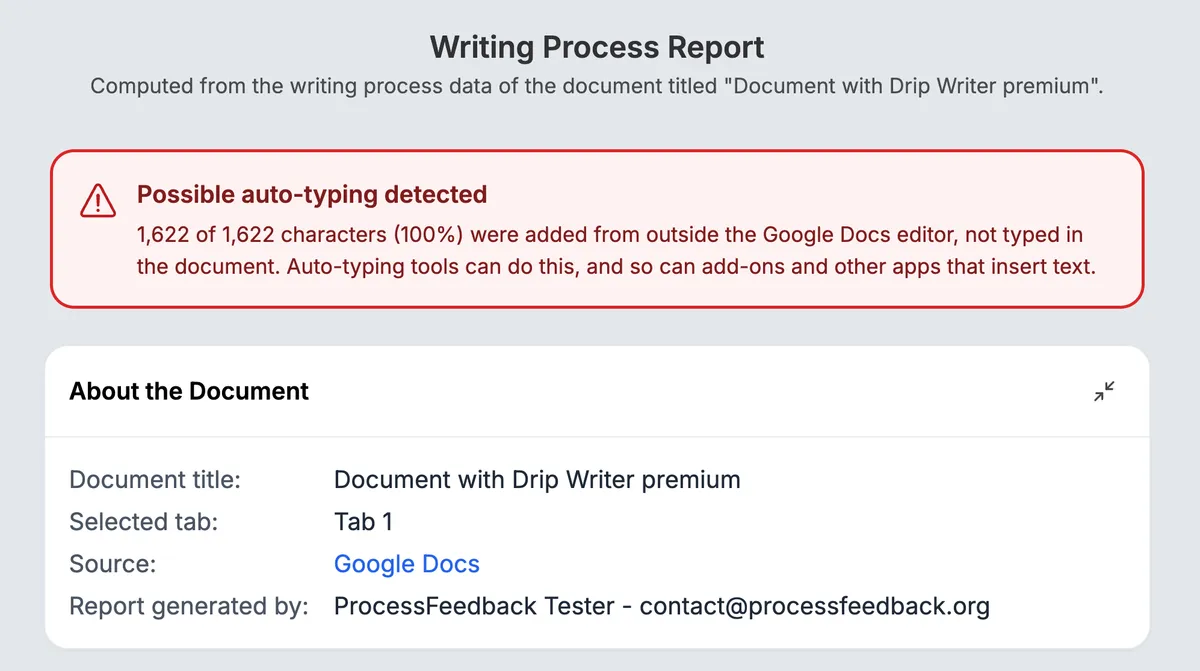
The report flagged the document at the top, in a red box titled Possible auto-typing detected.
You can open the full report for this Dripwriter document and explore each section.
The Writing Process Dashboard shows the same flag. At the top, the dashboard counts the files with possible auto-typing. In the Status column, each flagged file has a warning icon, and you can open its row to read the message.
Why Process Feedback can flag Dripwriter
Dripwriter does not type in the student’s browser. Instead, Dripwriter’s website adds the text to the document through the student’s Google account, so the text never goes through the Google Docs editor. Process Feedback counts the characters that came in this way, without using AI, and shows the count in the report.
What else can cause the flag
Google Docs add-ons and other apps can also insert text from outside the editor. The report says this in its message: “Auto-typing tools can do this, and so can add-ons and other apps that insert text.” A student may have used an add-on for a good reason.
Before you decide what the flag means, check how much of the text came from outside the editor. In the Dripwriter test, text from outside the editor made up the whole document, all 1,622 characters.
What the flag does not catch: browser extensions
Many auto-typers, such as AutoTyper, are browser extensions. A browser extension types the draft inside the open Google Doc, one key at a time, the way a person types. Google Docs records this text as typing in the editor, so Process Feedback does not flag it.
To spot these tools, look at other sections of the writing process report:
- Writing linearity shows whether the text was written in order from start to end, or whether the writer went back to change earlier parts.
- Writing continuity, in Writing Sessions, shows whether the writer typed for minutes without stopping or typed in short bursts.
- Writing pace shows how fast the text was added over time.
- Writing Replay lets you watch the document being written from an empty page.
Very linear and very continuous writing can come from an auto-typer, and it can also come from a student. In conversations with the Process Feedback team, teachers have described reports from in-class assignments and tests with linearity and continuity near 98% or 99%.
Students who write under time pressure often write straight through, and so do students who type up a draft they first wrote on paper. A single high number is not enough to decide that a student used an auto-typer.
What to do when you see the flag
- Check how much of the text came from outside the editor.
- Ask the student how they wrote the document and whether they used any add-ons or other apps.
- Ask to see notes, outlines, or earlier drafts.
- Ask the student to reflect on their writing process, using these reflection prompts.
Auto-typers keep changing
This post describes Dripwriter as it worked in November 2026. Auto-typers change often, and Dripwriter may work a different way a few months from now.
Assignments that ask students to show their thinking, such as drafts, in-class writing, and reflections, make auto-typers less useful. How students cheat in 2026 has ideas for designing these assignments.