Google Docs keeps a history of every change made to a document. You can access it through File > Version History > See version history. It shows you when edits were made and by which author, and it lets you restore earlier versions. But for teachers, it often raises more questions than it answers.
What Google Docs version history doesn’t show
Google Docs’ built-in version history is designed for document recovery, not for understanding the writing process. It can tell you that a paragraph appeared at 9:43 PM, but it cannot tell you:
- Whether that paragraph was typed or pasted from somewhere else
- How long the student actually spent writing
- Whether the document was left open for hours with no actual editing
- What role AI played in the writing
- Whether the student revised and refined, or just pasted and submitted
For a teacher who wants to understand how a student approached an assignment - not just what the final document looks like - this gap matters.
Chrome extensions that show the full picture
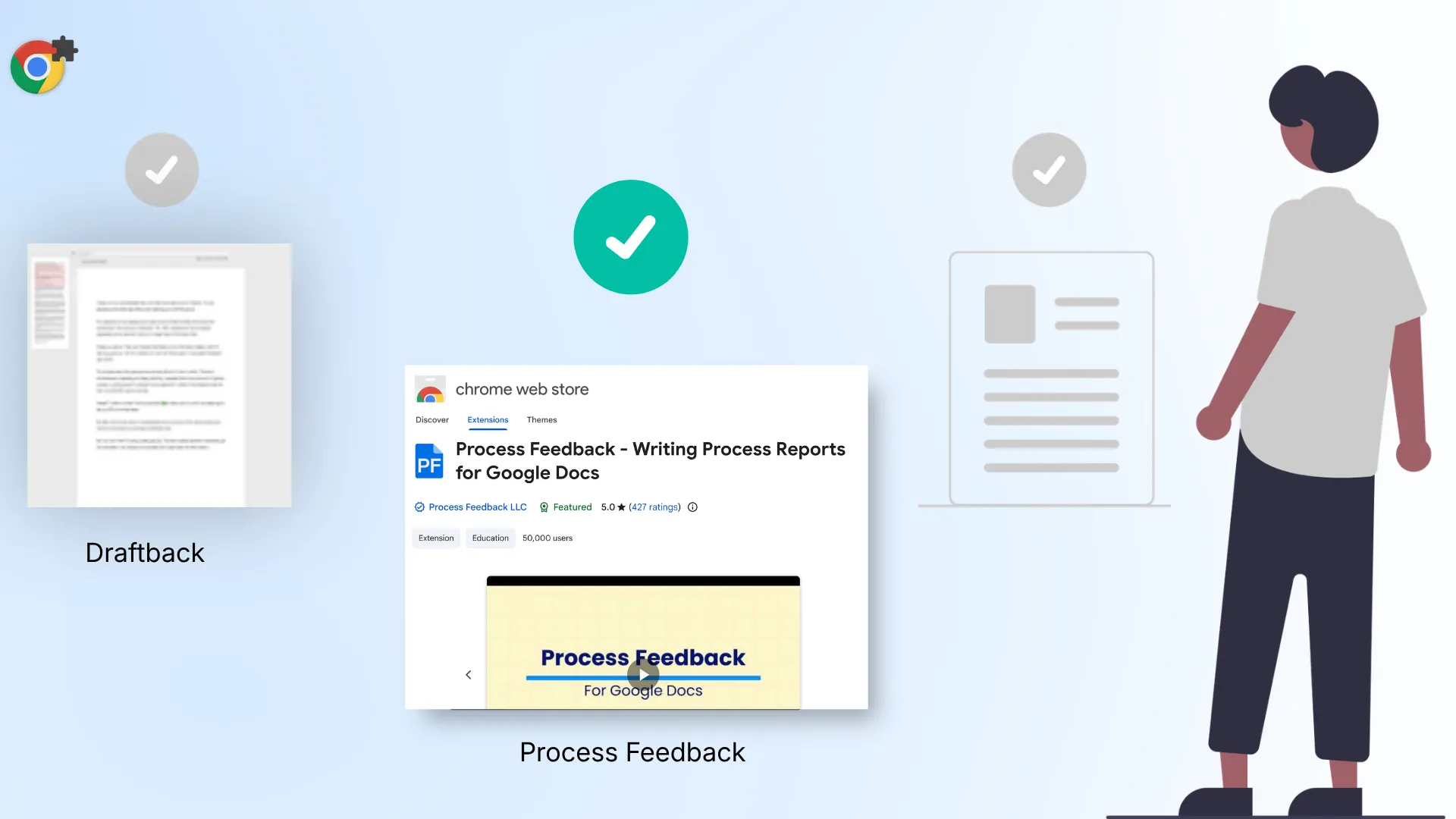
A category of Chrome extensions reads the edit history that Google maintains for every document and turns it into a more detailed view. The most common ones teachers ask about:
Process Feedback for Google Docs - Free. Generates an interactive writing process report showing copy-paste events, typing time, AI use signals, break patterns, and playback. Students can download the report as a PDF or share the report link. No account required. 5.0★ rating with 400+ reviews.
Draftback - $40 - $100/year. Offers writing replay but does not provide detailed copy-paste analysis or generate shareable reports.
Revision History - $32/year, with a limit of 150 documents per month on the free tier. Offers playback and some copy-paste detection, but requires an account and lacks detailed analytics.
For a full comparison of these tools, see: How our Google Docs extension compares to others.
How to see the full edit history with Process Feedback
Process Feedback reads the same edit history that Google maintains and converts it into a writing process report. Here is how to use it:
Step 1: Install the extension
Add Process Feedback for Google Docs to Chrome, Firefox, or Edge. It takes about a minute.
Step 2: Open the Google Doc
Open any document you have editing access to - including documents that were created in the past. The extension reads historical data, so it works on older documents too.
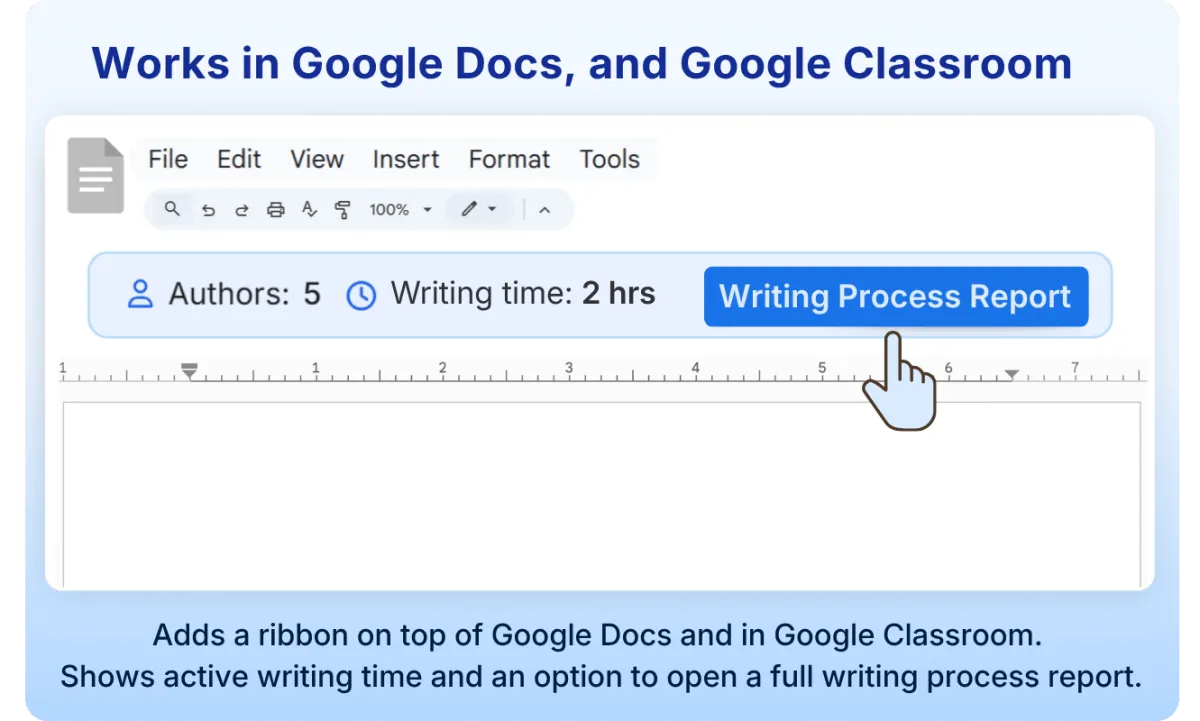
Step 3: Click “Writing Process Report”
After installing, a “Writing Process Report” button appears in the ribbon below the Google Docs toolbar. Click it to generate your report.
Step 4: Explore the report
The report shows:
- Copy-paste events - see what was pasted, whether it came from an internal or external source, and when it was added to the document
- Typing time - total active time, broken into writing sessions
- Drafting vs. revision time - how much time was spent writing new text versus revising existing text
- Break timing - pauses in writing and their duration
- AI use signals - content patterns that help start honest conversations about AI
- Playback - a full replay of the writing with formatting preserved
- Author contributions - identify contributors, their writing activity, and editing time.
Step 5: Share or discuss Students can share the report with their teacher as a PDF or a link. Teachers can also use the teacher dashboard to load multiple students’ reports at once for a class overview.
“It not only shows a number of cut and pastes - which can highlight potential plagiarism - but also is useful for showing a student’s editing process. It has been very useful for conversations.” - ★★★★★ Chrome Web Store review (October 2025)
For students: using the edit history to prove your own work
Students can use the same extension to generate a writing process report of their own work, to reflect on their habits, to show effort, or to demonstrate authorship when their work is questioned.
“This tool allowed me to prove that I did not use AI.” - ★★★★★ Firefox Web Store review (January 2026)
Google’s built-in version history is a good starting point, but it was not built for teachers who need to understand the writing process, academic integrity, or AI use. Chrome extensions like Process Feedback fill that gap.
A note on privacy
Process Feedback does not collect data by default. The extension runs entirely on the user’s device. Data is only stored if the user chooses to save and share a report. For institutional deployments with data governance requirements, there are institutional options that include a signed Data Privacy Agreement.