Many students and teachers treat Google Docs version history as a full record of how a document was written. Most of the time, it is. But sometimes the history is incomplete, or it does not load at all. You may not know this.
This post explains what Google Docs records, three problems with its history, and what you can do about them.
Google Docs records your writing automatically
Google Docs saves a change almost every time you type, delete, or paste. You do not need to turn anything on. The history starts with the first character you type and stays with the document on Google’s servers.
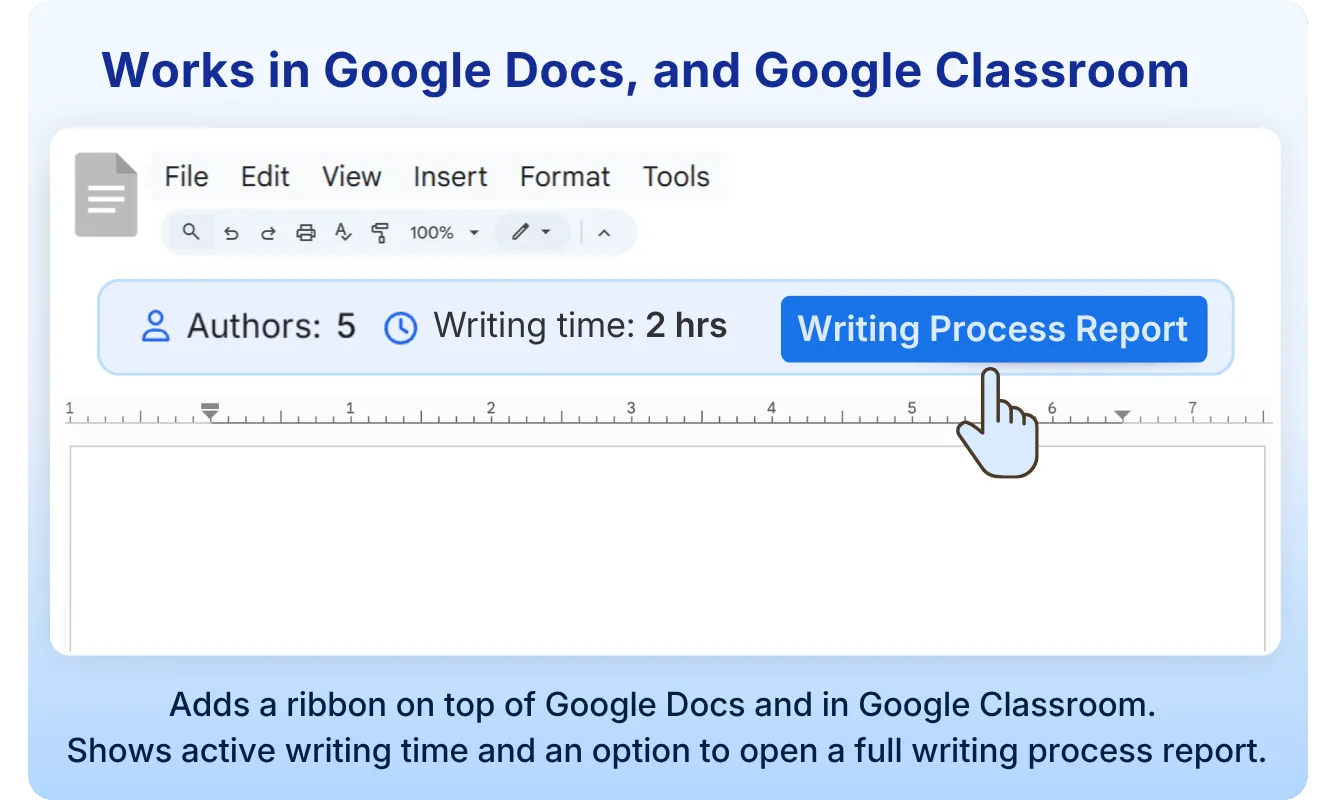
You can see part of it under File > Version history > See version history. Tools such as the Process Feedback extension read the same history in much more detail. They can replay the writing, show what was pasted, and show how long the writer worked. Anyone with edit access to the document can do this, including for old documents.
Because the history is recorded automatically, it is easy to assume that it is always available and complete. It is not.
Problem 1: Work done offline appears as one large paste
Google Docs has an offline mode. If it is turned on, you can keep writing without an internet connection. When you go back online, Google saves your work.
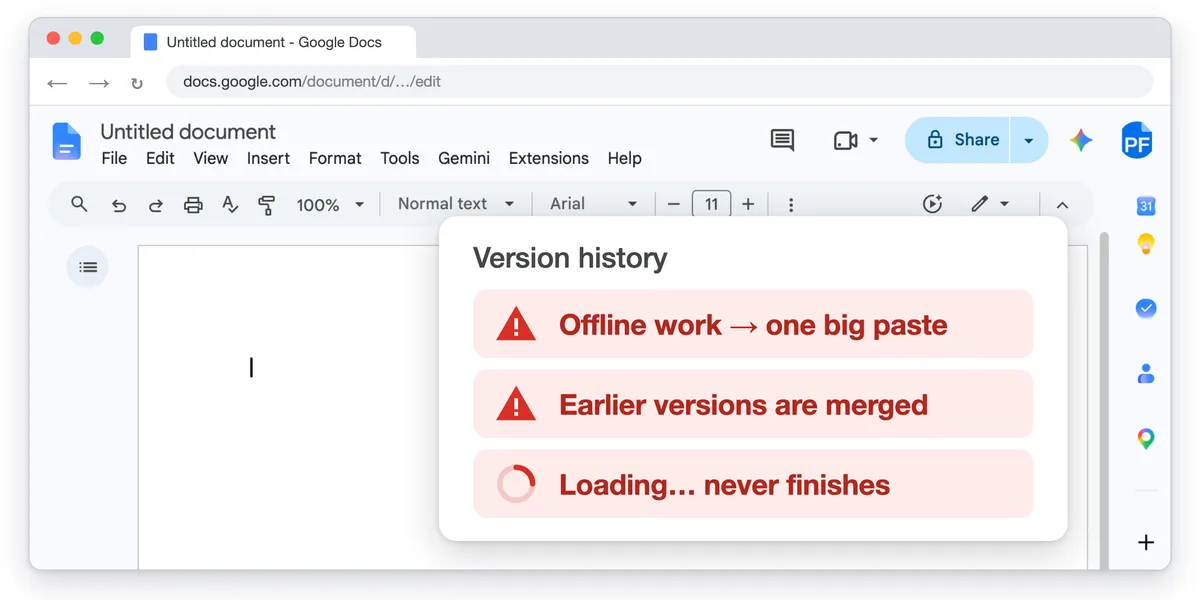
But Google does not save the individual changes you made while offline. All the offline work arrives in the history as one block of text, at one moment. In the version history and in any tool that reads it, this looks like text that was suddenly pasted in.
This happens only when offline editing is turned on. If it is off, Google Docs does not let you edit without a connection, so nothing is lost this way.
For a student, this means an hour of careful writing on a train ride can look like a single paste to their teacher.
Problem 2: Google sometimes merges the history
Sometimes Google combines many earlier changes into one version. The small steps of the writing process disappear, and the history shows a few large changes, or none at all.
When this happens, Google Docs shows the message Earlier versions are merged in the version history.
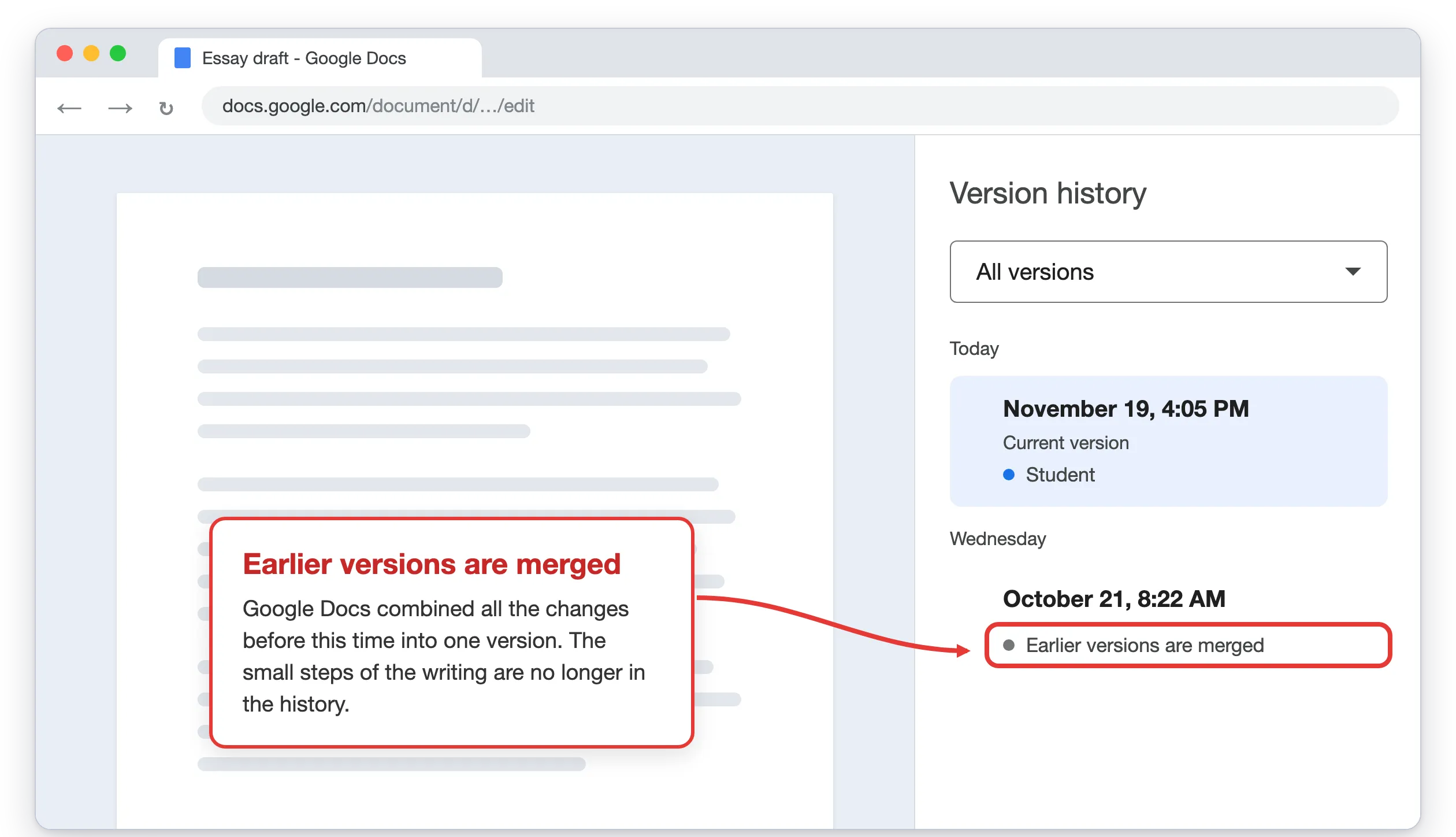
You might guess that Google does this only when the history gets very long. But teachers and students have reported this to Process Feedback for documents with only a few hours of typing. So if the history looks very short, or shows no changes at all, Google may have merged it.
Problem 3: Long histories do not load
For most documents, the history loads without trouble. But it gets harder as the number of changes grows. Above about 50,000 changes, loading can fail. Above about 100,000 changes, it often fails.
When this happens, Google’s own version history keeps trying to load and never shows anything. Tools that read the history, including Process Feedback, cannot get it either, because Google does not send it.
A long history does not need a long document. Every typed character, deletion, and format change counts. A student who writes and revises a 2,000-word essay over several weeks can reach this limit.
If you use Process Feedback, you can see the number of changes in your document. Open the report, click Options in the Writing Process Summary, and turn on Show snapshots info. The Available changes card shows the number.
Who should care
- Students who may need to show that they wrote their own work. If the history is missing or does not load, it cannot help you.
- Teachers who look at version history to understand how a student wrote. A large paste, a merged history, or a history that will not load is not proof of anything.
- Any author who wants a record of their writing, for example for a thesis, a book, or a grant proposal.
What you can do
Here are three things you can do to keep a full record of your writing.
1. Start a new document before the history gets too long
When your document gets close to about 75,000 changes, copy its contents into a new Google Doc and keep working there. Keep the old document. Do not delete it. Its history is the record of your earlier work.
2. Download your process data often
The Process Feedback extension has a Download Data button next to Open Report. It downloads the writing history of the document as a ZIP file to your computer. If Google later merges the history or stops loading it, you still have the copy you downloaded. You can open it later, or share it with a teacher.
3. Write somewhere that keeps its own record
The Process Feedback online editor records the writing process itself, so it does not depend on Google’s history. It continues to record your changes even when you lose internet connection. Schools that use Canvas, Moodle, or another learning management system can also use Process Feedback through LTI. Students then write inside the assignment, and the writing process is saved with the submission.
FAQ
Does Google Docs save version history when I work offline? It saves your text, but not the individual changes. The offline work appears in the history as one block of text added at one time.
Why does my version history show a large paste that I did not paste? Two common reasons are offline work and a history that Google has merged. Both can make typed text look like it was pasted.
Why won’t my Google Docs version history load? The history may be too long. Documents with more than about 50,000 changes can fail to load, and documents with more than about 100,000 changes often do.
Can I trust Google Docs version history as proof that I wrote something? It is useful, but it is not always complete. Download your process data from time to time, so that you have your own copy.
How do I see how many changes my document has? Open a Process Feedback report, click Options in the Writing Process Summary, and turn on Show snapshots info. The Available changes card shows the number.