How to install the Process Feedback for Google Docs extension? A step-by-step tutorial
Installing the extension is easy.
Our extension works just like other tools available in the Chrome Web Store (or other browser stores). Here’s how to get started:
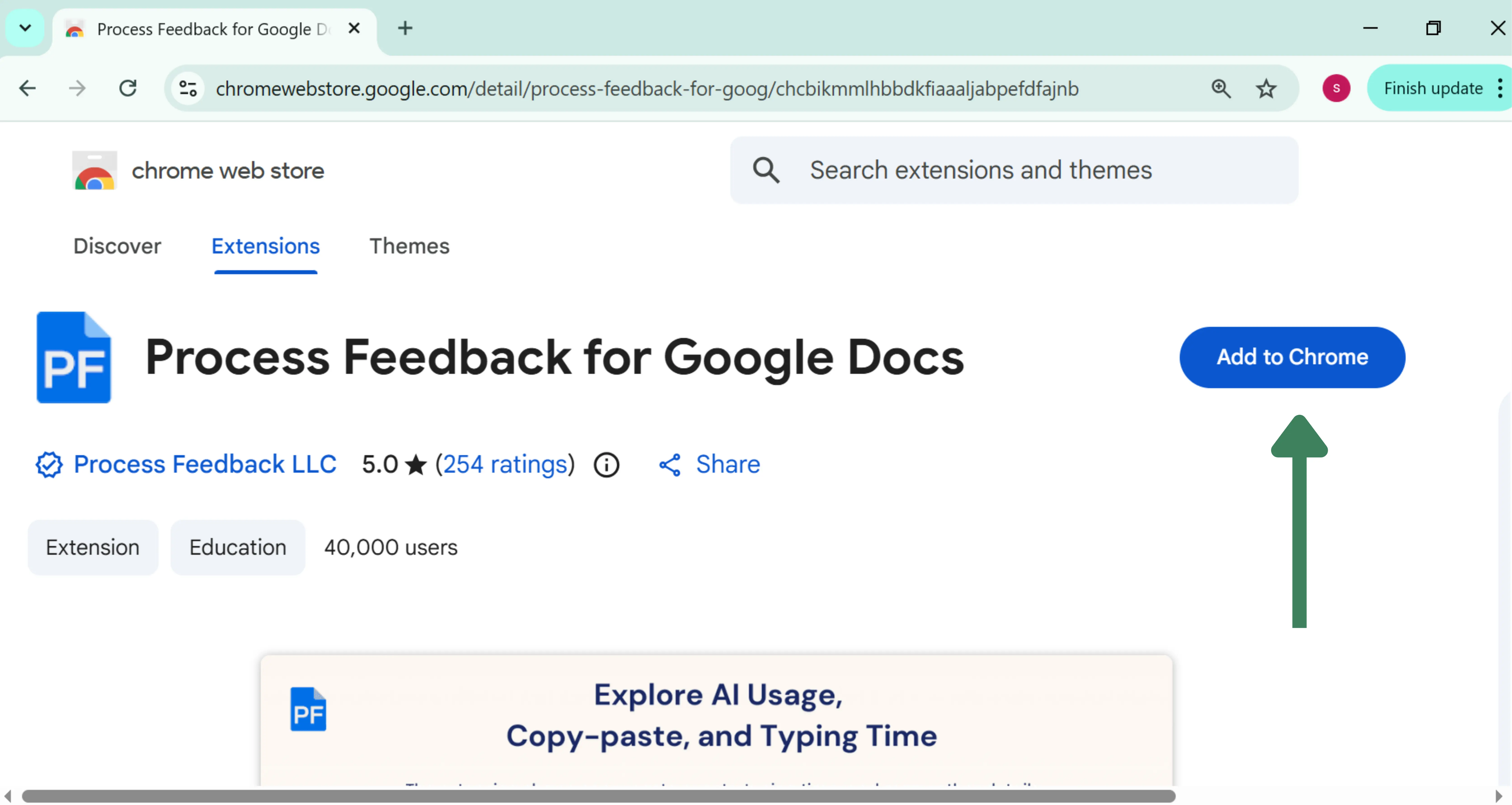
Step 1: Install the Extension
Find our Google Docs extension in the Chrome Web Store (or Firefox Add-ons, or Edge) and click “Add to Chrome” to install it.
Step 2: Reopen Your Google Docs
Return to your Google Docs tab and refresh the page to activate the extension.
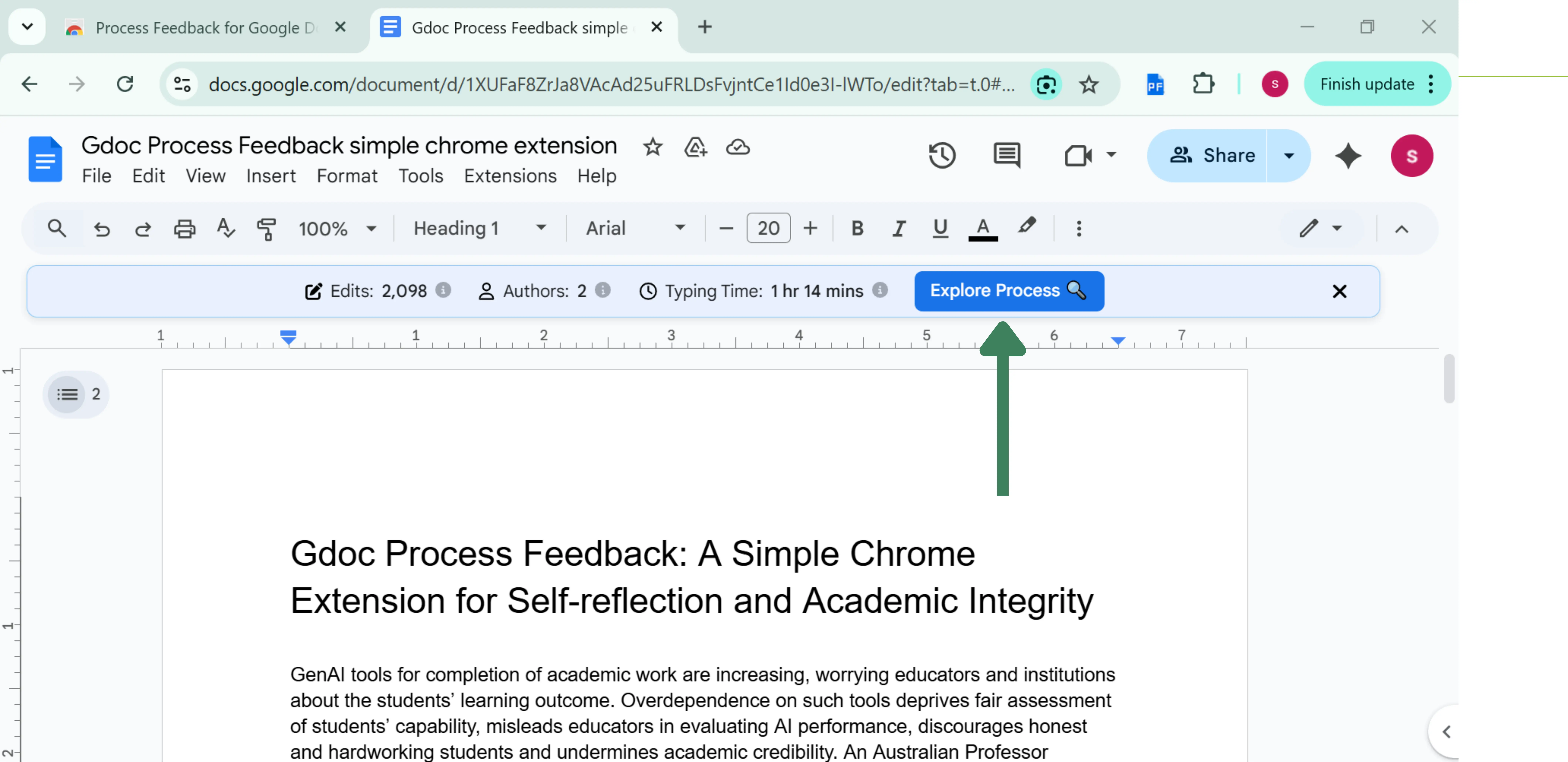
Step 3: Click on “Writing Process Report”
You’ll see a new banner above your document. Click the Writing Process Report button, then click Open Report to get started.
What’s next
The extension is installed. To see what the report shows and how to replay, share, or download it, follow How to use the Process Feedback for Google Docs extension.