How to use the Google Docs extension
Opening a writing process report of a Google Doc and a dashboard option for teachers
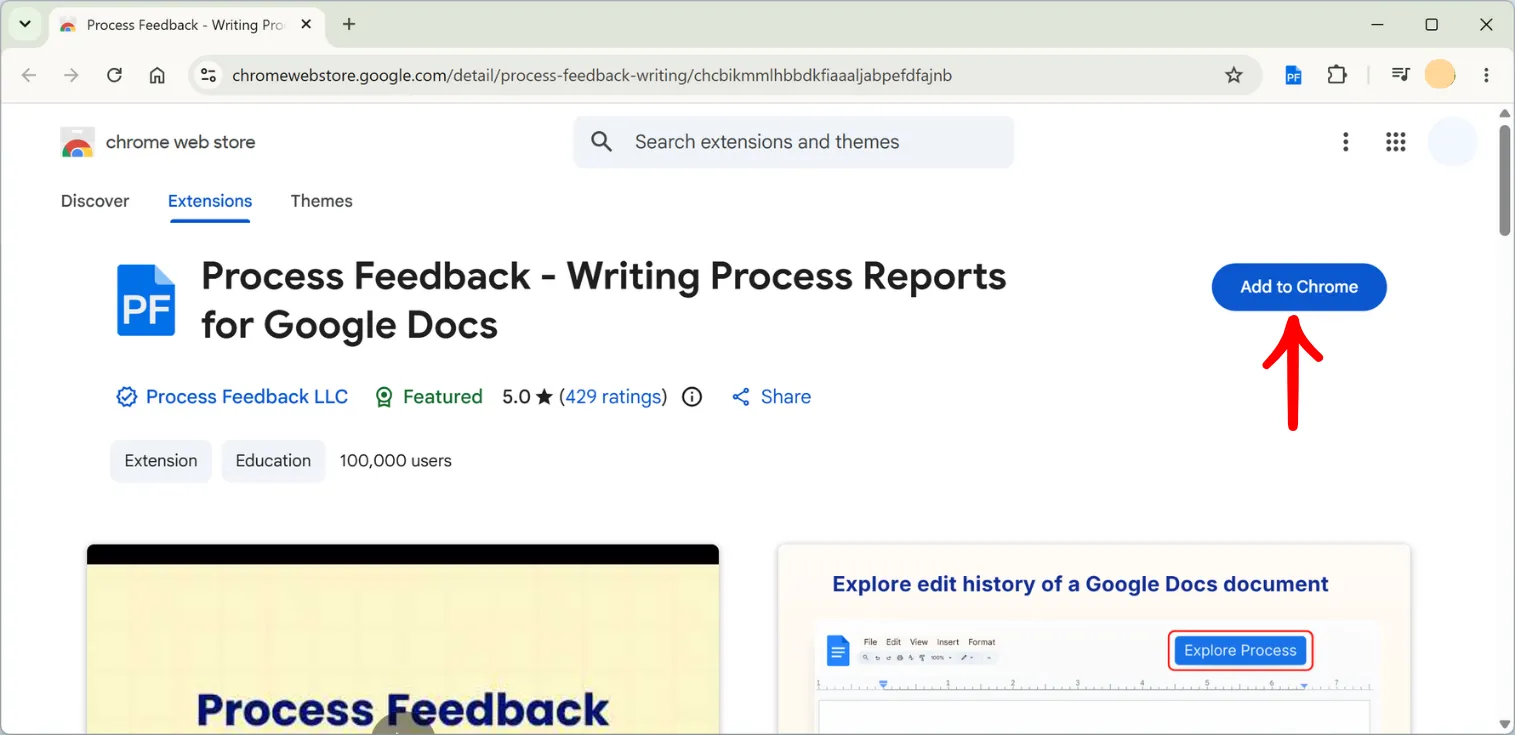
Step 1. Install the extension
Process Feedback for Google Docs is a browser extension, available for Chrome, Firefox, and Edge. Either a student or a teacher can install it. No Process Feedback account is created. To install it, see the step-by-step installation guide.
Step 2. Open a Google Doc and check the ribbon
Students keep writing exactly as they normally would — Google already records the editing history of every document, so there is nothing to switch on and nothing to remember while writing. Once the extension is installed, a ribbon appears above the document showing a running count of edits, authors, and time, along with a Writing Process Report button.
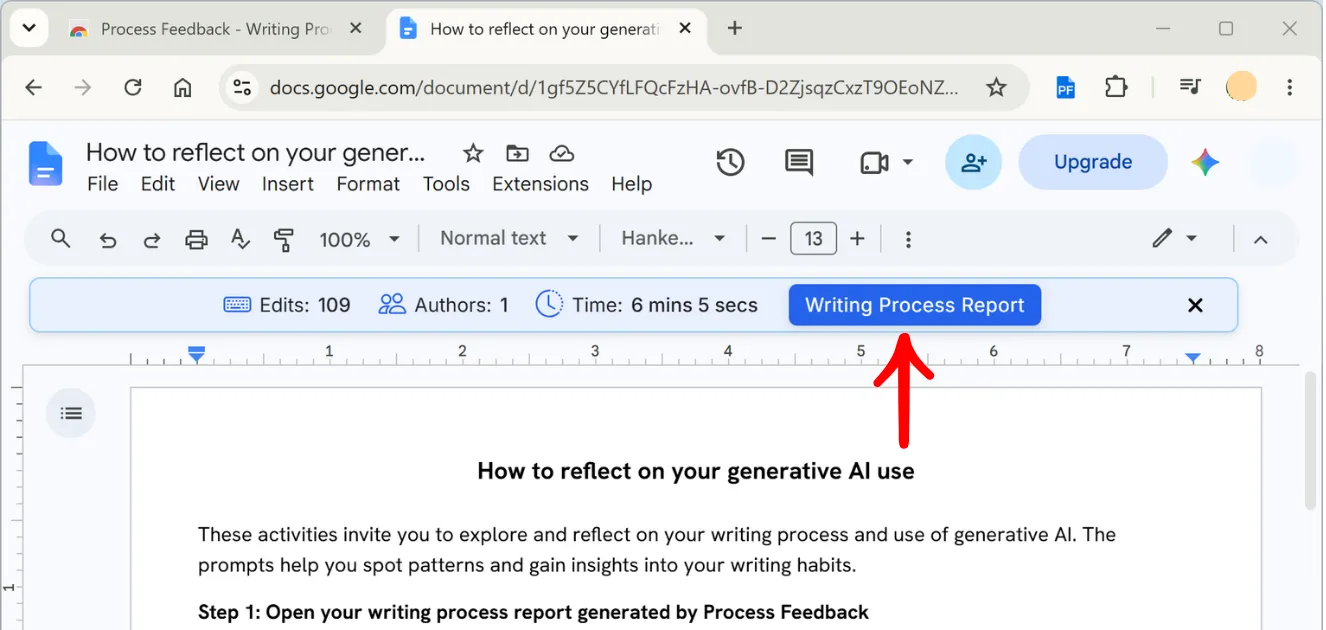
Step 3. Click Writing Process Report
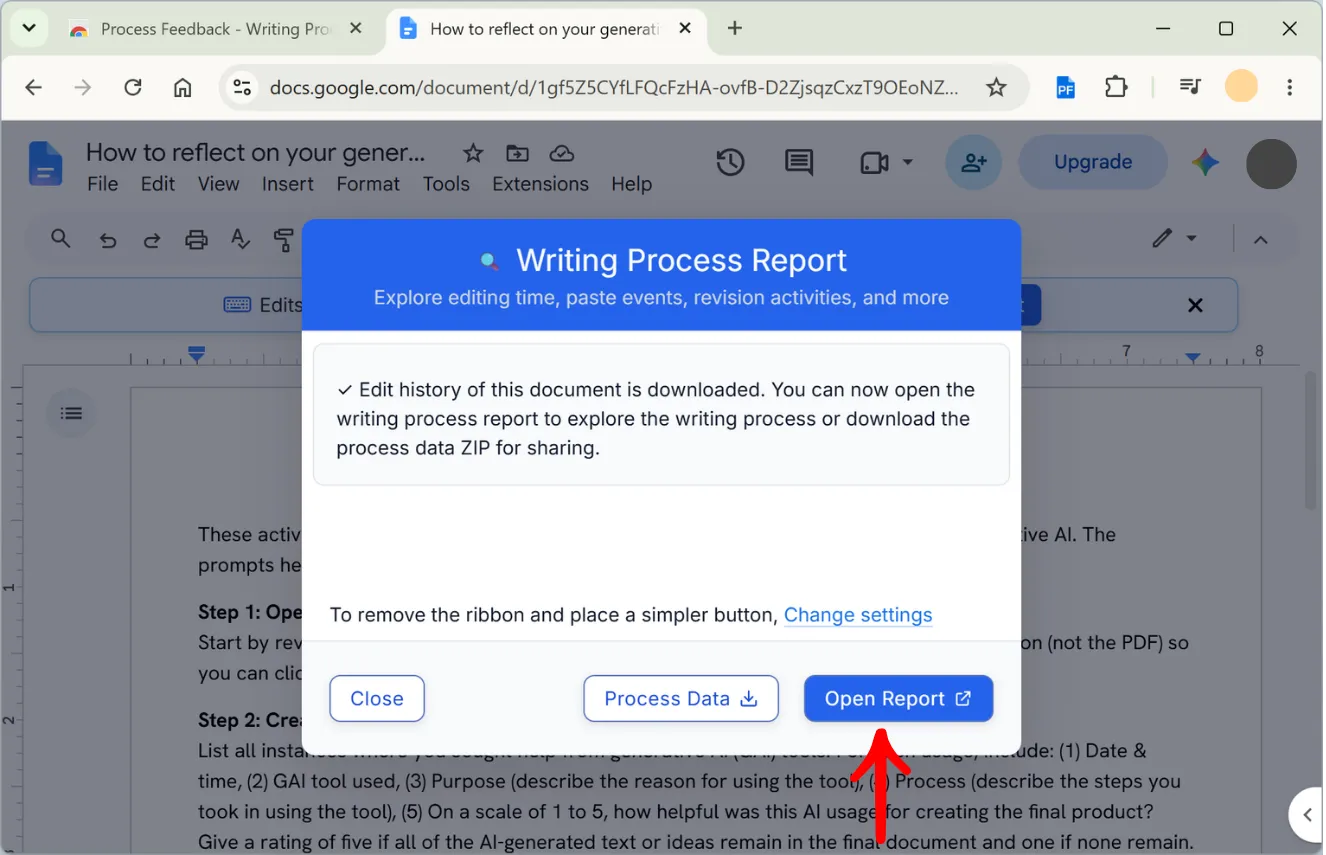
The extension reads the document's edit history and offers to Open Report to explore the writing process.
Step 4. Choose what the report should include
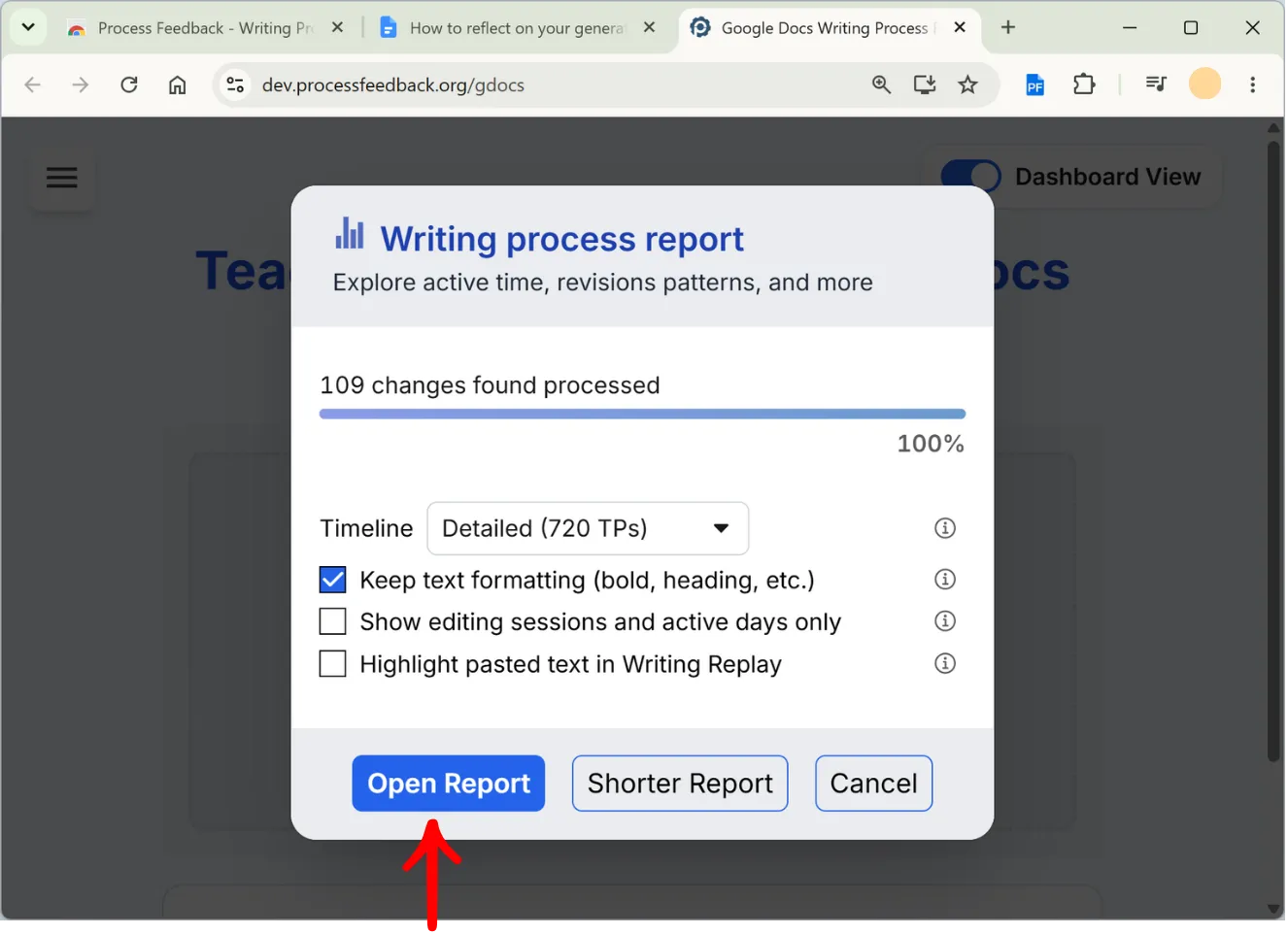
Process Feedback opens in a new tab and processes the changes it found. Before building the report, it offers a few options — the timeline detail, whether to keep text formatting, etc. The defaults are fine for most contexts.
Step 5. The writing process report opens
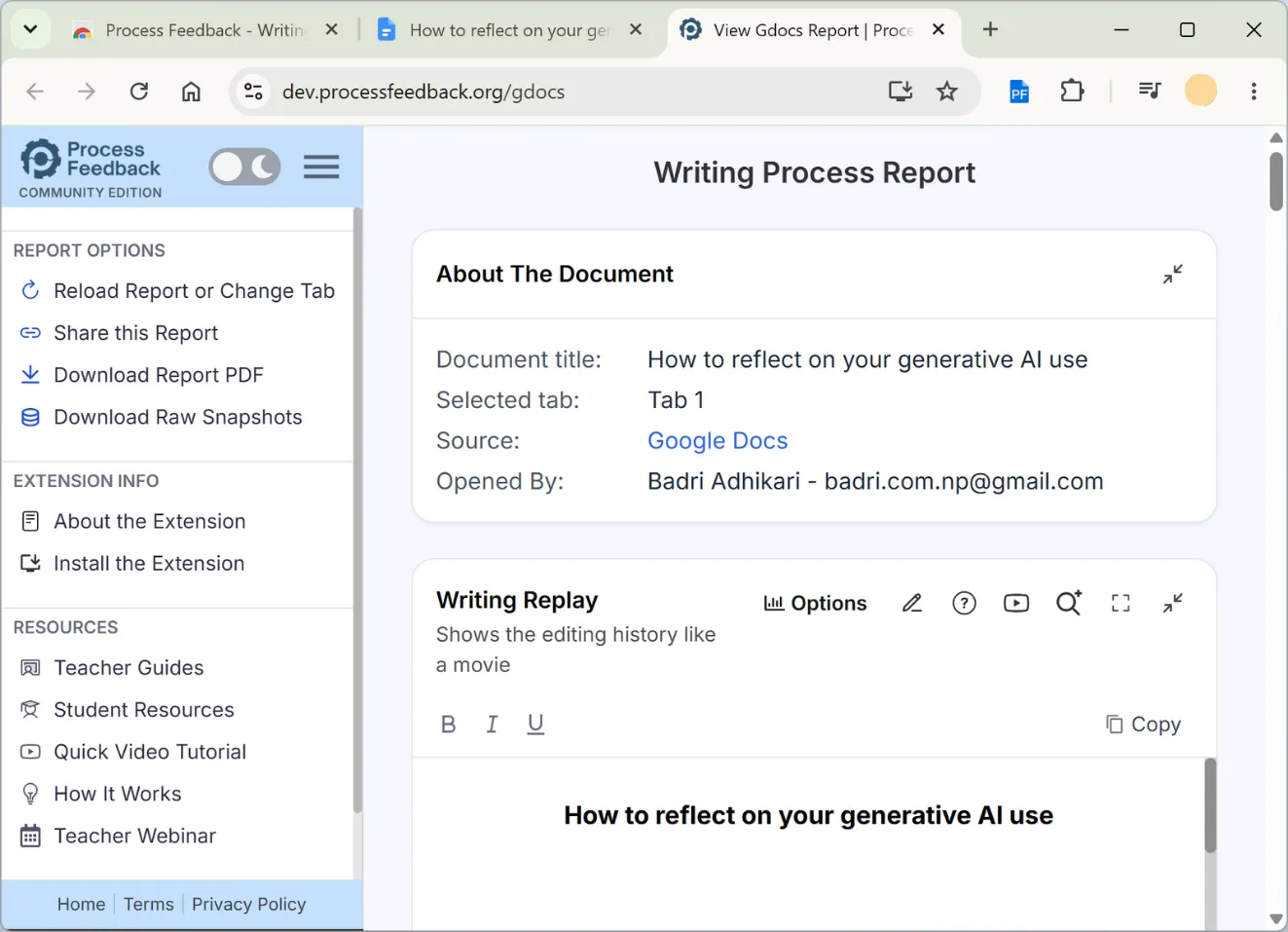
The report opens with a summary of the document — its title, the tab it came from, its source, and who opened it — followed by the sections that describe how it was written. Everything is generated in the browser.
Step 6. Replay the writing, like a movie
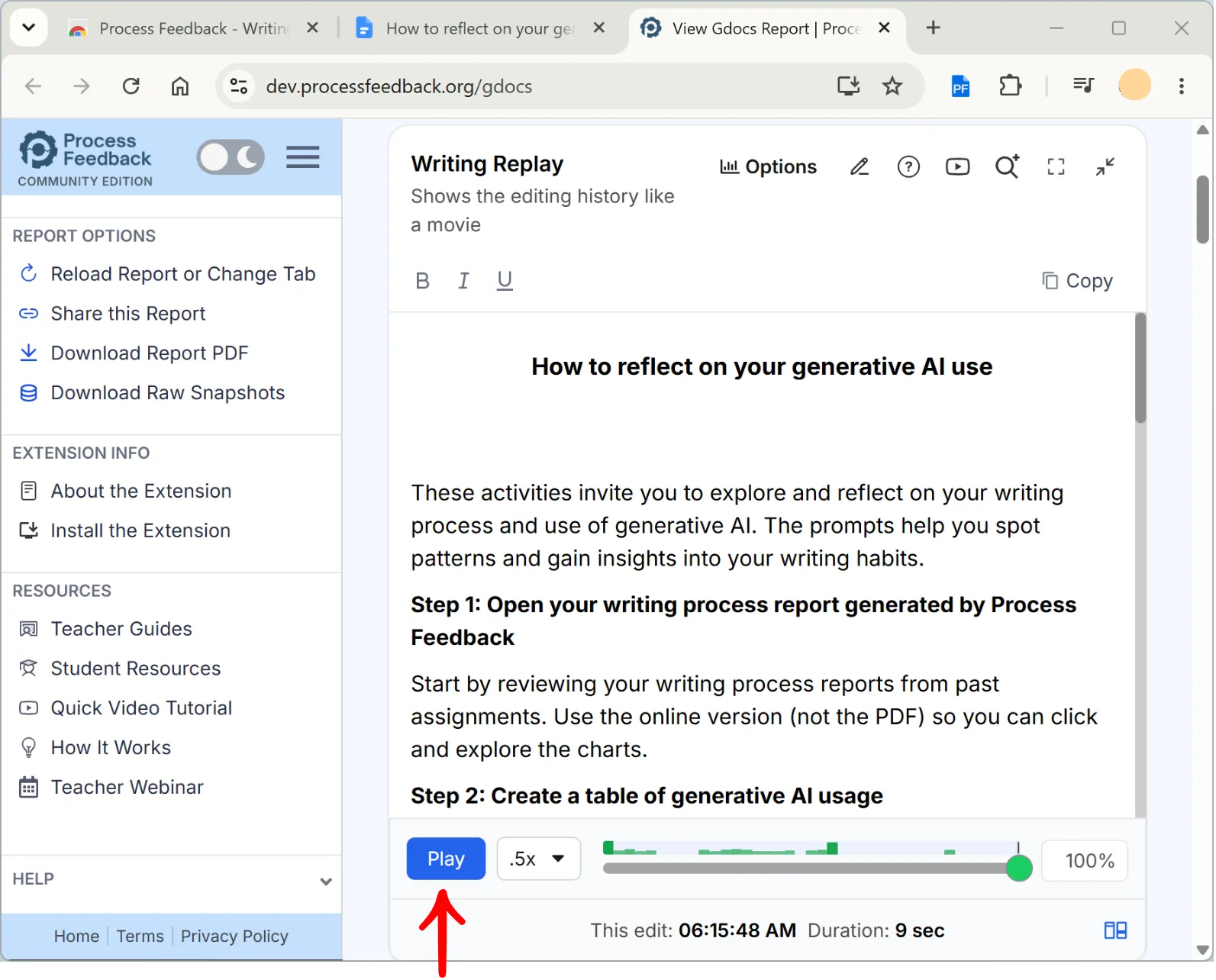
Writing Replay is one easy place to start. Pressing Play reconstructs the document at an adjustable speed, so a student or teacher can watch drafting, pausing, and revising as they actually happened.
Step 7. Share the report or download it as a PDF
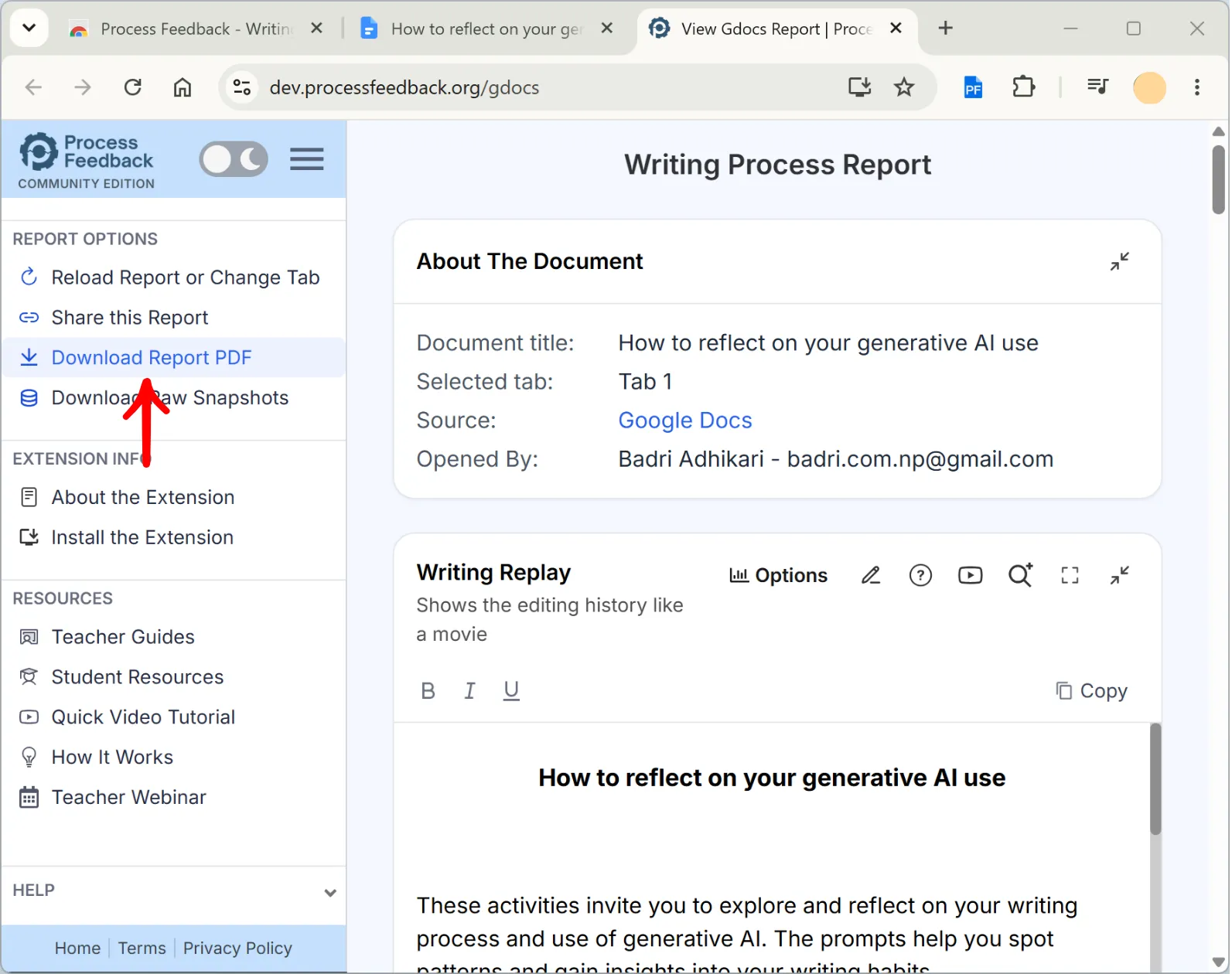
From Report Options in the sidebar, the report can be shared as a link or downloaded as a PDF. Many teachers ask for the PDF, or the shareable link so they can explore the interactive charts themselves.
(Optional) Step 8. For teachers: compare the whole class in one dashboard
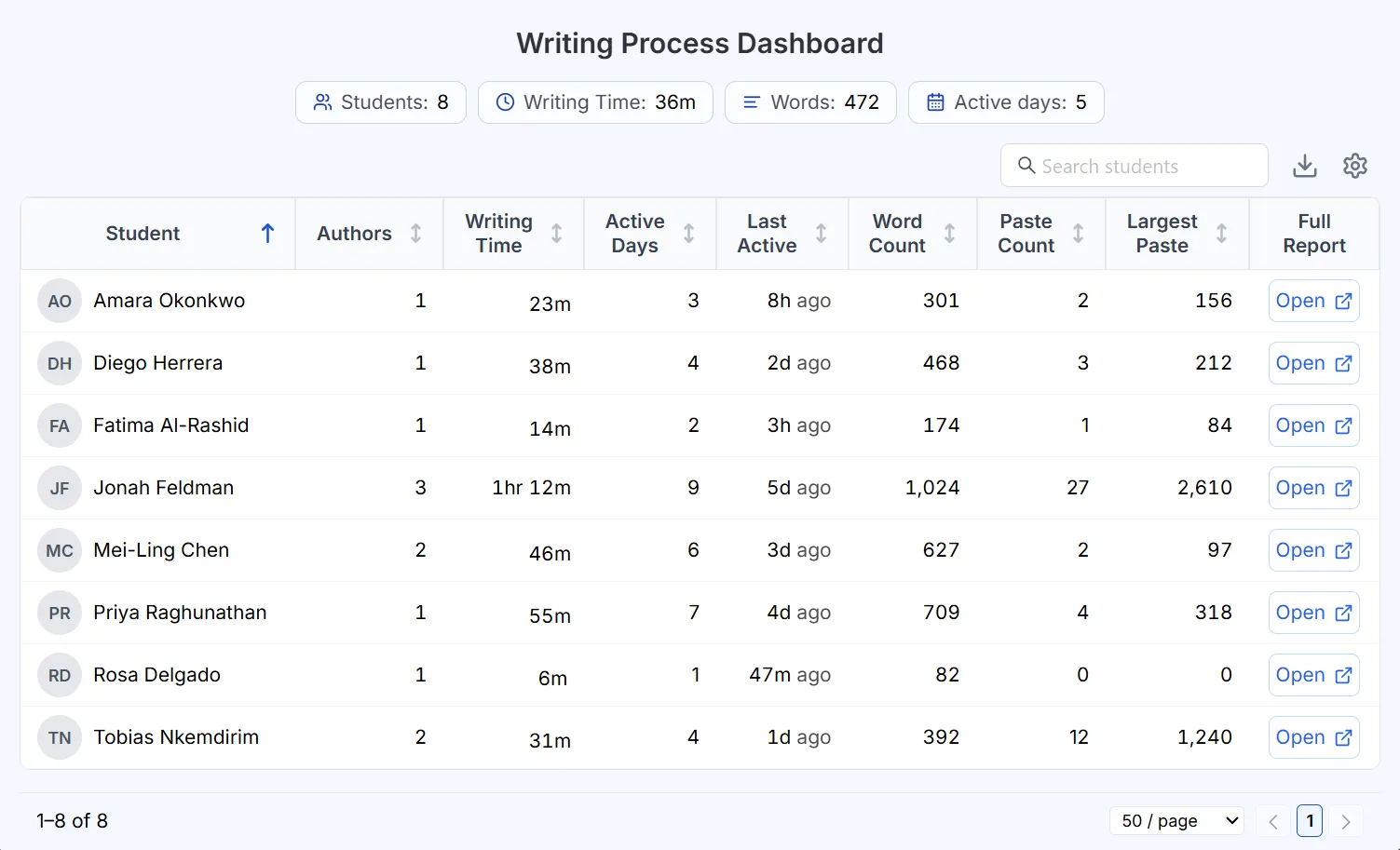
Everything above works on its own — a student can write, open a report, and share it without anyone else setting anything up. Teachers who want to look at a whole class at once can additionally load many students' documents into a Writing Process Dashboard and compare writing time, active days, word count, and paste count side by side. The step-by-step instructions are in a separate guide: how to open the teacher dashboard for Google Docs.

Want to try this with your own document?
Process Feedback for Google Docs is free for teachers and students, and installs in a few seconds. No data is collected by default.