How Process Feedback works in Google Classroom
Opening a writing process report or a teacher dashboard from Google Classroom
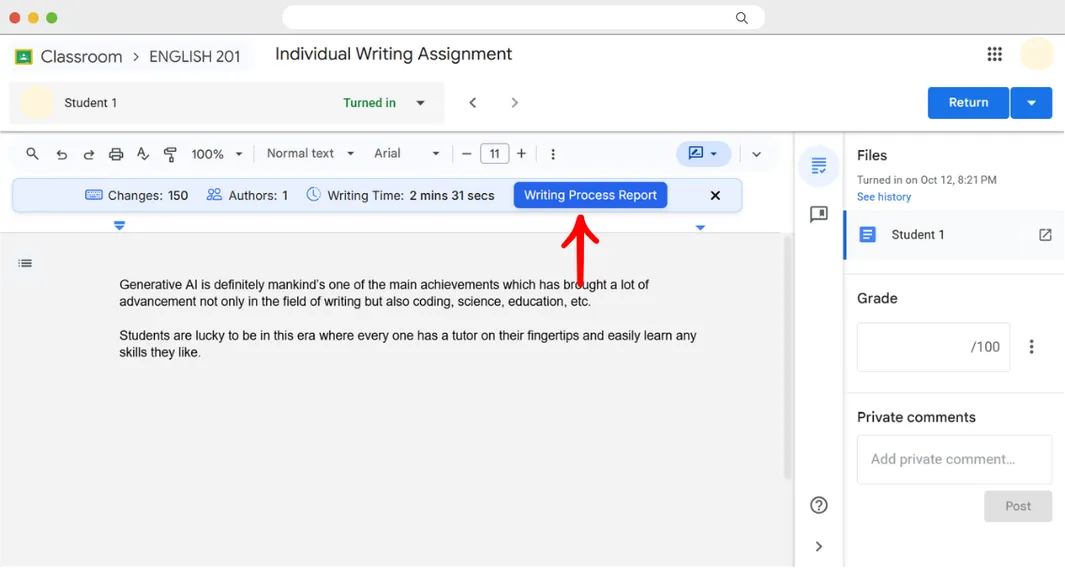
Step 1. Open a submission and click Writing Process Report
Open the assignment review page in Google Classroom. With the Process Feedback for Google Docs extension installed, the ribbon appears automatically above every submission you review, showing the number of changes, authors, and the writing time. Click Writing Process Report on any submission to explore the full writing process.
That is all you need to review submissions one at a time; the steps below are for the dashboard view.
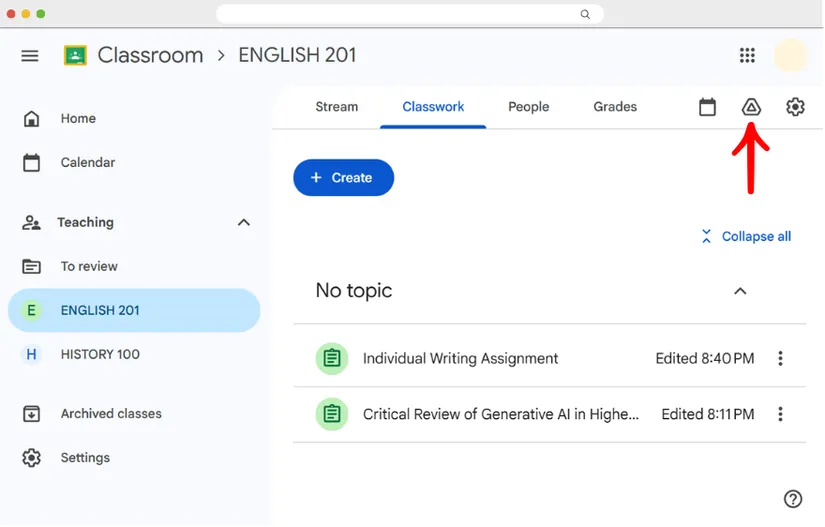
Step 2. Open the class's Google Drive folder
Steps 2–5 are for the dashboard view, which shows every student submission at once in a single table. To get there, click the Drive icon at the top right of the class page in Google Classroom to open the class's Google Drive folder.
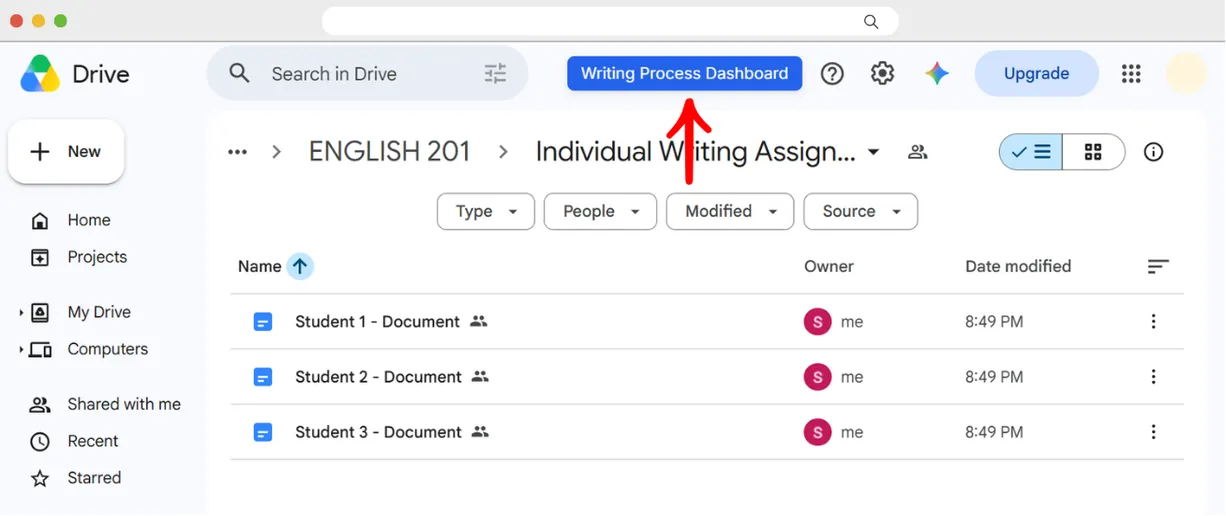
Step 3. Open the assignment folder and click Writing Process Dashboard
Open the folder for the assignment, where all student submissions are collected, and click the Writing Process Dashboard button at the top of Google Drive.
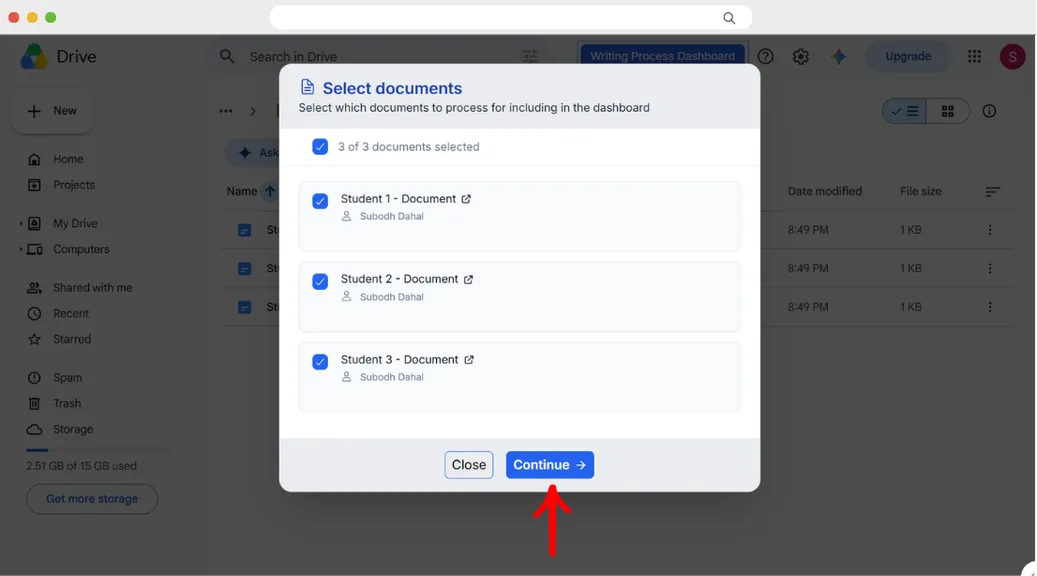
Step 4. Select the documents and click Continue
Process Feedback lists the documents in the folder, all selected by default. Uncheck any you want to leave out, then click Continue to let Process Feedback read the edit history of the selected documents.
Step 5. Explore every student's work in the teacher dashboard
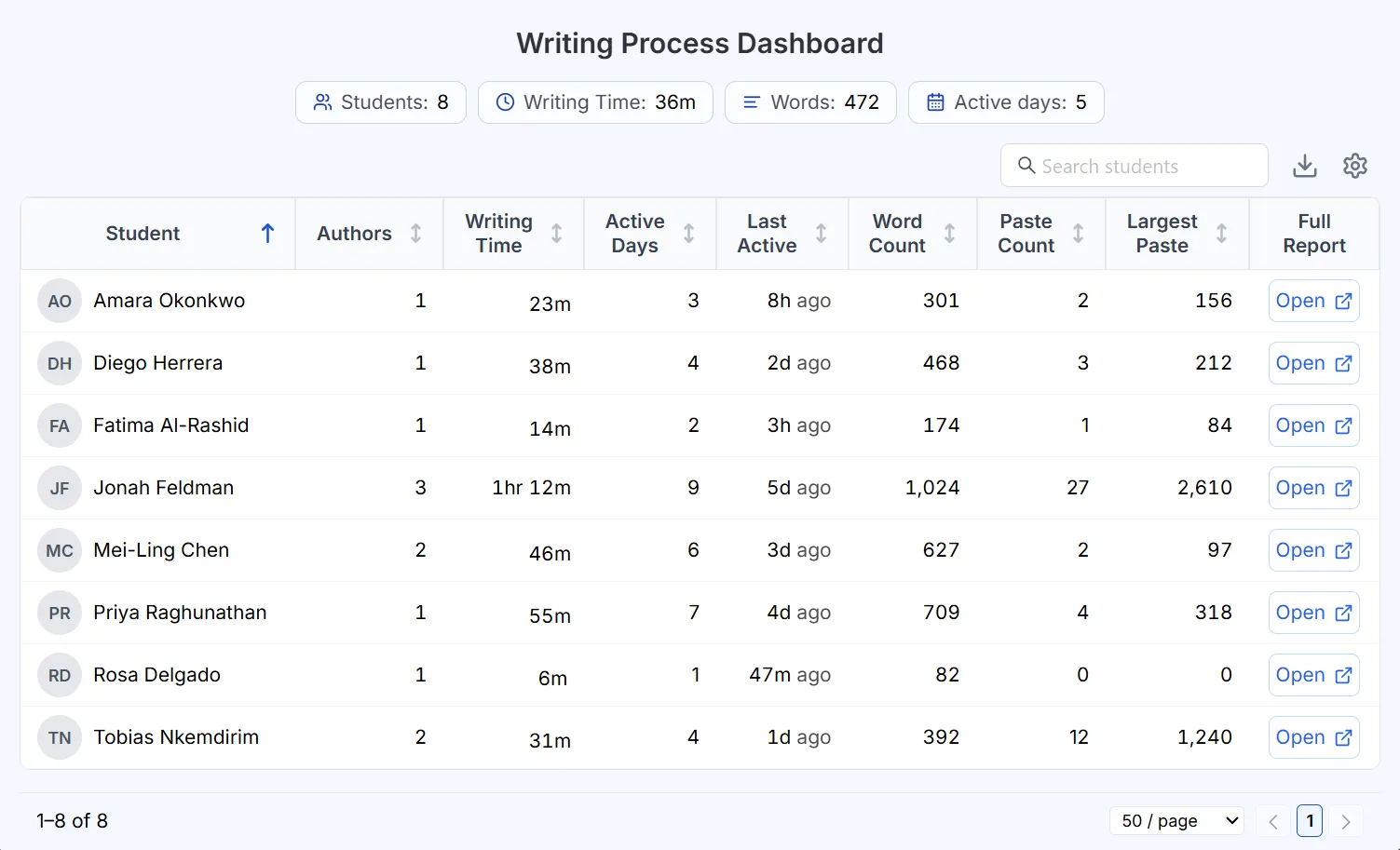
The Writing Process Dashboard opens with one row per student, so you can compare writing time, active days, word count, and paste count side by side, and open any student's full report from the same table.

Want to try this with your own class?
Process Feedback for Google Docs is free for teachers and students, and installs in a few seconds. Google Classroom assignments are standard Google Docs, so it works with them out of the box.