How Process Feedback works in Canvas
Nine steps, in screenshots, from setting up the assignment to reading a student's writing process
Step 1. Set the Submission Type to External Tool
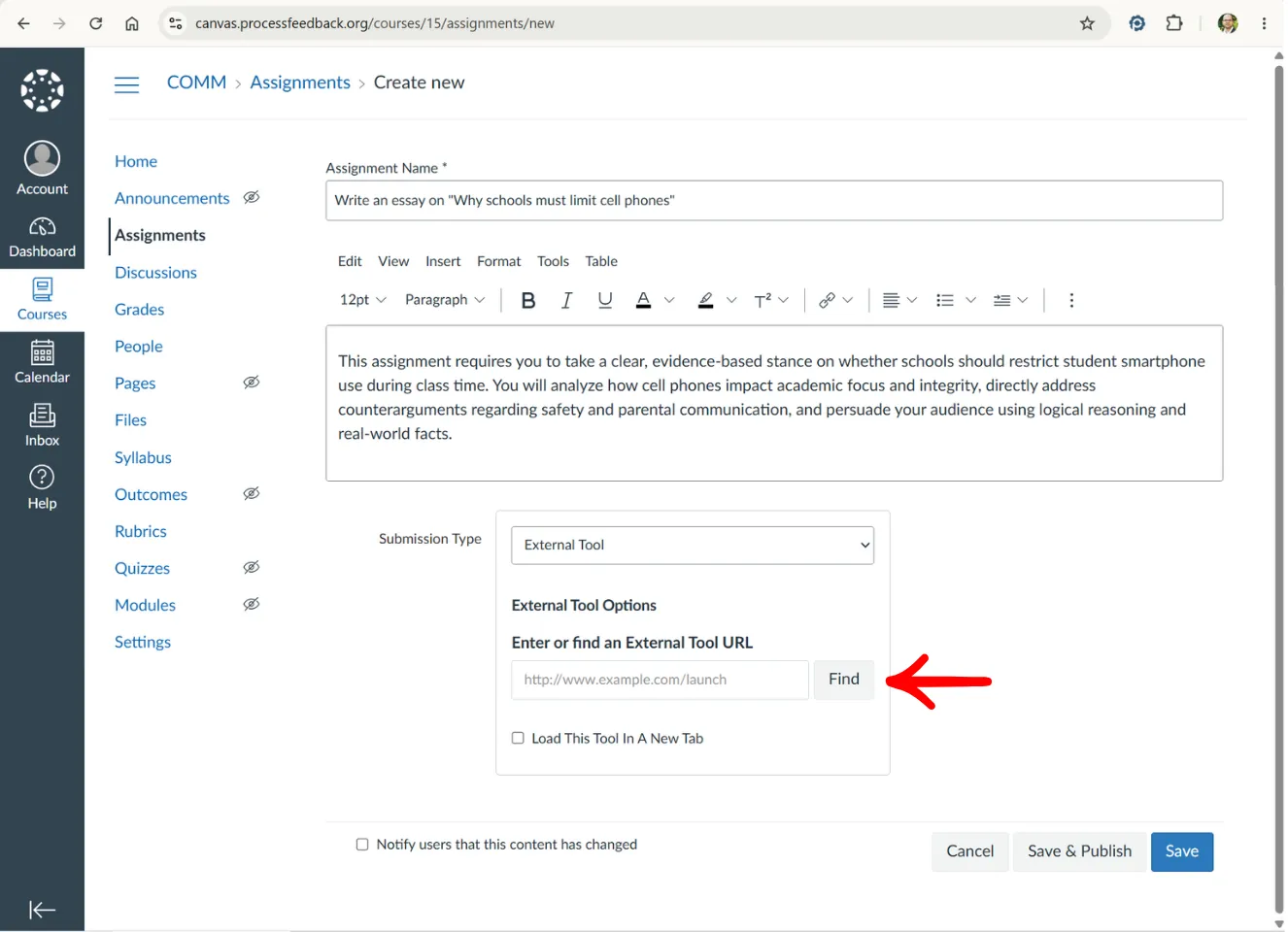
While creating an assignment, the course instructor changes the Submission Type to External Tool and clicks Find to search for Process Feedback LTI.
Step 2. Select Process Feedback LTI
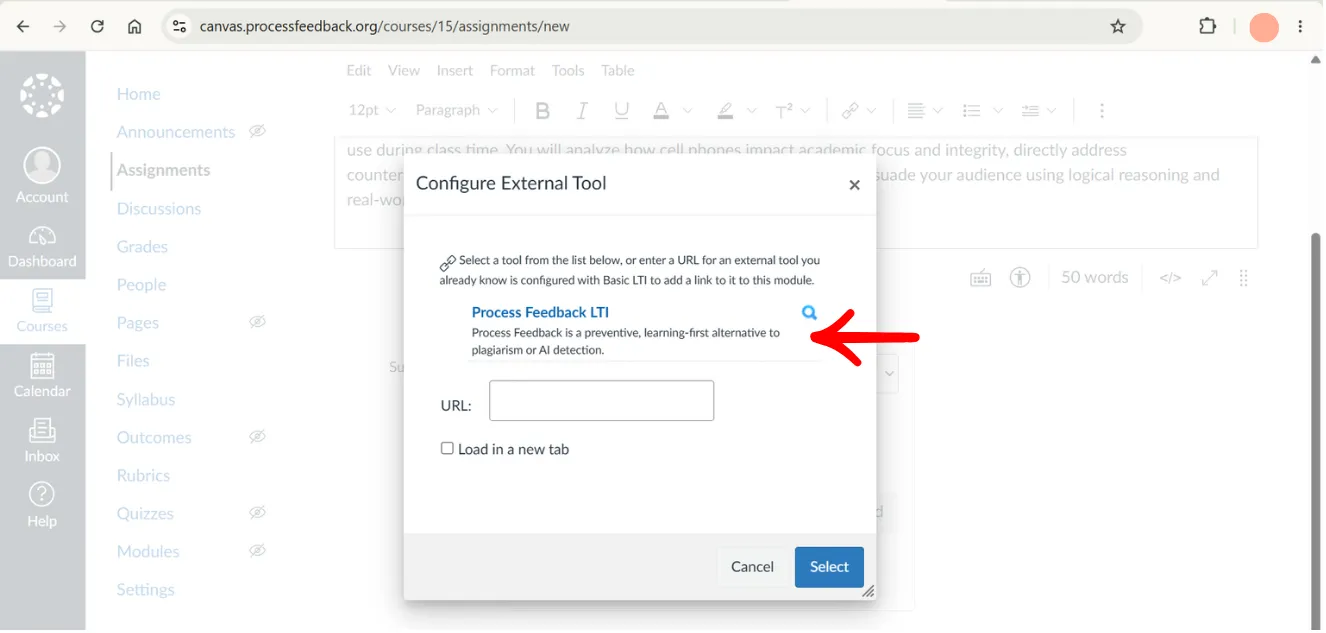
The instructor finds Process Feedback LTI in the list of configured tools and selects it as the LTI launch tool.
Step 3. Attach Process Feedback to the assignment
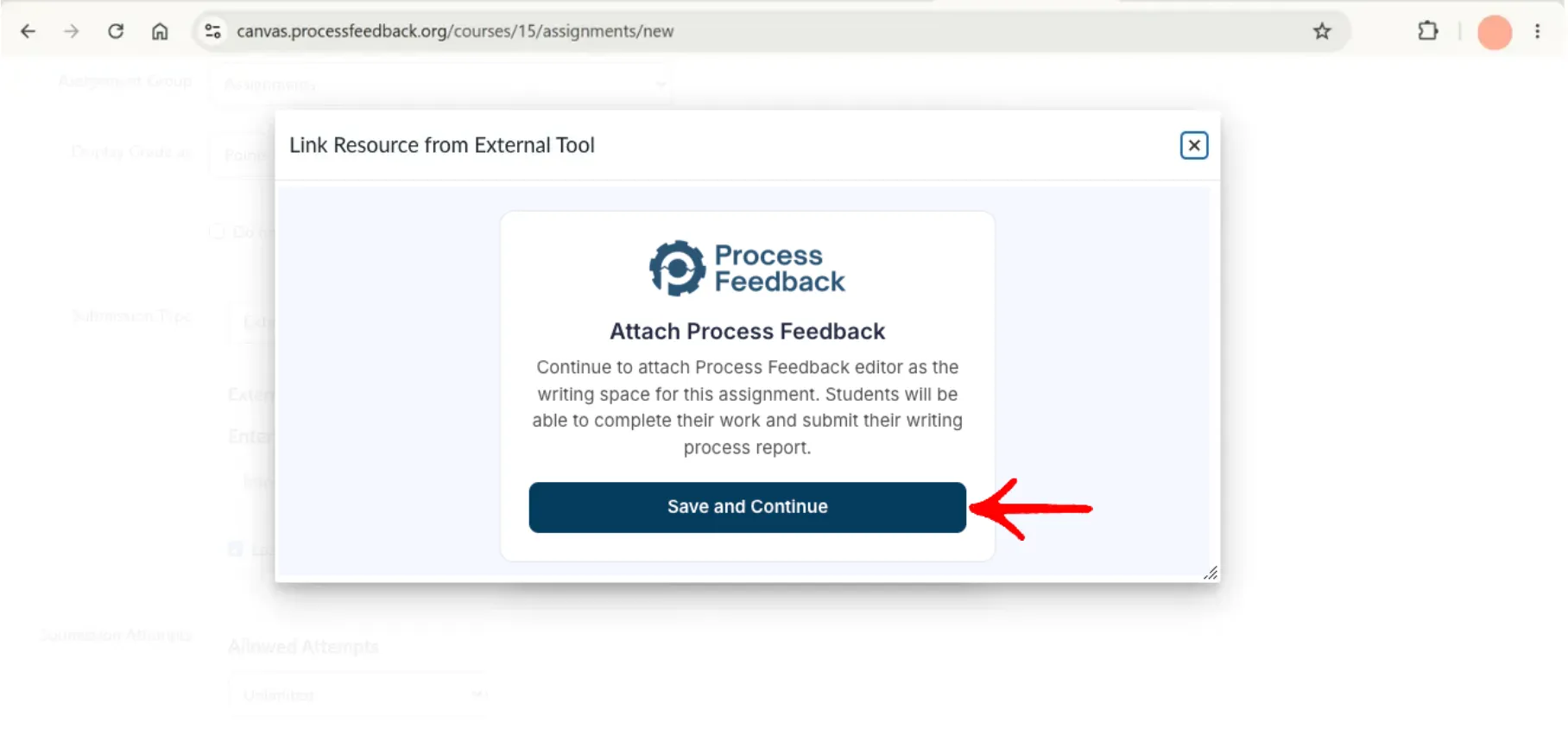
Process Feedback opens in a window and asks for confirmation. The instructor clicks Save and Continue to attach the Process Feedback editor as the writing space for this assignment. The window then closes on its own once the connection is made.
Step 4. Confirm the link and attach it to the assignment
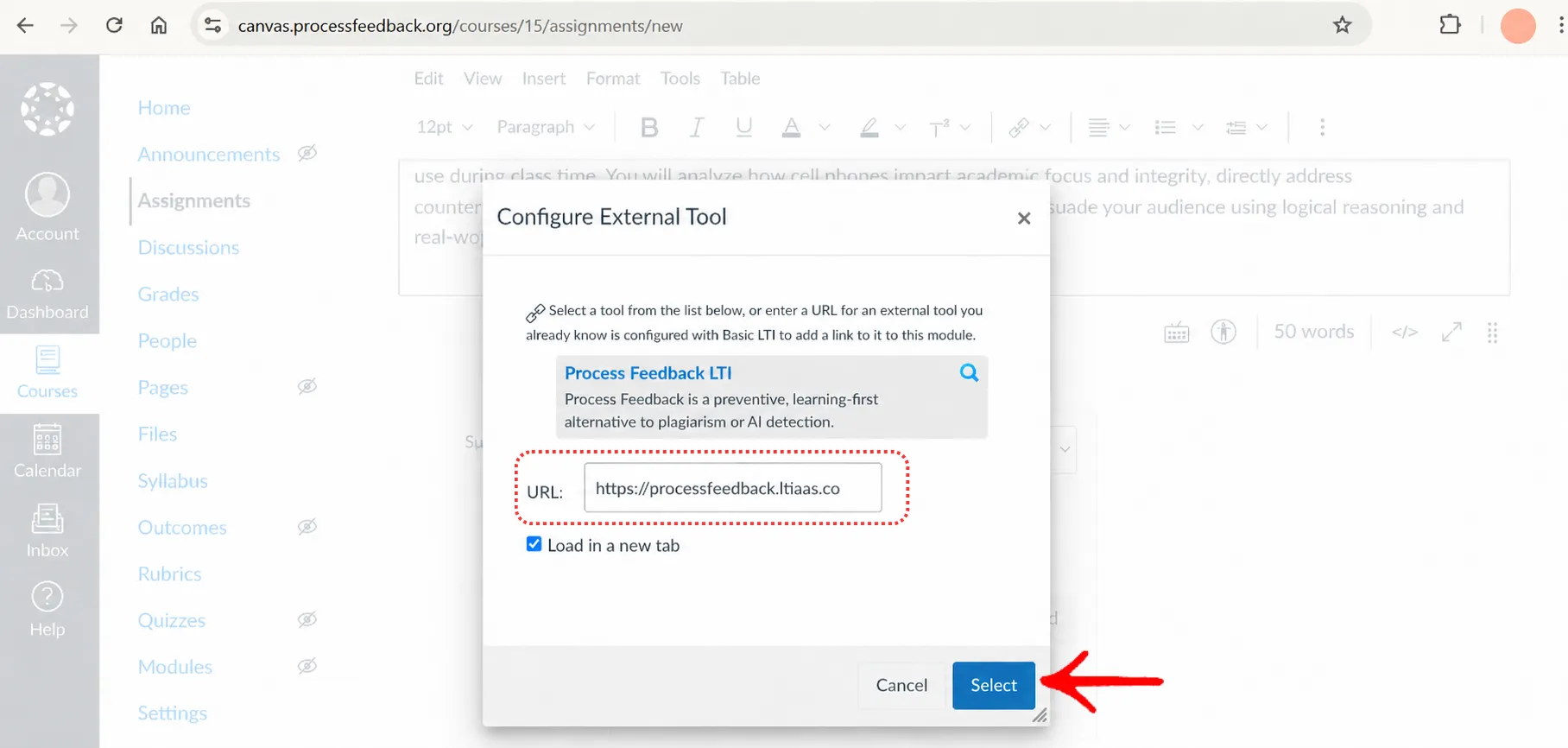
The URL field is now filled in automatically. To confirm the setup worked, the instructor only needs to check that the address begins with https://processfeedback.ltiaas.com, then click Select to attach Process Feedback to the assignment. Then the assignment is saved and published as usual.
Step 5. Check it from a student's perspective
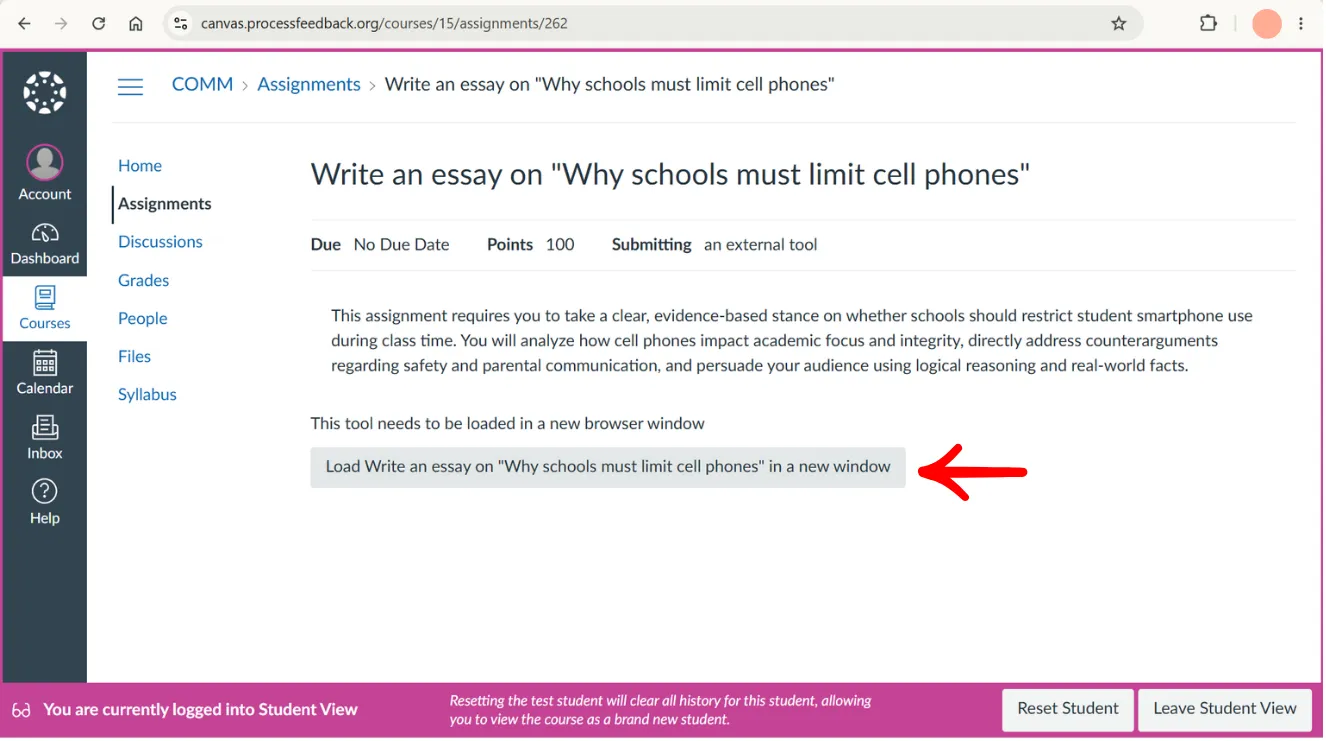
The instructor switches to Student View to see what it looks like from a student's perspective, and tests the launch by clicking the Load button.
Step 6. The student writes and submits
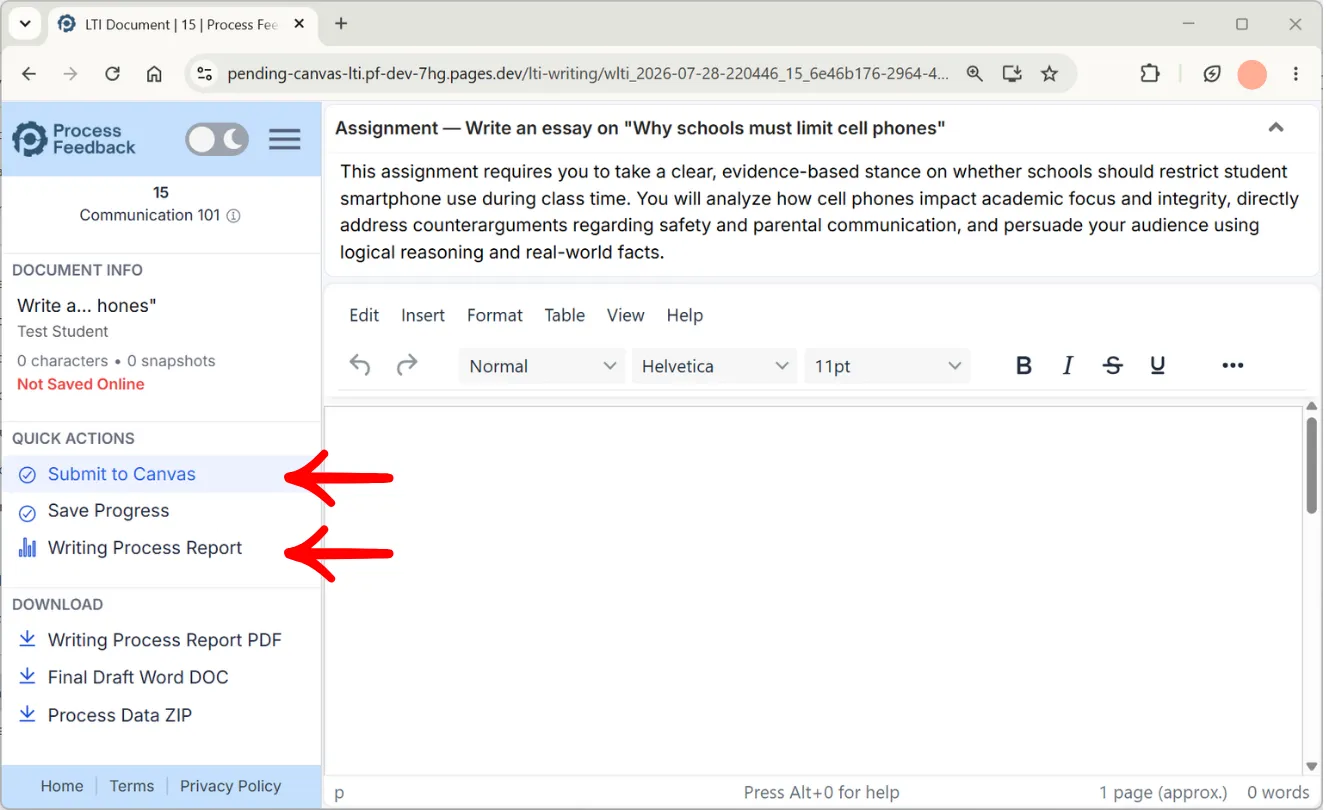
This opens the assignment submission page in a new tab, where the student sees the assignment description and an editor to complete their work. They can click Writing Process Report at any time to explore their own writing process, and Submit to Canvas when they are done.
Step 7. Back in the teacher view, two ways in
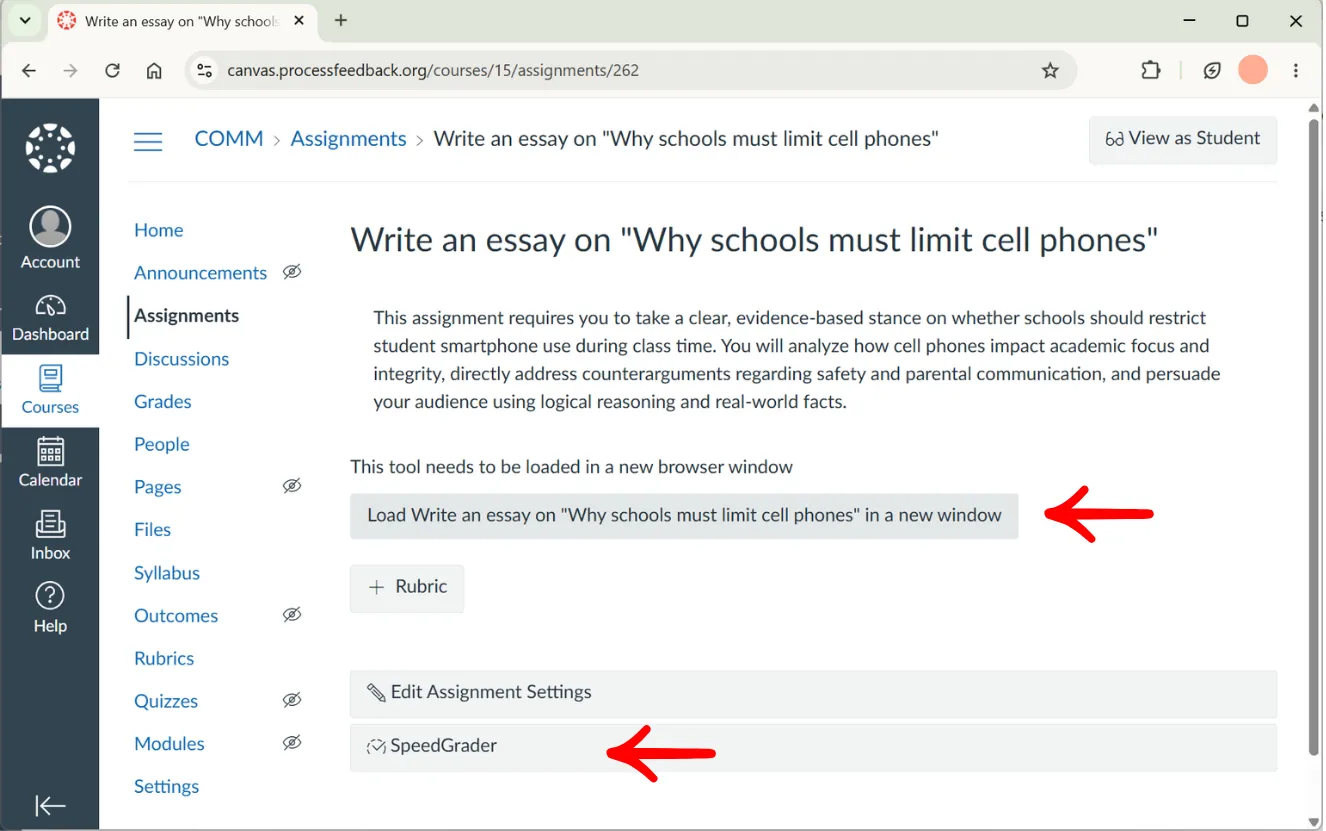
Returning to the teacher view, the instructor has two ways to explore students' writing process and submissions: open the dashboard, or open a submission in SpeedGrader.
Step 8. One submission at a time, in SpeedGrader
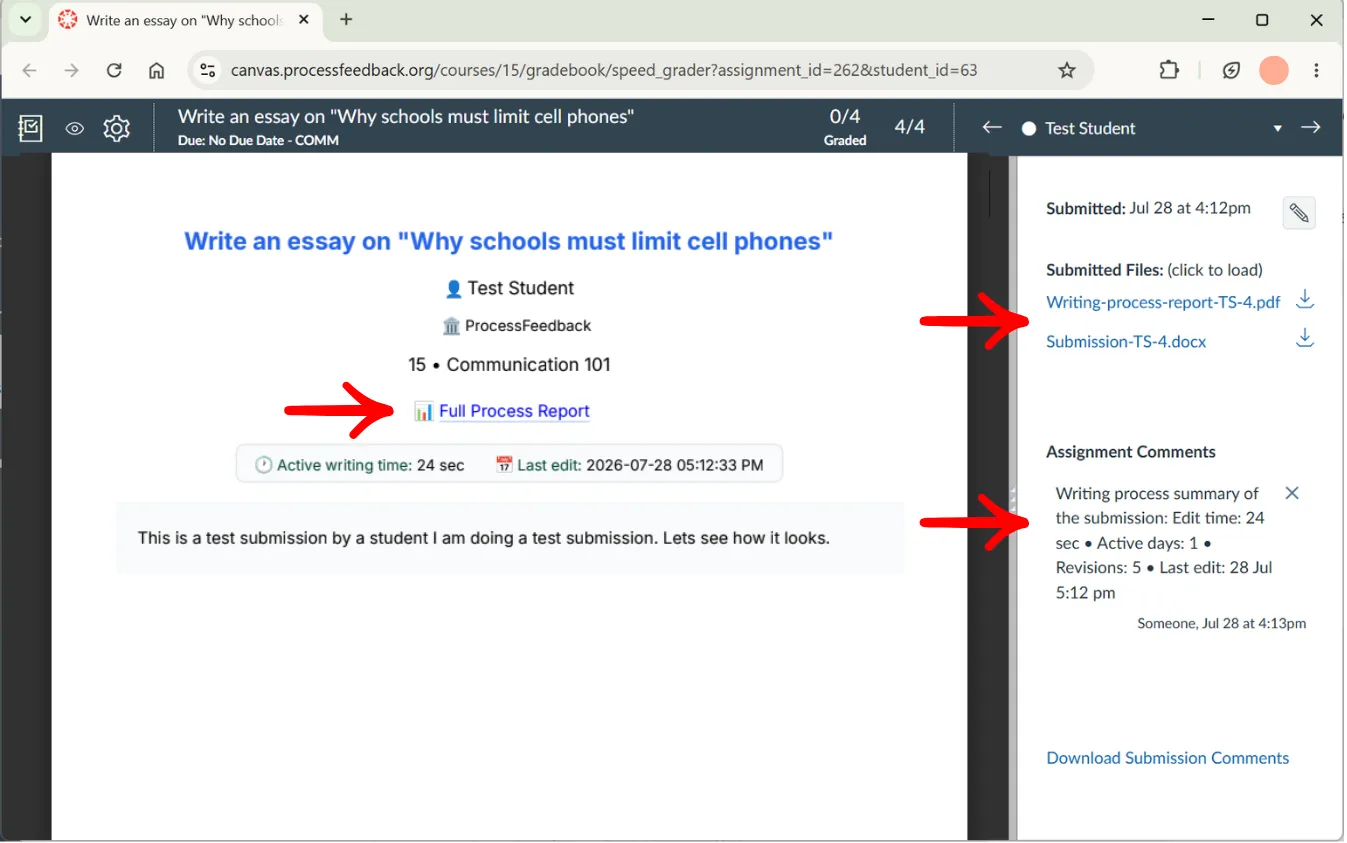
In SpeedGrader, the instructor sees the submitted writing process report PDF next to the student's document, and a quick summary of the writing process posted as a comment. The PDF also contains a link to the full interactive writing process report.
Step 9. The whole class, in the dashboard
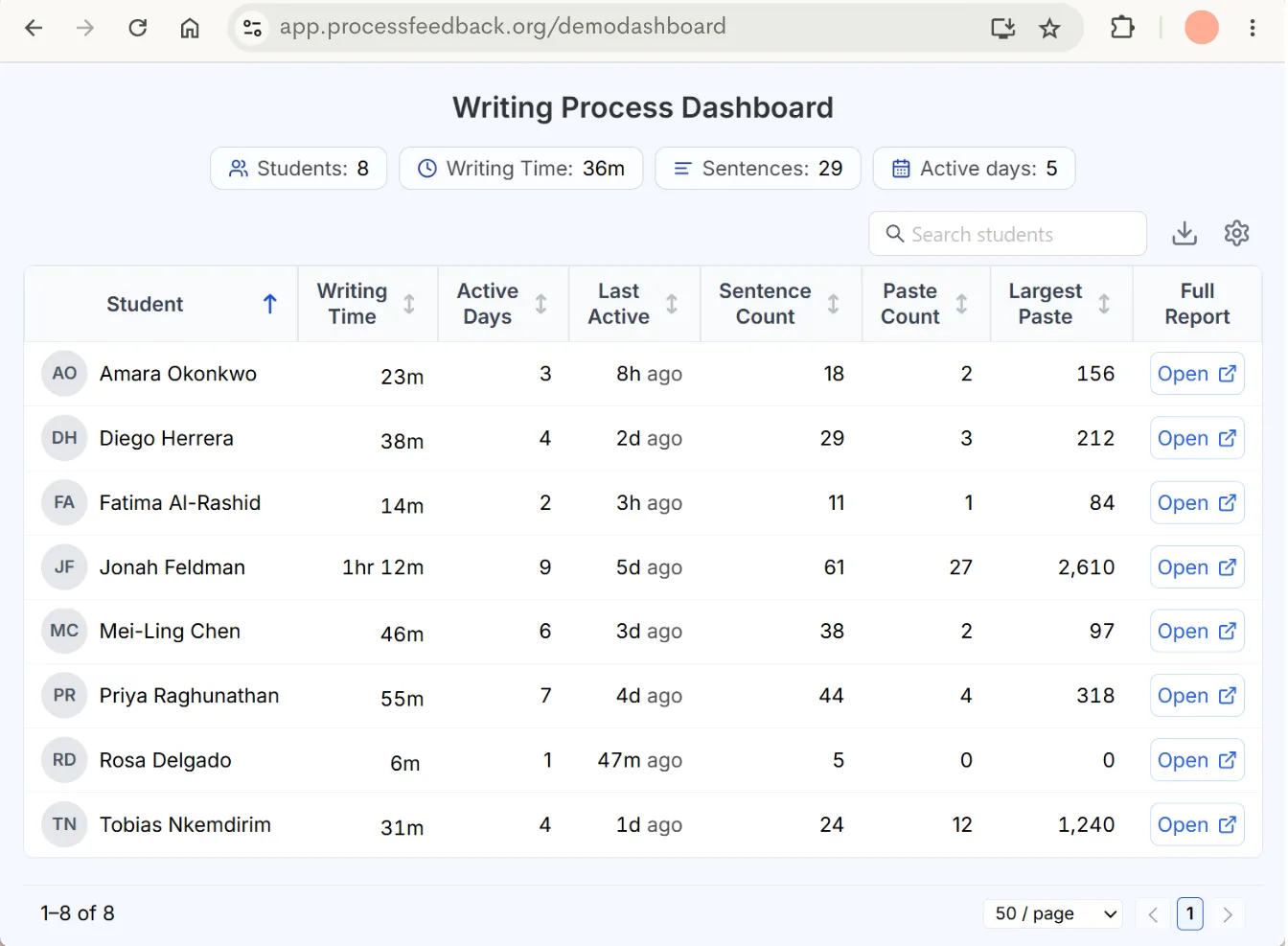
In the dashboard view, the instructor sees class averages and can sort or rank students by metrics such as writing time, active days, last active, and paste events — and open any student's full report from the same row.

Want this in your Canvas courses?
Process Feedback is free for individual teachers and students. Institution-wide LTI deployment is arranged separately.