How to create a custom writing space? A step-by-step tutorial
Process Feedback allows you to create a custom course writing space. Once the writing space is created, a link is generated. You can share this link with students, which allows them to create documents and work on their assignments or classroom tasks.
Step 1: Open the Process Feedback website
Go to: processfeedback.org
Step 2: Select create a writing space
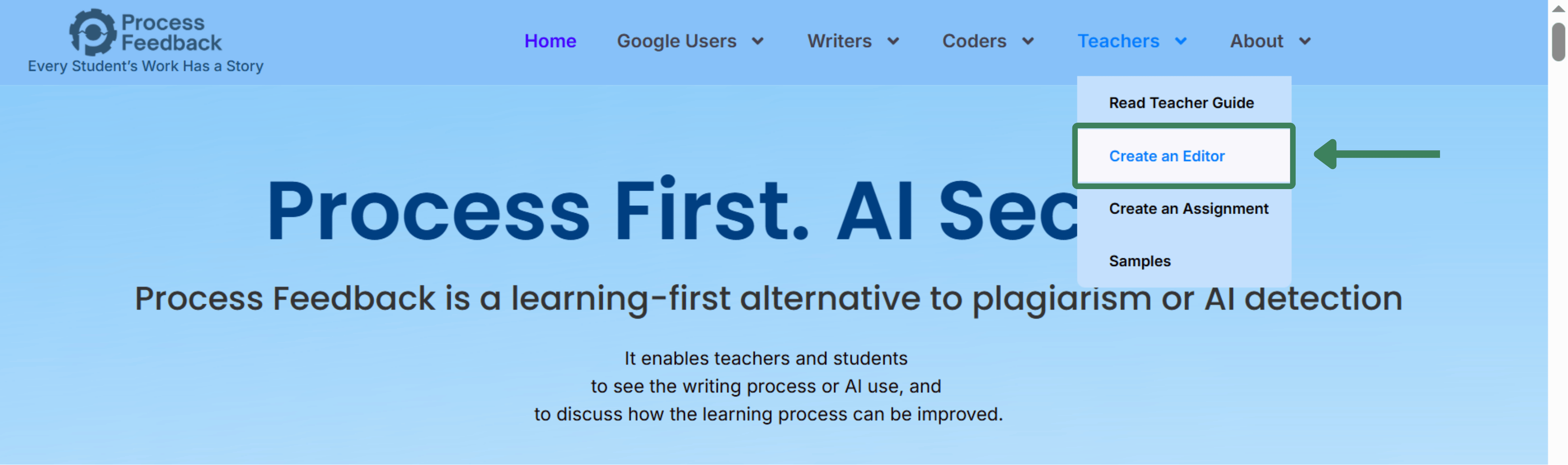
On the navigation bar, go to the teachers tab and click on “Create a Writing Space”. This will load a new page where you can view all writing spaces and create a new writing space.
Step 3: Click on create a new writing space
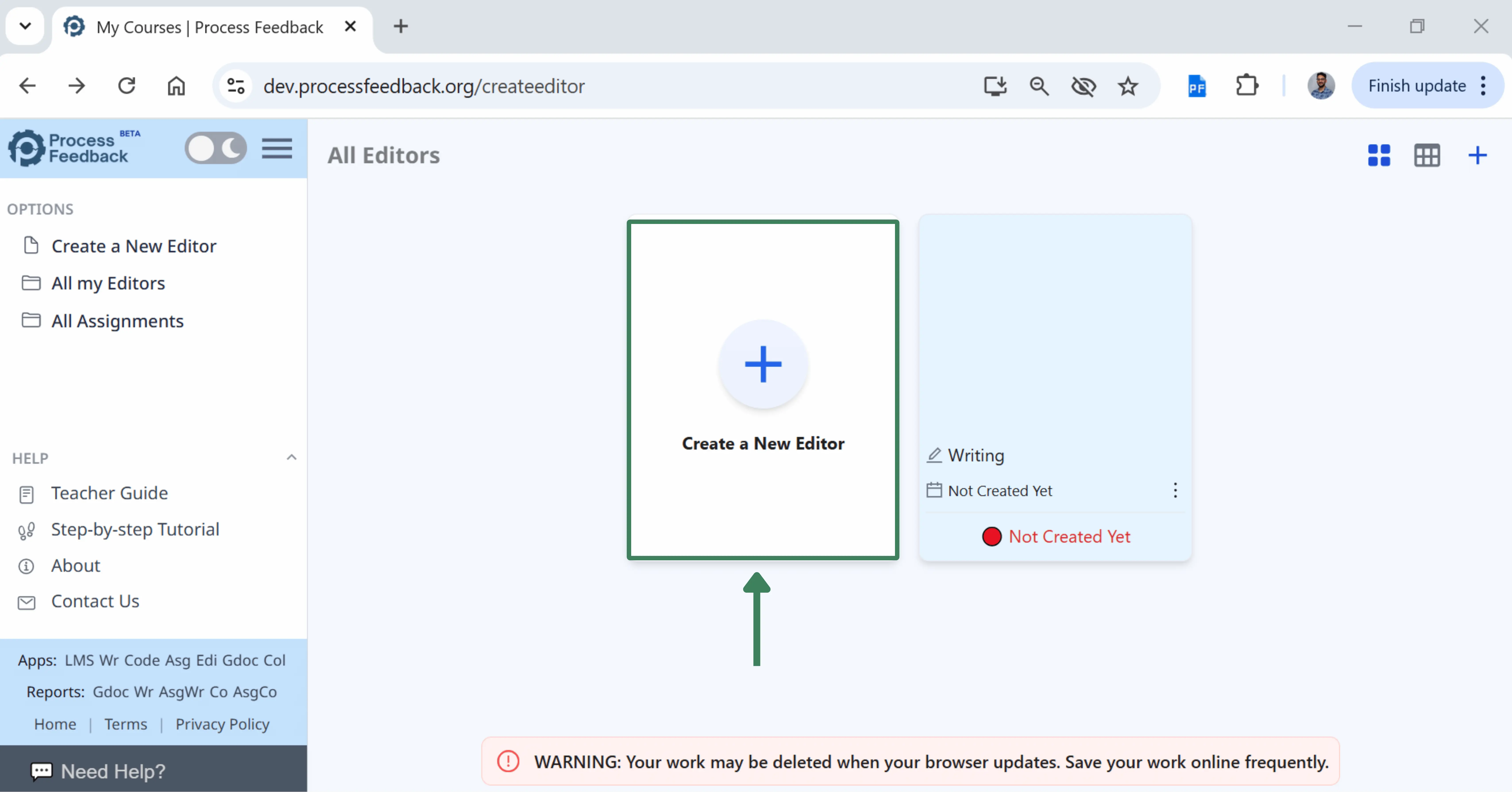
To create a new writing space, click on create a new writing space.
Step 4: Fill out the details for your writing space
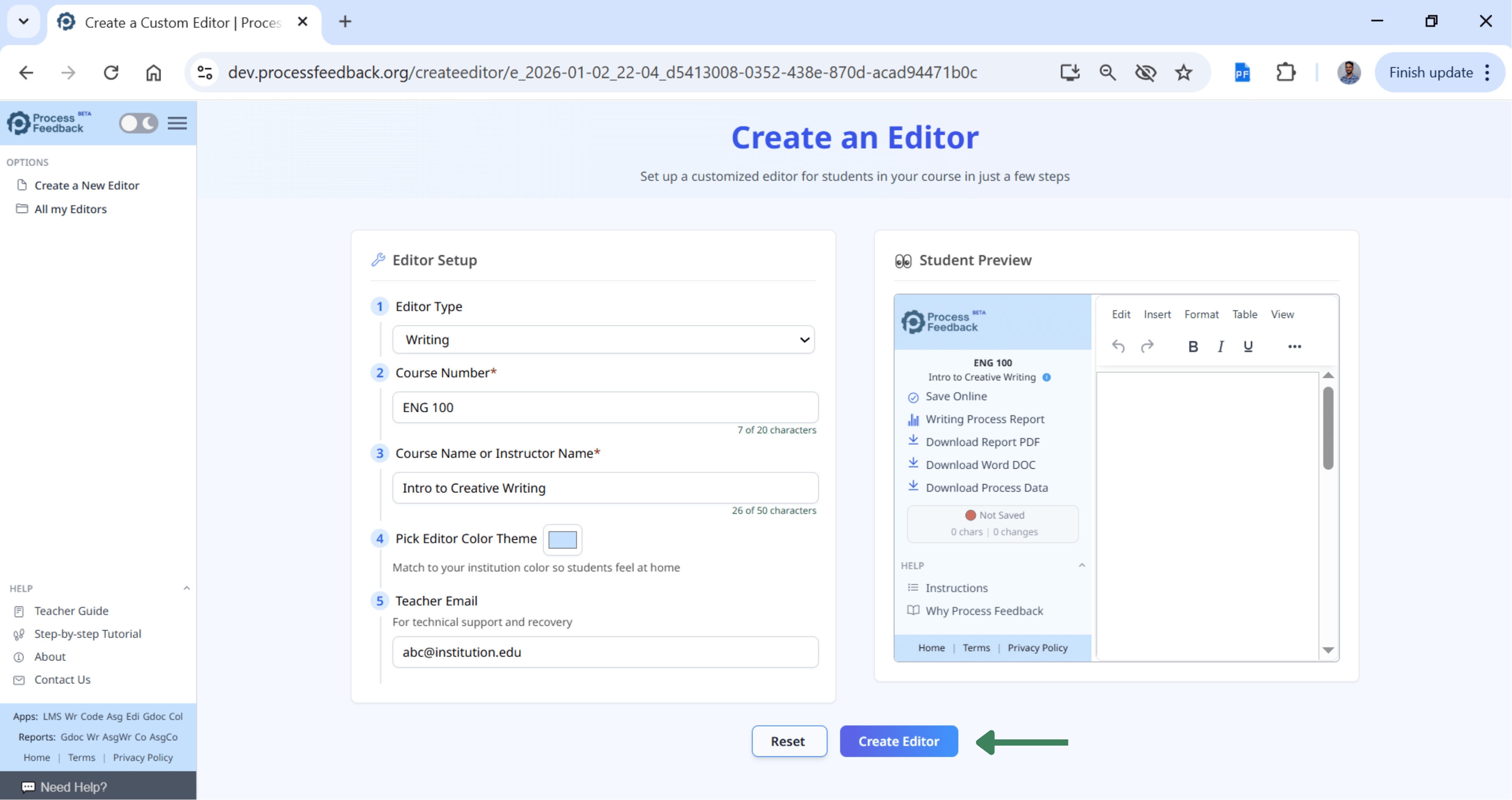
If you are creating a writing space for a writing task, select the type as “Writing”. If you are creating a space for a coding task, select the type as “Coding”.
After filling out the details, click on the “Create Writing Space” button.
Step 5: Share the writing space link
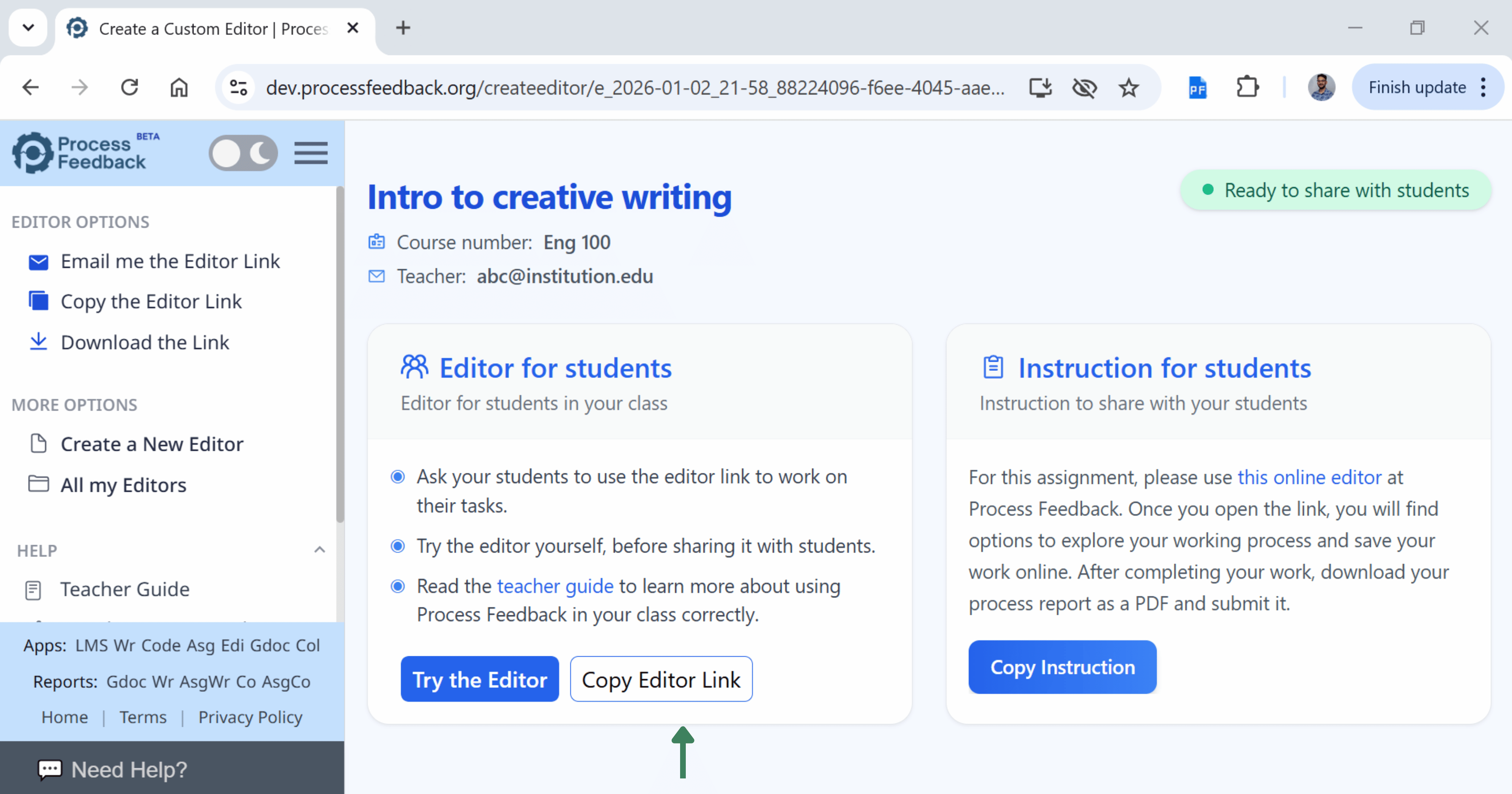
Once the writing space is created, click on the “Copy Writing Space Link” to share the writing space link with students or from the left-side menu options by clicking on “Copy the Writing Space Link”.
To preview the writing space page, click on the “Try the Writing Space”.
To share the instructions with students, click on “Copy Instruction”.
Step 6: Get the writing space link in an email
In case you did not enter your email, you can receive the writing space link in an email by clicking on the “Email me the Writing Space Link” from the writing space options in the left-side menu.
Step 7: Download the writing space link
You can download the writing space link by clicking on “Download the Link” from the writing space options in the left-side menu.