How the Process Feedback for Google Docs extension works
Process Feedback for Google Docs is a browser extension for Chrome, Firefox, and Edge. It turns the version history of a Google Doc into a writing process report.
The extension is built on a “local-first” architecture. By default, it analyzes the document and generates the report entirely on your own device, and no personal data is sent to our servers. The extension creates no user accounts. It works with the Google account you are already signed in with.
What happens when you open a report
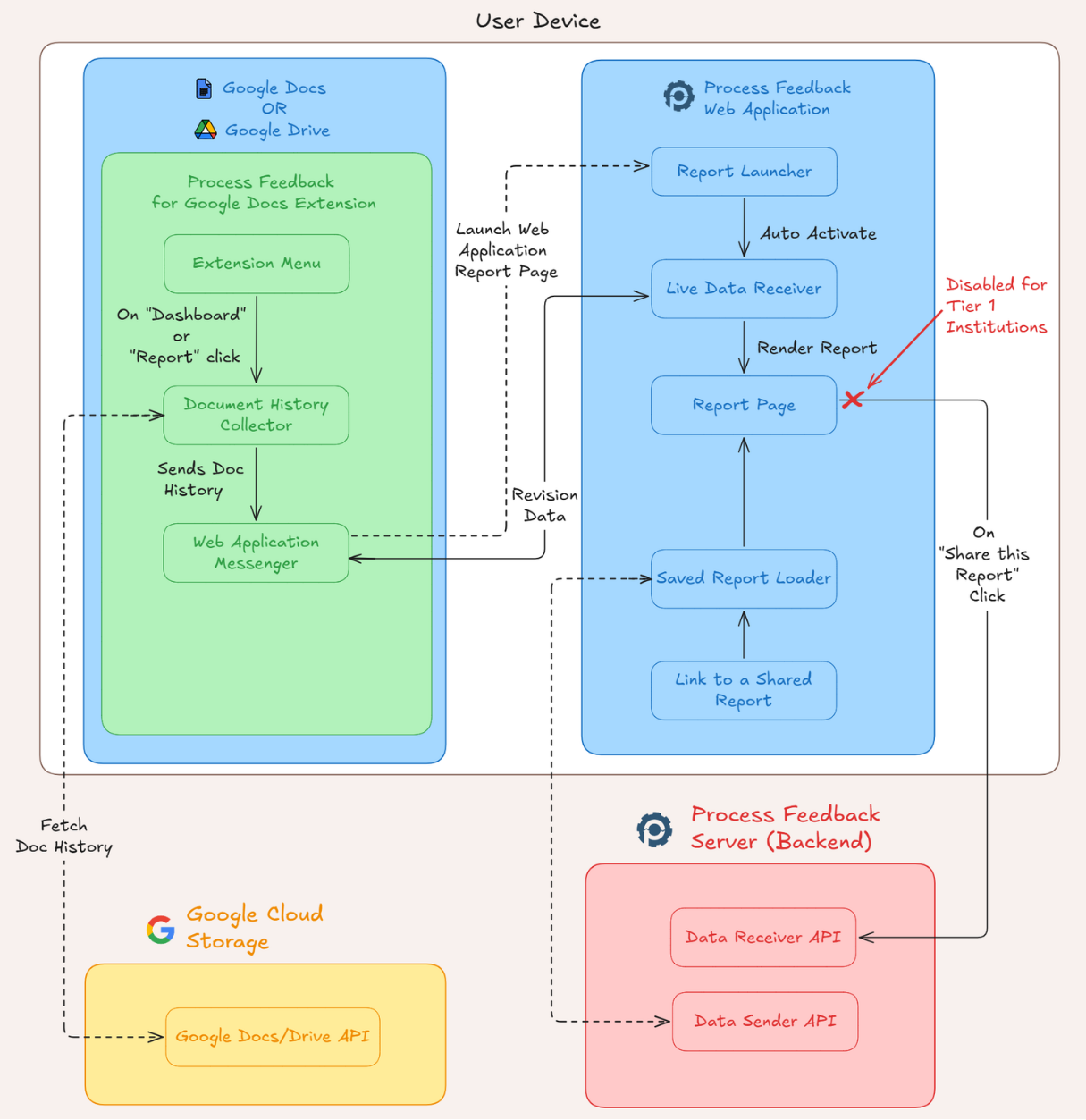
Once the extension is installed, a Process Feedback ribbon appears above every Google Doc you open. It shows edits, authors, and time, along with a Writing Process Report button. When you click Writing Process Report and then Open Report, a new tab opens at app.processfeedback.org. The tab looks like an ordinary website, but the data takes an unusual path:
- The extension runs inside your Google Docs tab and requests the document’s writing process data from Google on your behalf, using your existing Google sign-in.
- After the download finishes, the extension saves the data directly into your browser’s local storage.
- The extension tells the Process Feedback web app to load. The web app reads the data from your browser’s local storage and generates the report.
Key takeaway: The report is displayed on processfeedback.org, but the data behind it is never uploaded to our cloud. It moves from one tab to another inside your browser. No Personally Identifiable Information (PII) is sent to our servers during this default process.
When your data leaves your device
The Google Docs extension uploads data to our servers in only one case, and only when the user chooses it: the Share this Report feature.
This feature creates a link to an interactive version of the report, which the user can then share with a teacher or a peer.
- Sharing never happens automatically. The user must click Share this Report in the report sidebar.
- A clear privacy warning appears first. Data is uploaded only if the user explicitly agrees and continues.
- Users with privacy concerns can instead click Process Data (next to Open Report) to download the process data as a ZIP file and share it offline. Teachers can load these ZIP files into the teacher dashboard.
Information for institutions
1. Data security and encryption
If a user chooses to share a report, Process Feedback transfers and stores that data on Cloudflare’s managed infrastructure.
- Data in transit: All data sent between the browser and our servers is secured with Transport Layer Security (TLS) through Cloudflare’s edge network.
- Data at rest: Data is stored on Cloudflare’s managed infrastructure, using services such as R2 and D1. These services encrypt all data at rest with AES-256 (GCM), and Cloudflare manages the keys.
2. Why are Data Privacy Agreements required?
The Google Docs extension works locally by default. Institutions still often require a Data Privacy Agreement (DPA) because the Share this Report feature can be used to store student data if a user chooses to share.
3. Disabling data collection for your domain
Some institutions prefer to remove this possibility entirely. Under a Tier 1 institutional subscription, including the free one-term pilot, we disable the Share this Report feature for your institution’s Google domain (for example, @school.edu). No user signed in to Google Docs with an institutional account can then upload report data to Process Feedback servers, which keeps the extension strictly local.
To confirm that the setting is active, sign in with an institutional account, open any Google Doc, and open a report. The Share this Report option should no longer appear in the report sidebar.
4. Technical verification (for IT administrators)
IT administrators can verify the extension’s local-first design on their own, using only a browser’s developer tools. The audit confirms that the extension requests data only from Google APIs, and that no document data or personal data (PII) is sent to processfeedback.org or to any third party.
For the full step-by-step audit, see how to verify that the Process Feedback for Google Docs extension runs locally.
5. If Share this Report is disabled, can Process Feedback still collect personal data?
When sharing is disabled for your domain, Process Feedback does not store or receive report data from any Google account in that domain.
The domain setting, however, covers only institutional Google accounts. If a student opens a document with a personal Google account (for example, by sharing the document to student@gmail.com), that account is not governed by the institution’s domain policy and can still use the sharing feature.
Co-authorship is a common case where this boundary blurs. Suppose Student A belongs to an institution that has disabled sharing, and Student B is added as a co-author on the same Google Doc through a personal email address. When Student B opens the extension with that personal account, the institution’s domain policy does not apply. Student B can still share the report and upload it to Process Feedback servers, even though the document started in an institutional context.
Users may also choose to give personal information through the optional Live Chat support feature. They share this information on purpose, and the system does not collect it automatically. For institutions with a Tier 1 subscription, Live Chat is disabled for the institution’s domain, and support is provided by email only.
If your institution needs an organizational guarantee that covers every channel, including support conversations and other Process Feedback tools, a signed Data Privacy Agreement (DPA) provides that assurance. See how to pilot Process Feedback for Google Docs to get started.
NOTE: If you have further technical questions about the Google Docs extension’s architecture or security, please email us.
Related guides
- Step-by-step: How to install the extension for Google Docs
- Step-by-step: How to use the Process Feedback for Google Docs extension
- How to open the teacher dashboard to compare multiple Google Docs
- How to pilot Process Feedback for Google Docs at your institution
- How to verify that the Process Feedback for Google Docs extension runs locally