How Process Feedback works in Word Online
From installing the extension to sharing the writing process report
Students must install the extension before writing
Word Online is different from Google Docs. Unlike Google Docs, Word Online keeps no edit history. This means students must install the extension ahead of time if they want to capture their writing process.
Once installed, the extension captures the document's writing process, snapshot by snapshot, and keeps those snapshots in the browser.
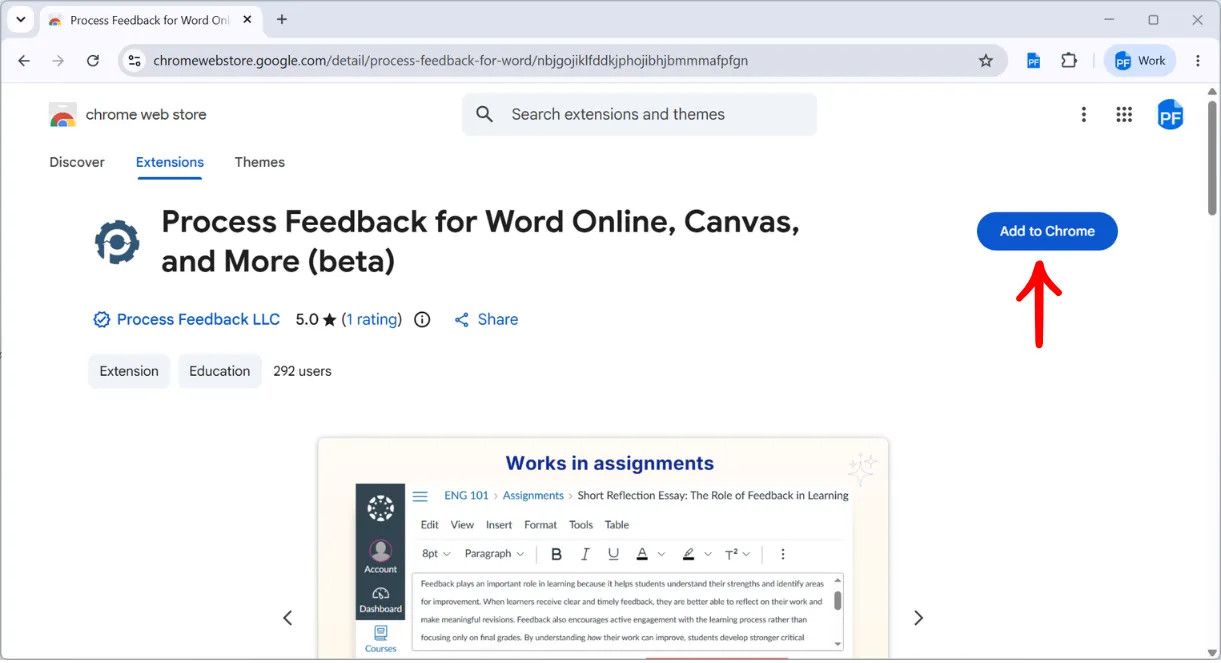
Step 1. Install the extension
Process Feedback for Word Online is a Chrome extension, currently in beta: Process Feedback for Word Online and Web. You do not need to create an account.
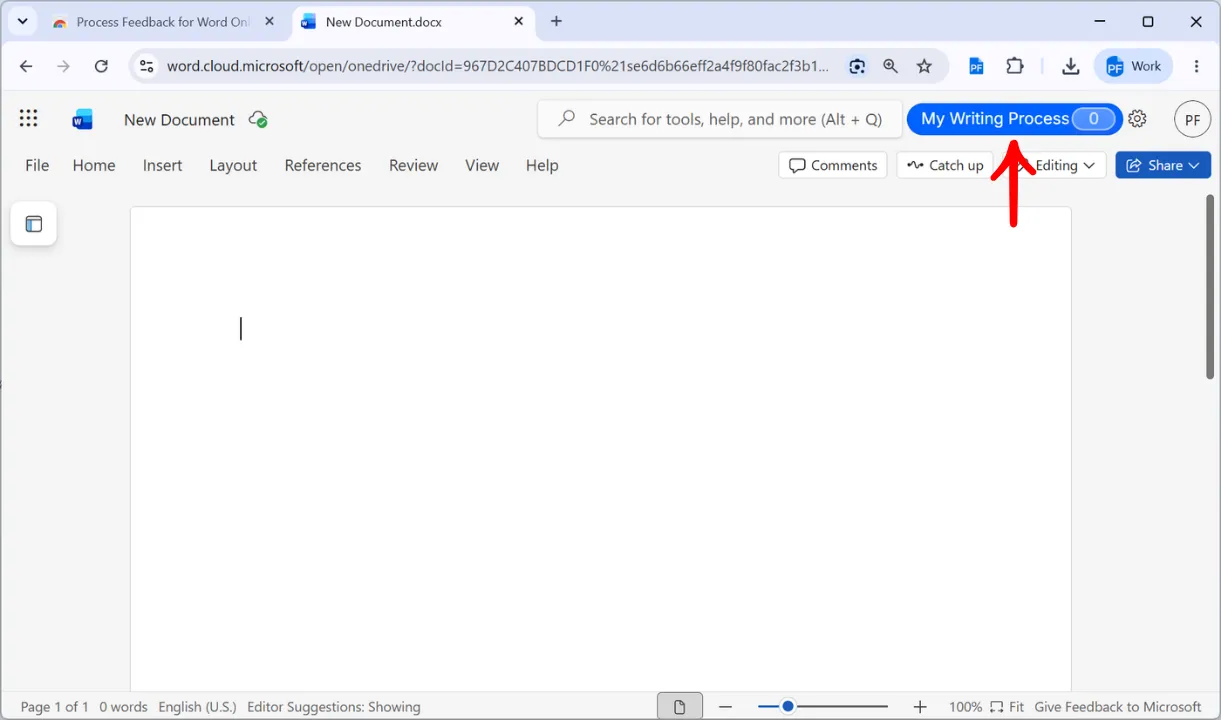
Step 2. Open a Word Online document
Open any document in Word for the web. Once the extension is installed, a My Writing Process button appears in the Word toolbar, with a counter next to it. On a document that has not been written in yet, the counter reads 0.
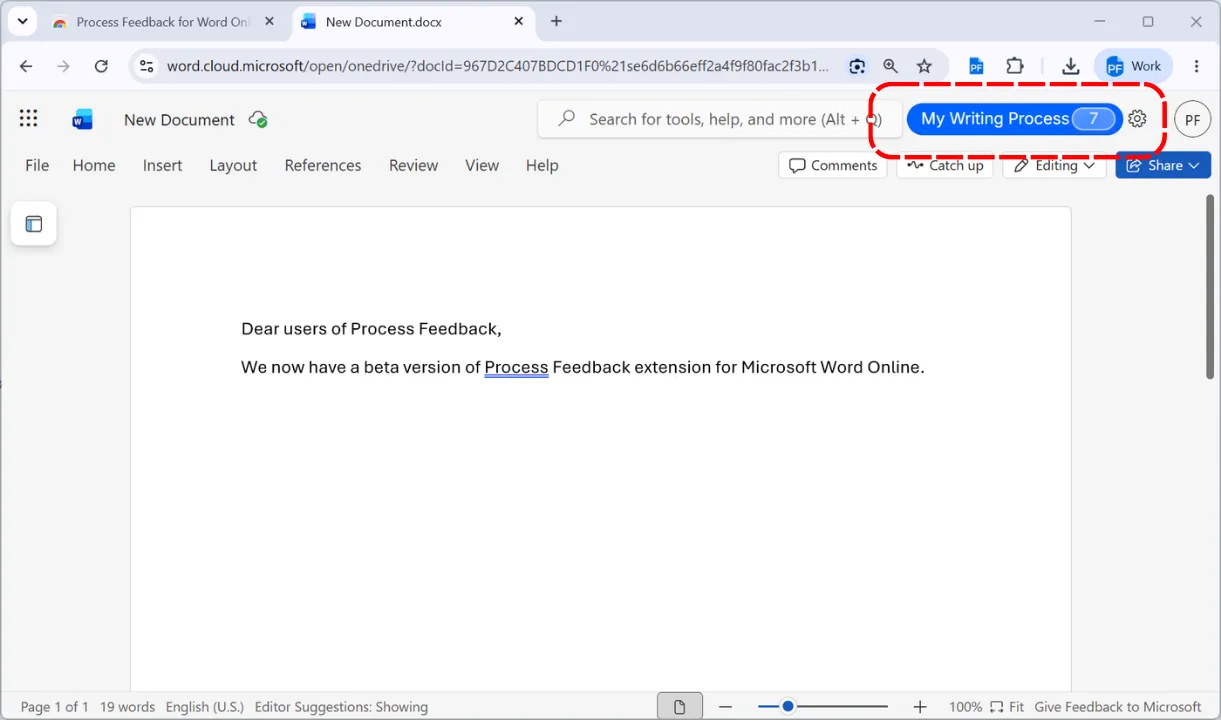
Step 3. Write — and watch the snapshot count go up
As you write on the document, the extension quietly takes snapshots of it, and the counter next to the button climbs. This counter is the simplest confirmation that the writing process is being captured.
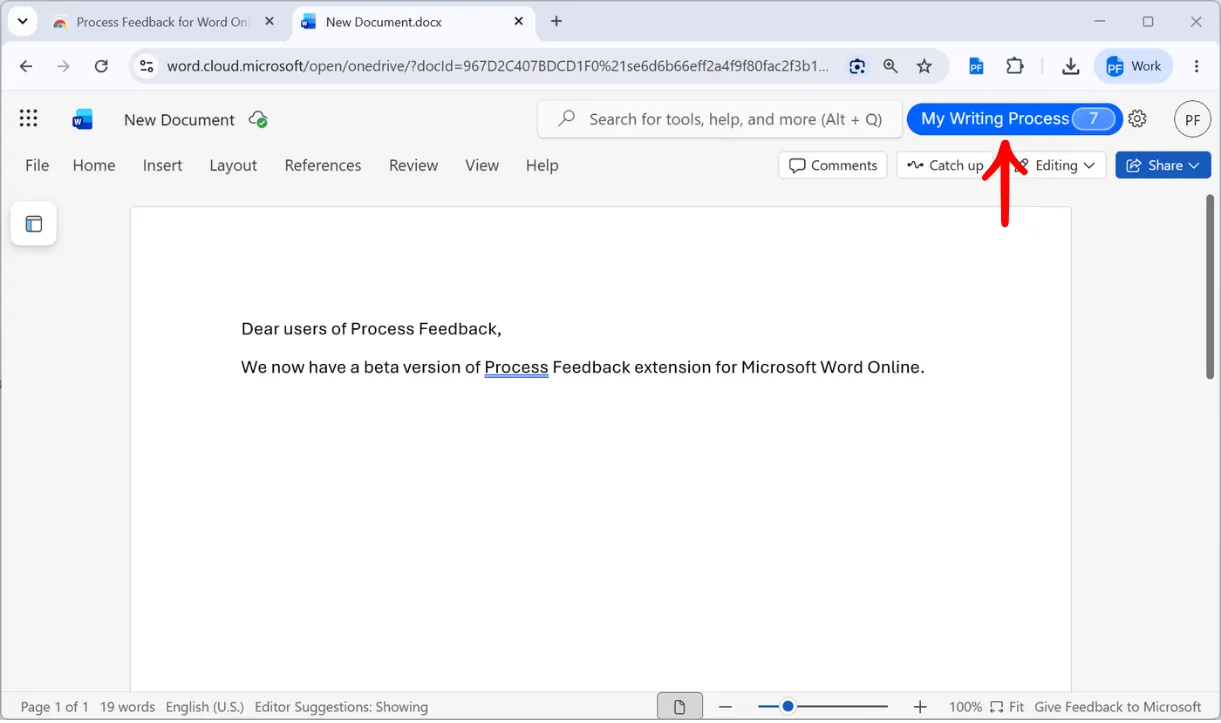
Step 4. Click My Writing Process
When the writing is done — or at any point along the way — clicking My Writing Process opens the extension's dialog.
Step 5. Add the document and author details
The dialog asks for a title for the work, and the writer's name, institution, and email. These appear at the top of the report, so a teacher can tell whose work they are looking at.
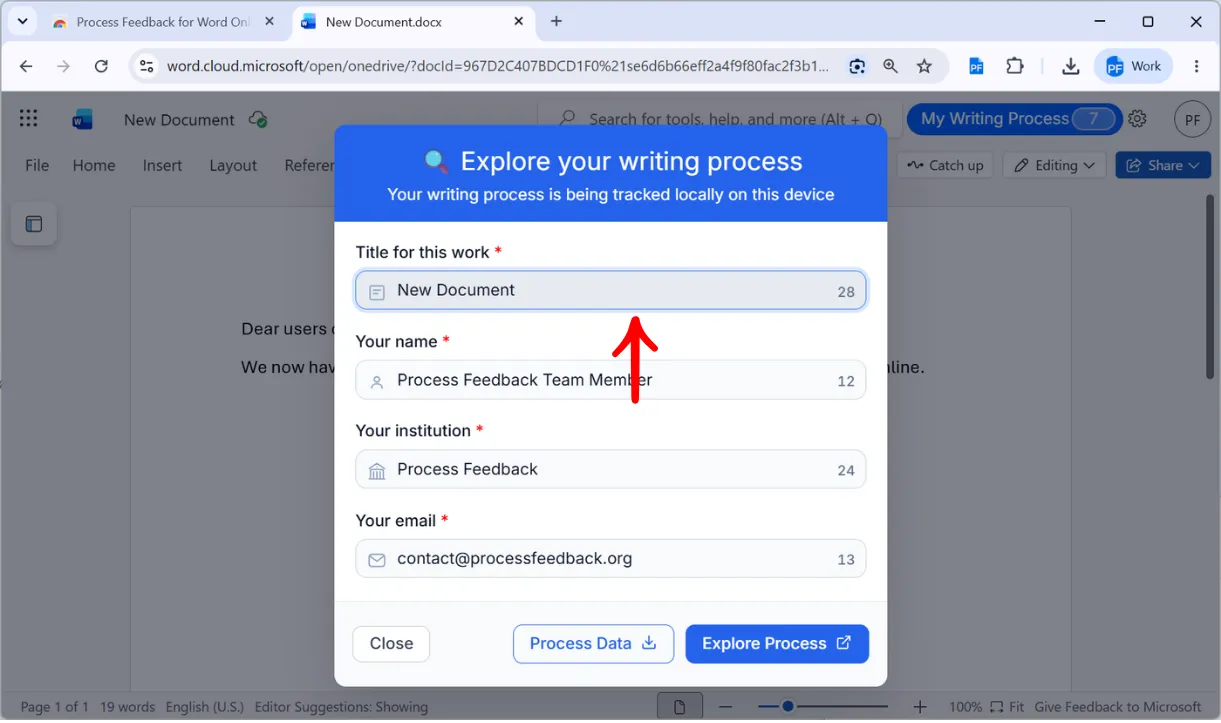
Step 6. Click Explore Process
Explore Process hands the captured snapshots to Process Feedback and opens the report in a new tab.
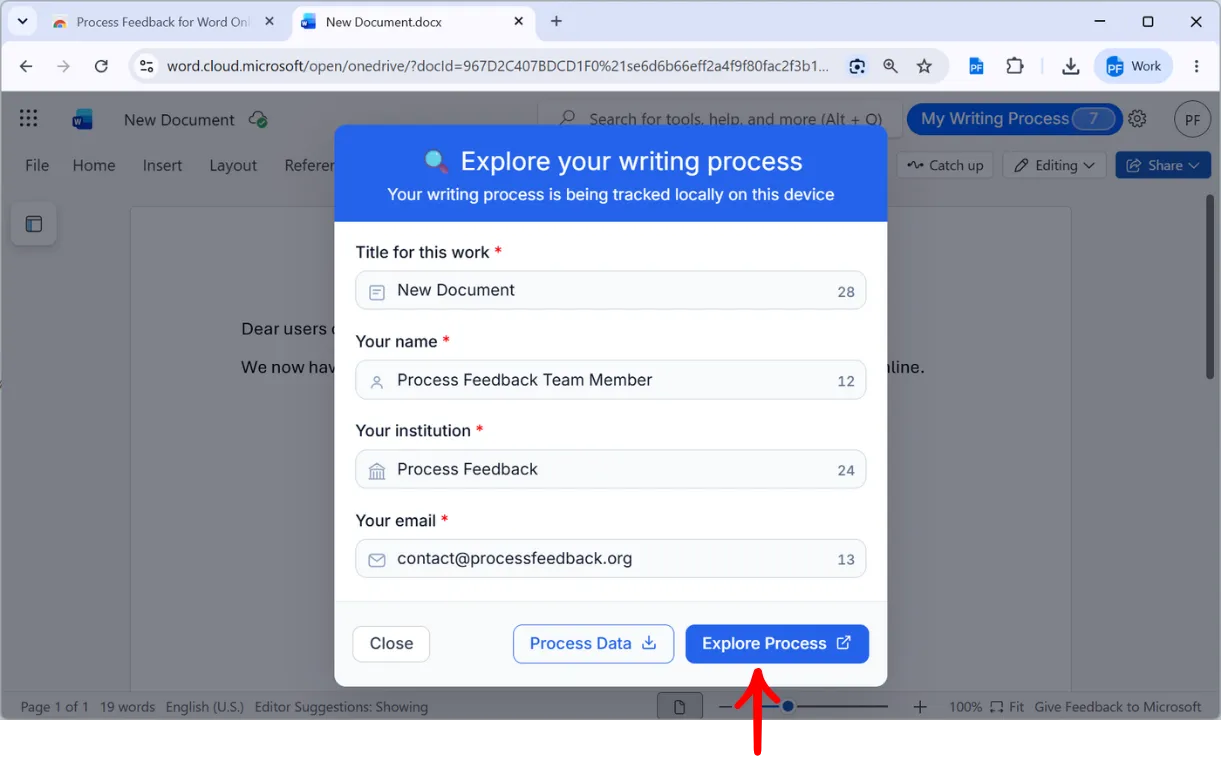
Step 7. Choose the timeline detail and open the report
Process Feedback offers one option before building the report — the timeline detail, which controls how many timepoints the replay is broken into. The Standard default is fine for most documents.
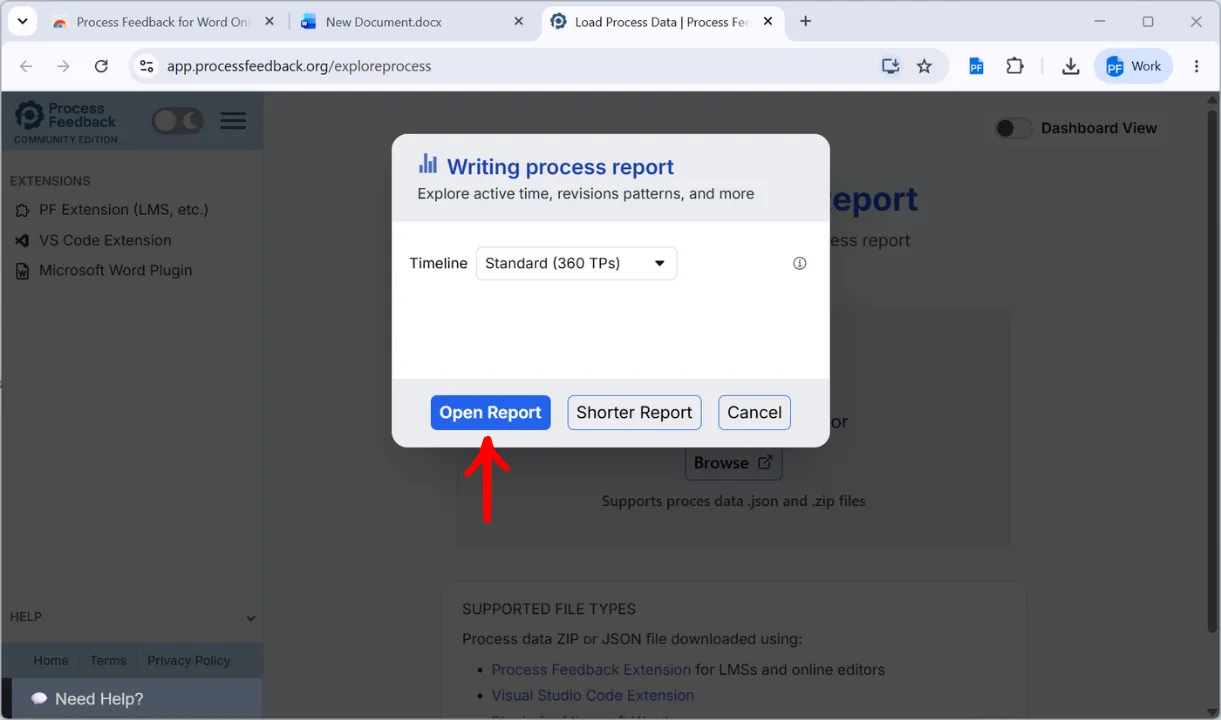
Step 8. The writing process report opens
The report opens in a new tab with About The Document — its title, its source (MS Word Online), and the author — followed by Writing Replay. Everything is generated in the browser.
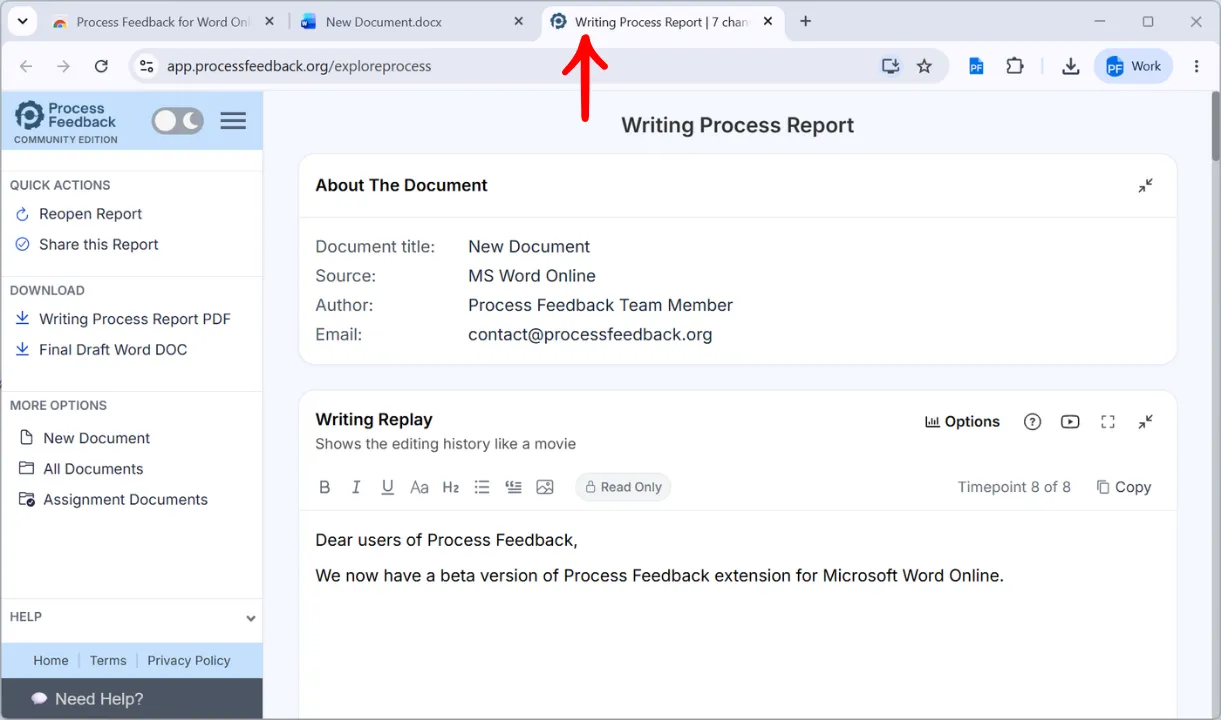
Step 9. Share the report or download it as a PDF
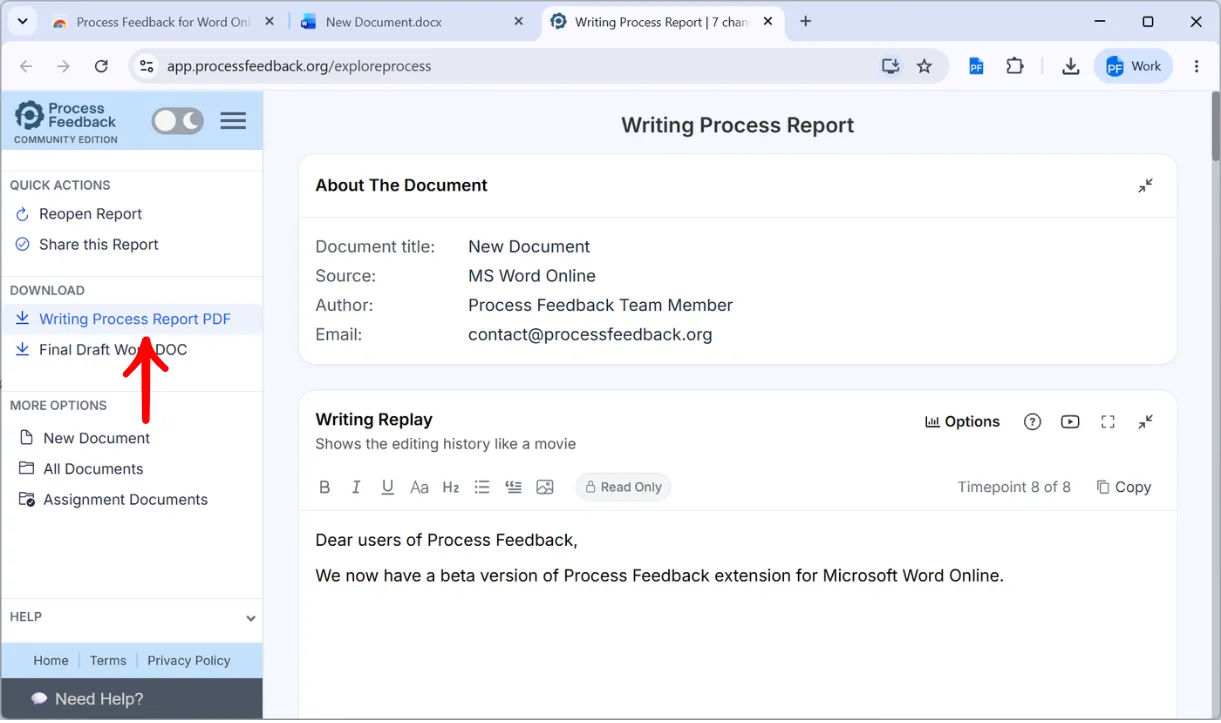
From the sidebar, the report can be shared as a link (Share this Report) or downloaded as a PDF. Many teachers ask for the PDF, or for the shareable link so they can explore the interactive charts themselves.
Nothing is collected — the whole process stays in the browser
The extension does not collect any data to a server. Snapshots are stored locally, in the browser on the student's own device, and the report is generated in the browser from those snapshots. Nothing is uploaded to us, and no Process Feedback account is created.
The writer decides what, if anything, leaves their machine: a shared report link, a PDF, or a downloaded process data file they hand to a teacher. If they do nothing, the writing process stays with them.
The flip side of everything being local is that it is not permanent. The snapshots live in that one browser, on that one device, and can be lost without warning. This can happen when the browser is updated, reinstalled, or reset, when browsing data or site data is cleared (by the student, a cleanup tool, or an IT policy), when the extension is removed or reinstalled, or simply when you move to another browser, computer, or profile.
So treat the snapshots as temporary: open the report and save what you need — the PDF, or the process data file — while the work is still fresh, rather than counting on the writing process still being in the browser weeks later.

Want to try this with your own document?
Process Feedback for Word Online is in beta, free for teachers and students, and installs in a few seconds. No data is collected — the writing process is kept locally in the browser. Just remember to install it before the writing starts, and to save the report before the browser storage is cleared.